How to "Suppress file content notification" in Dell Encryption Enterprise Shield and Dell Encryption Personal
Summary: How to "Suppress file content notification" in Dell Encryption Enterprise Shield (Formerly Dell Data Protection | Enterprise Edition Shield) and Dell Encryption Personal (formerly Dell Data Protection | Personal Edition). ...
This article applies to
This article does not apply to
This article is not tied to any specific product.
Not all product versions are identified in this article.
Symptoms
Affected Products:
- Dell Encryption Enterprise Shield
- Dell Data Protection | Enterprise Edition Shield
- Dell Encryption Personal
- Dell Data Protection | Personal Edition
Dell Encryption Enterprise Shield (formerly Dell Data Protection Enterprise Edition Shield) and Dell Encryption Personal (formerly Dell Data Protection Personal Edition) has by default on-screen status notifications that display at the bottom-right side of the user's screen as computer events occur. The on-screen notifications are also known to end users as toasters or pop-up screens. These can be suppressed by changing the endpoint or server's settings.
Cause
Not Applicable
Resolution
To disable the on-screen notifications:
- Expand populations and select Enterprise in your Dell Security Management Server (formerly Dell Data Protection | Enterprise Edition) management console web user interface.
- Selection File/Folder Encryption (FFE) on the Security Policies tab
- Scroll down and select Show advanced settings.
- Scroll down to Suppress file content notification and select the box to put a check in it.
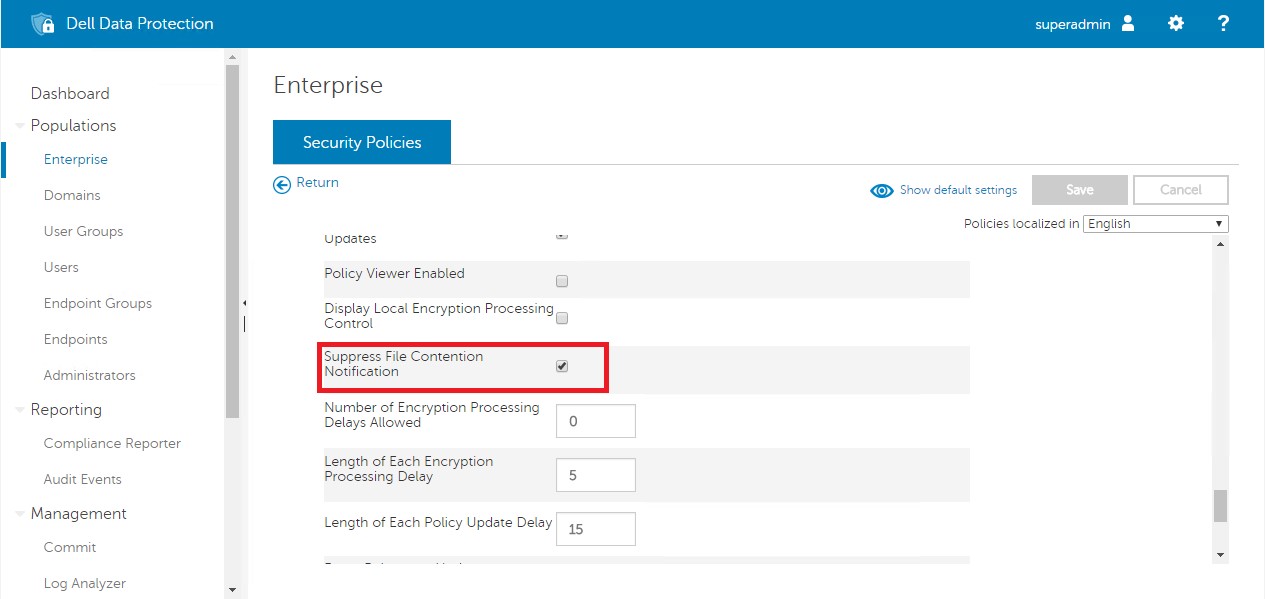
Figure 1: (English Only) Suppress file contention notification" policy change screen
To disable the on-screen notifications:
- Go to Enterprise section of your Dell Data Protection | Enterprise Edition Server's management console,
- Under Enterprise, Security Policies tab
- Selection Windows Encryption under Policy
- Scroll down to Suppress file content notification and set the value to true.

Figure 2: (English Only) Suppress file content notification policy change screen
Warning: The next step is a Windows Registry edit:
- Back up the Registry before proceeding, reference How to Back Up and Restore the Registry in Windows
.
- Editing the Registry can cause the computer to become unresponsive on the next reboot.
- Contact Dell Data Security International Support Phone Numbers for assistance if you have concerns about performing this step.
Apply the suppress preference through the endpoint's registry settings by adding the following key:
- Go to [HKEY_CURRENT_USER\Software\CredantCMGShield].
- Edit "NotifyOnlyWhenPolicyRetrieved" = REG_DWORD:0
- Set the value to 1.
Note: Dell Data Protection | Enterprise Edition customers could apply this registry setting on the endpoint instead of modifying the server policy.
To contact support, reference Dell Data Security International Support Phone Numbers.
Go to TechDirect to generate a technical support request online.
For additional insights and resources, join the Dell Security Community Forum.
Affected Products
Dell EncryptionArticle Properties
Article Number: 000126164
Article Type: Solution
Last Modified: 04 Mar 2024
Version: 8
Find answers to your questions from other Dell users
Support Services
Check if your device is covered by Support Services.