How to Configure the Dell Security Management Server to Display the BIOS Serial Number
Summary: A configuration change can be made on the backend Dell Security Management Server to allow the BIOS serial number to be displayed as the endpoint serial number instead of the Baseboard (motherboard) serial number. ...
This article applies to
This article does not apply to
This article is not tied to any specific product.
Not all product versions are identified in this article.
Instructions
Affected Products:
- Dell Security Management Server Enterprise
- Dell Security Management Server Virtual
Affected Versions:
- v10.2.11 and Later
In environments where endpoints have no Baseboard (motherboard) serial number endpoints may not have a serial number that is displayed in the console.
Dell Security Management Server
- Edit the
InventoryObjects.configfile in<Security Management server Install Location>\Enterprise Edition\Core Server - Locate the child element
<property name="UseBiosSerialNumber" value="false"/> - Change the value from false to true.
Note: This element is listed in two places, and both must be updated:
- Once under the parent element
<object name="DeviceInventoryQueueProcessor" singleton="false" type="Credant.Inventory.Processor.DeviceInventoryQueueProcessor, Credant.Inventory.Processor" > - And again under the parent element
<object name="AgentInventoryQueueProcessor" singleton="false" type="Credant.Inventory.Processor.AgentInventoryQueueProcessor, Credant.Inventory.Processor" >

Figure 1: (English Only) InventoryObjects.config update 1
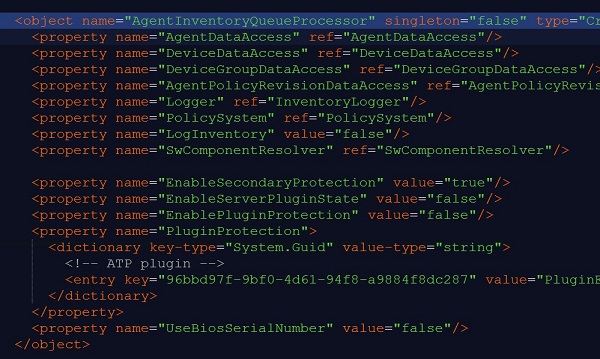
Figure 2: (English Only) InventoryObjects.config update 2
- Save the file and then restart the Dell Core Server service. For more information about restarting services, reference How to Stop and Start Services in Dell Security Management Server.

Figure 3: (English Only) Restart Dell Core Server
Dell Security Management Server Virtual
- Log in to the Dell Security Management Server Virtual appliance.
- Select Launch Shell.

Figure 4: (English Only) Launch Shell
- Switch to the
dellsupportuser by typingsu dellsupportand press Enter.
Note: The default password is
dellsupport.
- Next open the InventoryObjects.config file by typing
sudo vi /opt/dell/server/inventory-server/InventoryObjects.configand press Enter.

Figure 5: (English Only) sudo vi /opt/dell/server/inventory-server/InventoryObjects.config
- Go to
<property name="UseBiosSerialNumber" value="false"/> - Press I to enter INSERT mode (this is noted at the bottom left of the VI text editor window).
- Change the value from true to false.
Note: This element is listed in two places, and both must be updated:
- Once under the parent element
<object name="DeviceInventoryQueueProcessor" singleton="false" type="Credant.Inventory.Processor.DeviceInventoryQueueProcessor, Credant.Inventory.Processor" > - And again under the parent element
<object name="AgentInventoryQueueProcessor" singleton="false" type="Credant.Inventory.Processor.AgentInventoryQueueProcessor, Credant.Inventory.Processor" >

Figure 6: (English Only) <property name="UseBiosSerialNumber" value="false"/>
- Press the ESC key followed by : and
wqand then ENTER to save and quit. - Switch back to
delluserby typing exit and pressing ENTER. - Return to the Administration Console by typing exit and pressing ENTER a second time.
- Then restart the services by going to Basic configuration > Stop Application.
- Once the services have been stopped, start the services by going to Basic configuration > Start Application.
To contact support, reference Dell Data Security International Support Phone Numbers.
Go to TechDirect to generate a technical support request online.
For additional insights and resources, join the Dell Security Community Forum.
Affected Products
Dell EncryptionArticle Properties
Article Number: 000129452
Article Type: How To
Last Modified: 07 May 2024
Version: 9
Find answers to your questions from other Dell users
Support Services
Check if your device is covered by Support Services.