如何存取 Dell Encryption Personal 本機管理主控台
Summary: 如何在 Dell Encryption Personal (先前稱為 Dell Data Protection Personal Edition) 中存取本機管理主控台。
This article applies to
This article does not apply to
This article is not tied to any specific product.
Not all product versions are identified in this article.
Symptoms
受影響的產品:
- Dell Encryption Personal
- Dell Data Protection | Personal Edition
受影響的版本:
- v7.0 及更新版本
本機管理主控台 (LMC) 可用來管理 Dell Encryption Personal (先前稱為 Dell Data Protection |個人版)。
Cause
不適用
Resolution
LMC 可透過以下方式開啟:
若要透過系統匣存取 LMC:
- 在含有 Dell Encryption Personal 的端點上,按一下系統匣右下方的箭頭。

圖 1:(僅英文)系統匣
- 以滑鼠右鍵按一下 Dell Encryption Personal 圖示,然後選取開啟 Dell Data Protection |加密。
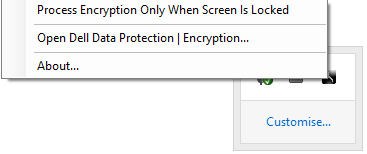
圖 2:(僅英文)以滑鼠右鍵按一下 Dell Encryption Personal
開啟後,LMC 可用於:
- 管理加密
- 變更系統管理員密碼
- 託管恢復金鑰
- 傳輸或匯入設定
- 修改範本
- 修改原則
- 識別產品版本
- 隱藏 Windows 加密圖示
若要透過「檔案選項」存取 LMC:
- 在具有 Dell Encryption Personal 的端點上,以滑鼠右鍵按一下任何檔案,然後選取 開啟 Dell Encryption。
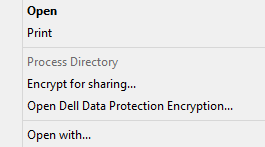
圖 3:(僅英文)開啟 Dell Data Protection Encryption
開啟後,LMC 可用於:
- 管理加密
- 變更系統管理員密碼
- 託管恢復金鑰
- 傳輸或匯入設定
- 修改範本
- 修改原則
- 識別產品版本
- 隱藏 Windows 加密圖示
如要聯絡支援部門,請參閱 Dell Data Security 國際支援電話號碼。
請前往 TechDirect,以線上產生技術支援要求。
如需更多深入見解與資源,請加入 Dell 安全性社群論壇。
Affected Products
Dell EncryptionArticle Properties
Article Number: 000129497
Article Type: Solution
Last Modified: 21 Mar 2024
Version: 9
Find answers to your questions from other Dell users
Support Services
Check if your device is covered by Support Services.