How to Resolve "Your audit database has reached at least 95% of its maximum allotted storage" Notification in Dell Security Management Server
Summary: Dell Security Management Server receives notifications, "Your audit database has reached at least 95% of its maximum allotted storage".
This article applies to
This article does not apply to
This article is not tied to any specific product.
Not all product versions are identified in this article.
Symptoms
Affected Products:
- Dell Security Management Server
- Dell Security Management Server Virtual
- Dell Data Protection | Enterprise Edition
- Dell Data Protection | Virtual Edition
You may see a critical notification that is logged in your Dell Security Management Server console: Your audit database has reached 95% of its maximum storage allotment 2 GB.
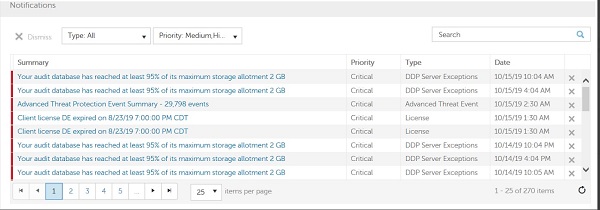
Figure 1: (English Only) Dell Security Management Server notifications
This article describes what the notification indicates and provides some remediation steps that can be taken to reduce the number of events being generated.
Cause
The audit database stores events that are uploaded from endpoints running Advanced Threat Protection, Web Control, and Firewall (if enabled) plugins. Some examples of events would be threats being found, threats being terminated or quarantined, and scripts being blocked or terminated. The events being stored in the audit database can be found under Enterprise > Advanced Threat Events in the Security Management Server console.
When the audit database reaches 95% of its maximum allotted size, it logs the notification above in the server console. The audit database runs a batch job every two hours to trim older events and make room for newer events. The audit database size can be increased to default values for larger environments if needed. Contact Dell Data Security ProSupport reference Dell Data Security International Support Phone Numbers for modifying the configuration.
Note: Security Management Server v10.2.3 and newer have performance improvements in the audit database cleanup mechanism.
Most of the events endpoints generated (possible on many different devices) are going to stem from script control events or memory protection events that are repeatedly being run. To reduce the number of events endpoints generate, you can exclude or allowlist known safe scripts and processes so that they are no longer generating alerts.
Resolution
The quickest way to identify these events is going to be through generating reports on the Security Management Server, through the Advanced Threats tab and the Advanced Threat Events tab. Using the information in the reports you can build the necessary exclusions to reduce the number of events generated by endpoints.
There are two methods below that can be used to pull reports that provide the events that are being generated.
In the Advanced Threats tab, we can get the list of scripts present in the environment, and the number of times the scripts have been ran. This can be done by selecting:
- Enterprise
- Advanced Threats
- Protection
- Script Control
- Export
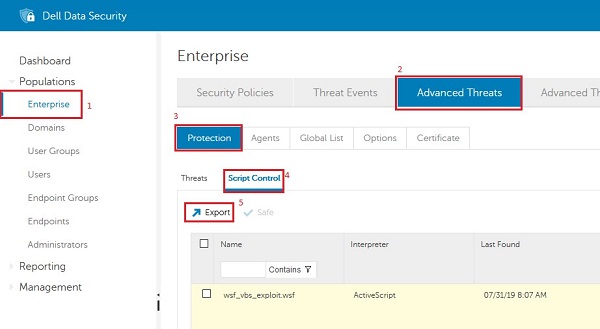
Figure 2: (English Only) Export scripts
Enabling the Threat Data Report provides a quick snapshot as to what is happening in the environment, this is under:
- Enterprise
- Advanced Threats
- Options
- Threat Data Report
Note: Data is generated daily. If the Threat Data Report was not already enabled, it may take up to 24 hours before data becomes available.
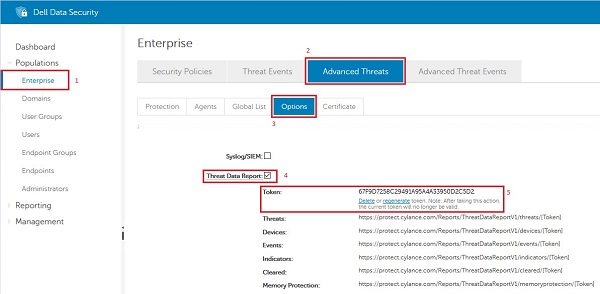
Figure 3: (English Only) Threat Data Report Token
Once you have the token, you can build a report URL by coping the URL next to Events and replacing [Token] with the token for your environment.
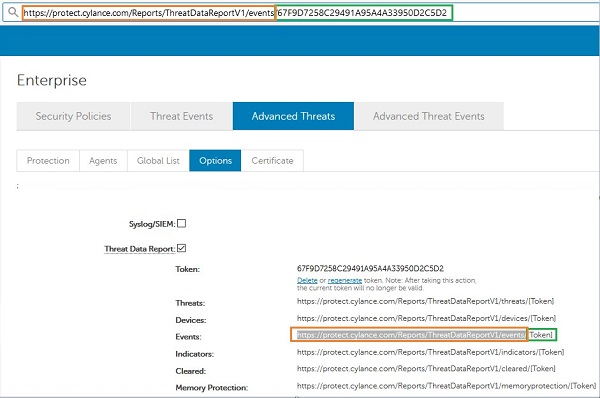
Figure 4: (English Only) Build a report URL
Do the same steps for Memory Protection.
If the Threat Data Report was not enabled, the data from Advanced Threat Events can be exported instead. To ensure that you receive all data, select:
- Enterprise
- Advanced Threat Events
- Type
- Clear all options except Protection Status Changed (this option can be chatty, and is entered as an event when the device is rebooted).
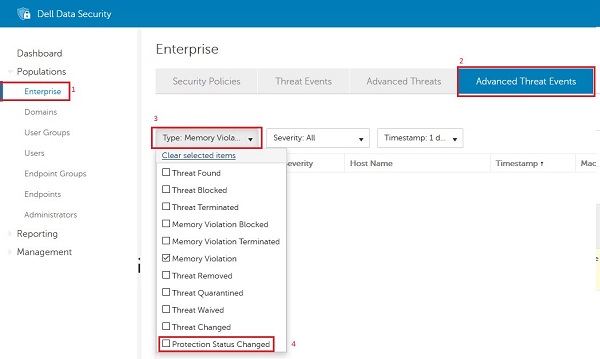
Figure 5: (English Only) Protection Status Change
Once this is selected:
- Modify the Timestamp value.
- Export
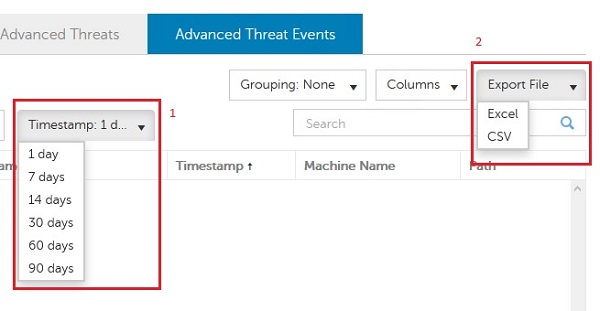
Figure 6: (English Only) Modify the Timestamp
With this data, we can see which scripts are being run often, find the SHA256 hashes, and run locations for both those scripts and memory events. This allows us to determine if these must be added to the allowlist in the environment.
The ScriptsOverview_DATE.csv can be sorted to determine how many devices a script has been seen on (# of Devices), and how many times it has been reported (Alert or Block).
Example #1
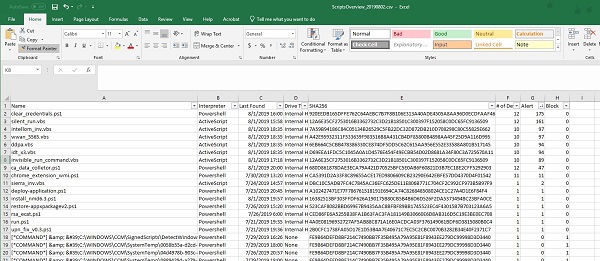
Figure 7: (English Only) ScriptsOverview_Date.csv
The MemoryprotectionDataReport.csv can also be used to determine memory events that have been seen within the environment. Sorting by the Process Name can help quickly identify executables that are being ran heavily by several devices and help build locations for where exclusions may be required.
Example #2
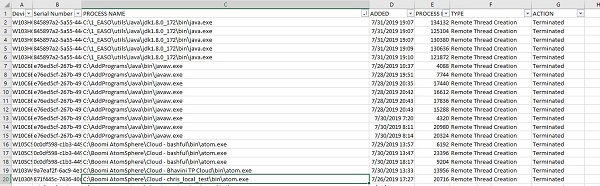
Figure 8: (English Only) MemoryprotectionDataReport.csv
The below article can be used to allowlist scripts and Memory Events if they are deemed safe and expected: How to Add Exclusions in Dell Endpoint Security Suite Enterprise.
Once we build the appropriate allowlists for Memory Protection and Script Control, the number of events per day should dramatically reduce, and should eliminate seeing the Audit Event notifications when it is running out of space.
To contact support, reference Dell Data Security International Support Phone Numbers.
Go to TechDirect to generate a technical support request online.
For additional insights and resources, join the Dell Security Community Forum.
Affected Products
Dell EncryptionArticle Properties
Article Number: 000129620
Article Type: Solution
Last Modified: 14 Aug 2023
Version: 10
Find answers to your questions from other Dell users
Support Services
Check if your device is covered by Support Services.