Dell Security Management Server Virtual v.10.2.1.12 Sending "Does Not Exist" Email Alert
Summary: This article describes the process of editing a configuration file to correct the script locations for service monitoring on Dell Security Management Server Virtual v10.2.1.12.
This article applies to
This article does not apply to
This article is not tied to any specific product.
Not all product versions are identified in this article.
Symptoms
Affected Products:
- Dell Security Management Server Virtual
Affected Versions:
- v10.2.1.12
The server sends email alerts indicating Automatically generated alert from Dell Security Management Server Virtual -- Service: Dell Message Broker / Event: Does not exist, after upgrading to Dell Security Management Server Virtual v10.2.1.12. These messages come from the Dell Message Broker, Dell Core Server HA, Dell Identity Server, and Dell Compliance Reporter. This issue shows, Warning: Return code of 127 for check of service 'Dell Identity Server' on host 'localhost' was out of bounds. Ensure the plug-in that you are trying to run exists, for each of those four services when viewing the computer monitor logs in the administration console.

Figure 1: (English Only) Check of service for Dell Security Management Servers
Cause
Not Applicable
Resolution
- Select Launch Shell in the Dell Security Management Server Virtual Administration Console.
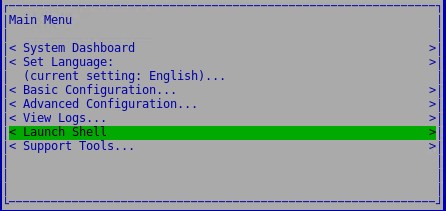
Figure 2: (English Only) Launch Shell
- Switch to the
dellsupportuser account using the commandsu dellsupport.

Figure 3: (English Only) su dellsupport
- Provide the password for the
dellsupportuser. By default, the password isdellsupport.

Figure 4: (English Only) Type the password
- Open the
dds.cfgfile in the folder/etc/nagios3/conf.d/with a text editor. This can be done with the commandsudo nano /etc/nagios3/conf.d/dds.cfg.

Figure 5: (English Only) sudo nano /etc/nagios3/conf.d/dds.cfg
- Scroll down to the COMMANDS section of the document.

Figure 6: (English Only) Commands
- There are four lines in this section which must be changed:
- Remove the
eventhandlersdirectory and .sh from
- Remove the
/usr/local/nagios/libexec/eventhandlers/check-$ARG1$.sh to result in /usr/local/nagios/libexec/check-$ARG1$
- Remove the
eventhandlersdirectory and .sh from
/usr/local/nagios/libexec/eventhandlers/check-systemd-unit.sh $ARG1$ "$SERVICEDESC$" to result in /usr/local/nagios/libexec/check-systemd-unit $ARG1$ "$SERVICEDESC$"
- Remove .sh from
/usr/bin/sudo /usr/local/nagios/libexec/eventhandlers/restart-
systemd-unit.sh $ARG1$ "$SERVICESTATE$" "$SERVICESTATETYPE$" $SERVICEATTEMPT$ to result in /usr/bin/sudo /usr/local/nagios/libexec/eventhandlers/restart-systemd-unit $ARG1$ "$SERVICESTATE$" "$SERVICESTATETYPE$" $SERVICEATTEMPT$
- Remove .sh from
/usr/bin/sudo /usr/local/nagios/libexec/eventhandlers/start-
systemd-unit.sh $ARG1$ "$SERVICESTATE$" "$SERVICESTATETYPE$" $SERVICEATTEMPT$ to result in /usr/bin/sudo /usr/local/nagios/libexec/eventhandlers/start-systemd-unit $ARG1$ "$SERVICESTATE$" "$SERVICESTATETYPE$" $SERVICEATTEMPT$
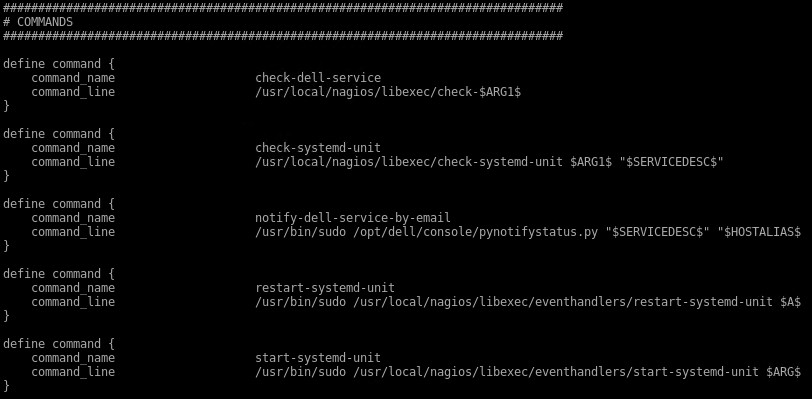
Figure 7: (English Only) Updated section
- Exit the text editor by pressing ctrl + X.
- Enter Y to save the changes to the document.

Figure 8: (English Only) Save file
- Press Enter to confirm the location to save.

Figure 9: (English Only) Press enter
- Restart the nagios3 service using the command
sudo systemctl restart nagios3.service.

Figure 10: (English Only) sudo systemctl restart nagios3.service
- Use the exit command twice to return to the Administration Console.

Figure 11: (English Only) Exit
- From the Main Menu, select View Logs > System > Monitor.
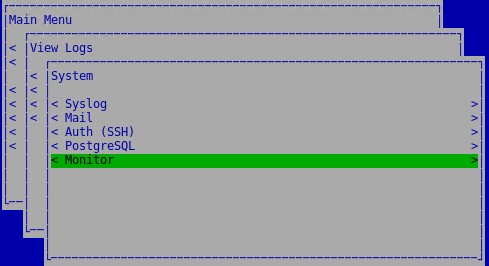
Figure 12: (English Only) Monitor
- Scroll to the bottom of the log. This can be done with quick keys by pressing ctrl + W followed by ctrl + V.
- Verify that there is no additional
Warning: Return code of 127 for check of serviceafter the last service restart.
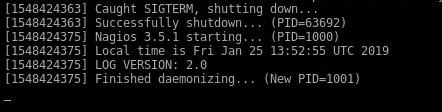
Figure 13: (English Only) Verify no warnings
To contact support, reference Dell Data Security International Support Phone Numbers.
Go to TechDirect to generate a technical support request online.
For additional insights and resources, join the Dell Security Community Forum.
Affected Products
Dell EncryptionArticle Properties
Article Number: 000130704
Article Type: Solution
Last Modified: 16 Jan 2024
Version: 10
Find answers to your questions from other Dell users
Support Services
Check if your device is covered by Support Services.