Dell Data Security Shield-moduser
Summary: Denne artikkelen omhandler skjermmoduser for Dell Data Security (tidligere kalt Dell Data Protection).
This article applies to
This article does not apply to
This article is not tied to any specific product.
Not all product versions are identified in this article.
Symptoms
Berørte produkter:
- Credant Mobile Guardian
- Dell Encryption Enterprise
- Dell Data Protection | Enterprise Edition
- Dell Encryption External Media
- Dell Data Protection | External Media Edition
- Dell Encryption Personal
- Dell Data Protection | Personal Edition
- Dell Data Protection | Security Tools
- Dell Encryption Enterprise for Server
- Dell Data Protection | Server Edition
Berørte plattformer:
- Windows
Retningslinjebasert Dell Data Security-programvare (tidligere kalt Dell Data Protection) bruker en skjoldmodusidentifikator for produktklassifisering.
Cause
Advarsel:
- Beskyttelsesmodus fastslås når produktet installeres og kan ikke endres manuelt.
- Beskyttelsesmodus brukes bare til å feilsøke produkttype eller -status.
Resolution
Skjermmodusene for Dell Data Security-produkter er:
| ID | Mode (Modus) | Produkt |
|---|---|---|
| 0 | Ukjent/Ikke initialisert | Ikke initialisert/ikke klargjort1 |
| 1 | Virksomhetsmodus | Dell Encryption Enterprise\ Dell Data Protection Enterprise Edition Shield |
| 2 | Frittstående modus | Credant Mobile Guardian |
| 3 | Modus kun for Enterprise EME | Dell Encryption External Media \ Dell Data Protection | Ekstern medieutgave |
| 4 | Lokalt administrert modus | Dell Encryption Personal \ Dell Data Protection | Personlig utgave |
| 5 | Grunnleggende modus | Dell Data Protection | Sikkerhetsverktøy2 |
| 6 | Modus for serverkryptering | Dell Encryption Enterprise for Server \ Dell Data Protection | Serverkryptering |
| 7 | Saas-modus | Dell Encryption Enterprise Shield |
1Alle databeskyttelsesprodukter fra Dell forblir uklargjorte til de aktiveres.
2Essential-modus oppstår bare ved installasjoner av Dell Data Protection | Sikkerhetsverktøy.
Slik finner du beskyttelsesmodus:
Advarsel: Tar deg inn i Windows-registeret:
- Endring av registeret kan føre til at datamaskinen slutter å svare ved neste omstart.
- Ta kontakt med telefonnumrene til Dell Data Security International Support for å få hjelp hvis du har spørsmål om utførelsen av dette trinnet.
- Høyreklikk på Windows-startmenyen, og velg Kjør.
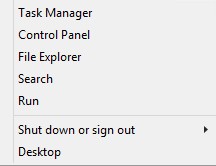
Figur 1: (Bare på engelsk) Kjøre
- Skriv inn regedit i Run user interface (UI), og trykk deretter OK.
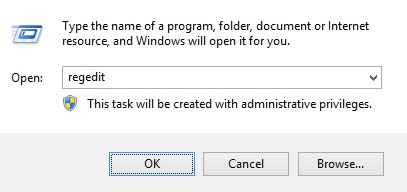
Figur 2: (Bare på engelsk) Skriv regedit
- Gå til HKEY_LOCAL_MACHINE\SOFTWARE\Credant\CMGShield.
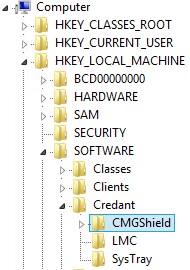
Figur 3: (Bare tilgjengelig på engelsk) CMGShield
- Finn DWORD-tasten SM.
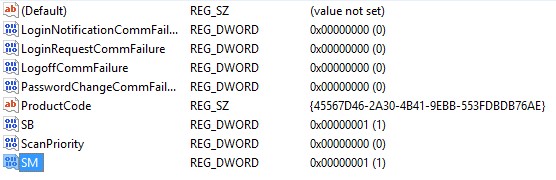
Figur 4: (Bare på engelsk) SM
Merk: I eksemplet er SM-nøkkelen angitt for 1. Dette identifiserer Shield Mode enterprise-utgaven.
Når du skal kontakte kundestøtte, kan du se Dell Data Security internasjonale telefonnumre for støtte..
Gå til TechDirect for å generere en forespørsel om teknisk støtte på Internett.
Hvis du vil ha mer innsikt og flere ressurser, kan du bli med i fellesskapsforumet for Dell Security.
Additional Information
Videos
Affected Products
Dell EncryptionArticle Properties
Article Number: 000132837
Article Type: Solution
Last Modified: 05 Mar 2024
Version: 10
Find answers to your questions from other Dell users
Support Services
Check if your device is covered by Support Services.