How to Use and Troubleshoot the Dell P2418HT Monitor
Summary: Learn how to use and troubleshoot the Dell P2418HT monitor. Find information on setting up the monitor, running diagnostics, troubleshooting steps to common issues and answers to some frequently asked questions. ...
This article applies to
This article does not apply to
This article is not tied to any specific product.
Not all product versions are identified in this article.
Symptoms
Article summary: This article provides information on how to use & troubleshoot your Dell P2418HT monitor, key features of Dell P2418HT monitor, technical specifications, how to setup your Dell P2418HT monitor, how to find the documentation or manuals for Dell P2418HT monitor, how to reset the monitor to factory default settings and troubleshooting steps to resolve common issues on Dell P2418HT monitor.
 Note: Any changes you make are automatically saved when you move to another menu item, exit the OSD menu, or wait for the OSD menu to automatically close.
Back to Top
Note: Any changes you make are automatically saved when you move to another menu item, exit the OSD menu, or wait for the OSD menu to automatically close.
Back to Top
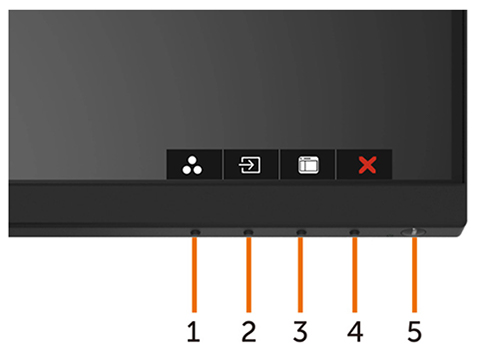
Figure 1: Front Panel Buttons
Back to Top
 Note: You can run the built-in diagnostics only when the video cable is unplugged and the monitor is in self-test mode.
 Note: If you do not detect any screen abnormalities upon using the built-in diagnostic tool, the monitor is functioning properly. Check the video card (GPU) and the computer.
If you notice any abnormalities during Built-In Diagnostics, you may get the monitor repaired/replaced if it is under warranty by contacting Dell Technical Support.Back to Top
Back to Top
Table of Contents
- Key features of Dell P2418HT monitor
- Monitor specifications
- Setting up your Dell P2418HT monitor
- Using the On-Screen Display (OSD) menu
- Dell LCD monitor pixel guidelines
- Reset to factory settings
- How to run the monitor self-test?
- How to run the built-in diagnostics?
- Troubleshooting
- Documentation
- Frequently asked questions
Key features of Dell P2418HT monitor
The Dell P2418HT monitor has an active matrix, thin film transistor (TFT), liquid crystal display (LCD), and LED backlight. The monitor features include:
- 1920 x 1080 (16:9 aspect ratio) resolution, plus full-screen support for lower resolutions.
- Tilt and swivel adjustment capability.
- Extensive digital connectivity with DP, VGA, HDMI, and USB 3.0 helps future-proof your monitor.
- Supports up to 10 touch-points.
- Optimize eye comfort with a flicker-free screen and ComfortView feature which minimizes blue light emission.
- Energy gauge shows the energy level being consumed by the monitor in real time.
- 0.3 W standby power when in the sleep mode.
Monitor specifications
This section provides some specifications of the Dell P2418HT monitor. For more information about the Dell P2418HT monitor, refer to the User Guide at the Dell Support website.
Back to TopSetting up your Dell P2418HT monitor
This section provides information on how to setup your monitor.
- Attaching the stand - Refer to the Setting Up The Monitor section in the User's Guide on Connecting the Stand to your Dell P2418HT monitor.
- Connecting the monitor - Refer to the knowledge-base article How to Connect a Monitor to a Computer?. Alternatively, you can also refer to the Setting Up The Monitor in the User's Guide for your Dell P2418HT monitor.
- Ports & Connectors - Refer to the User's Guide for your Dell P2418HT monitor for more information on the Ports & Connectors available on your Dell P2418HT monitor.
Using the On-Screen Display (OSD) menu
Use the buttons at the bottom of the monitor to access the On-Screen Display (OSD) menu of the monitor. To access the On-Screen Display (OSD) menu, press Button 3 at the bottom of the monitor.
For more information on Using the On-Screen Display (OSD) Menu, refer to the Operating Your Monitor section in the User's Guide for Dell SE2717H/SE2717HX monitor.
Note: Any changes you make are automatically saved when you move to another menu item, exit the OSD menu, or wait for the OSD menu to automatically close.
Dell LCD monitor pixel guidelines
During the LCD monitor manufacturing process, it is not uncommon for one or more pixels to become fixed in an unchanging state which are hard to see and do not affect the display quality or usability. For more information, refer to the Dell knowledge-base article Dell LCD Monitor Pixel Guidelines.
Back to TopReset to factory settings
To reset your Dell P2418HT monitor to factory default settings, follow these instructions:
- Press Button 3 (Figure 3)on the monitor to enter the On-Screen Display (OSD) Menu.
- Press Button 1 or Button 2 to highlight Others option in the menu and press Button 3 to select.
- Press Button 1 or Button 2 to highlight Factory Reset option in the menu and press Button 3 to select.
- Press Button 3 to confirm the reset action.
Figure 1: Front Panel Buttons
Back to Top
How to run the monitor self-test?
It is always essential to isolate the monitor while troubleshooting your computer for the following scenarios:
- No Power - Your computer is not powering ON or showing any signs of power.
- No POST - Your computer is not showing any indication of activity, the screen might be blank and will not display the Dell logo during start-up.
- No Video - You are unable to see any display on the screen, able to hear the windows chime but no display is seen.
Your Dell P2418HT Monitor provides a self-test feature that allows you to check whether the monitor is functioning properly. If the monitor and computer are properly connected but the monitor screen remains dark, run the monitor self-test by performing the following steps:
- Turn off both your computer and the monitor.
- Unplug the video cable from the back of the computer. To ensure proper Self-Test operation, remove the video cables (VGA, DVI, HDMI or DisplayPort) from the back of the computer.
- Turn on the monitor.
 Note: A floating dialog box should appear on the screen (against a black background). This indicates that the monitor is working correctly. While in self-test mode, the power LED remains white.
- Turn off your monitor and reconnect the video cable: then turn on both your computer and the monitor.
- If your monitor screen remains blank after you use the previous procedure, check your video card (GPU) and computer, because your monitor is functioning properly.
How to run the built-in diagnostics?
Your Dell P2418HT monitor has a built-in diagnostic tool that helps to determine if the screen abnormality you are experiencing is a problem with the monitor or with the video card on your computer.
When you notice screen abnormalities like distortion, clarity issues, horizontal or vertical lines, color fade etc., it is always a good practise to isolate the monitor by running the built-in diagnostics.
Note: You can run the built-in diagnostics only when the video cable is unplugged and the monitor is in self-test mode.
- Make sure that the screen is clean (no dust particles on the surface of the screen).
- Unplug the video cable(s) from the back of the computer or the monitor. The monitor will now enter self-test mode.
- On the front panel, press and hold Button 1 for 5 seconds. A gray screen appears.
- Carefully inspect the screen for abnormalities.
- Press Button 1 on the front panel again. The color of the screen changes to red.
- Inspect the display for any abnormalities.
- Repeat step 5 and step 6 to inspect the display in green, blue, black, white and text screens.
- The test is complete when the white screen appears.
- Press Button 1 to exit the Built-In diagnostics.
Note: If you do not detect any screen abnormalities upon using the built-in diagnostic tool, the monitor is functioning properly. Check the video card (GPU) and the computer.
If you notice any abnormalities during Built-In Diagnostics, you may get the monitor repaired/replaced if it is under warranty by contacting Dell Technical Support.
Troubleshooting
Troubleshooting common issues with Dell P2418HT monitor
| Common Problem | What User Experiences | Possible Solution |
|---|---|---|
| No Video - Power LED Off | No picture |
|
| No Video - Power LED On | No picture or no brightness. |
|
| Poor Focus | Picture is fuzzy, blurry or ghosting. |
|
| Shaky/Jittery Video | Wavy picture or fine movement. |
|
| Missing Pixels | LCD screen has spots. |
|
| Stuck-On/Off Pixels | LCD screen has bright spot. |
|
| Brightness Problems | Picture too dim or too bright. |
|
| Geometric Distortion | Screen not centered correctly. |
 When using DisplayPort input, the positioning adjustments are not available. When using DisplayPort input, the positioning adjustments are not available.
|
| Horizontal/Vertical Lines | Screen has one or more lines. |
 When using DisplayPort input, the positioning adjustments are not available. When using DisplayPort input, the positioning adjustments are not available.
|
| Synchronization Problems | Screen is scrambled or appears torn. |
|
| Safety-Related Issues | Visible signs of smoke or sparks. |
|
| Intermittent Problems | Monitor malfunctions on and off. |
|
| Missing Color | Picture does not have color. |
|
| Wrong Color | Picture color is not good. |
|
| Image Retention from a Static Image Left on the Monitor for a Long Period | Faint shadow from the static image appears on the screen. |
|
Troubleshooting touch issues on Dell P2418HT monitor
| Specific Symptoms | What User Experiences | Possible Solution |
|---|---|---|
| Touch report error | Touch function miss alignment or no touch function |
|
| Touchscreen non-responsive in power-save mode | Cannot wake up monitor and computer by using touch in power-save mode |
|
| Windows 7, Windows 8, Windows 8.1 and Windows 10 Calibration | Cursor does not accurately follow your finder when you touch the screen |
|
Troubleshooting issues with USB ports on Dell P2418HT monitor
| Specific Symptoms | What User Experiences | Possible Solution |
|---|---|---|
| USB interface is not working | USB peripherals are not working |
|
| SuperSpeed USB 3.0 interface is slow | SuperSpeed USB 3.0 peripherals working slowly or not working at all |
|
| Wireless USB peripherals stop working when a USB 3.0 device is plugged in | Wireless USB peripherals responding slowly or only working as the distance between itself and its receiver decreases |
|
Back to Top
Documentation
To view or download the User's Guide or Manuals for your Dell P2418HT monitor, follow these instructions:
- Visit the Dell Manuals website.
- Click View Products button under Browse for a Product.
- Select Monitors & Projectors and then Select Monitors.
- From the list, click on Dell P2418HT monitor.
- Click on PDF next to the required document.
- Click on More Languages to view the list of available language options.
- Click on PDF next to the preferred choice of language.
Frequently asked questions
Using Windows Display Settings
In Windows 7, Windows 8, Windows 8.1 and Windows 10:
- For Windows 8 and Windows 8.1 only, select the Desktop tile to switch to classic desktop view.
- Right-click on the desktop and click Screen Resolution.
- Click the dropdown list of the Screen Resolution and select 1920 x 1080.
- Click OK
Using Nvidia Control Panel
To change the resolution using the Nvidia Control Panel:
- Right-click on the desktop and click Nvidia Control Panel.
- Click the + symbol next to Display on the left pane.
- Select Change Resolution under Display.
- In the dropdown menu on the right pane, select the resolution 1920 x 1080.
- Click Apply.
Using AMD Catalyst Control Center
To change the resolution using the Nvidia Control Panel:
- Right-click on the desktop and click Nvidia Control Panel.
- Click the + symbol next to Display on the left pane.
- Select Change Resolution under Display.
- In the dropdown menu on the right pane, select the resolution 1920 x 1080.
- Click Apply.
Note: If you do not see the recommended resolution as an option, you may need to update the video card (GPU) driver by visiting the Dell Support website.
To reset the Dell P2418HT monitor to factory defaults, refer to the Reset to Factory Settings section of this article.
For best practices, follow these instructions in the list below while unpacking, cleaning, or handling your monitor:
- To clean your anti-static screen, lightly dampen a soft, clean cloth with water. If possible, use a special screen-cleaning tissue or solution suitable for the anti-static coating. Do not use benzene, thinner, ammonia, abrasive cleaners, or compressed air.
- Use a lightly-dampened, soft cloth to clean the monitor. Avoid using detergent of any kind as some detergents leave a milky film on the monitor.
- If you notice white powder when you unpack your monitor, wipe it off with a cloth.
- Handle your monitor with care as a darker-colored monitor may get scratched and show white scuff marks more than a lighter- colored monitor.
- To help maintain the best image quality on your monitor, use a dynamically changing screen saver and turn off your monitor when not in use.
Warning: Before cleaning the monitor, unplug the monitor power cable from the electrical outlet.
For more information about safety instructions for Dell P2418HT monitor, refer to the User Guide at the Dell Manuals website.
Cause
See Resolution Section.
Resolution
See Resolution Section.
Affected Products
Dell P2418HTArticle Properties
Article Number: 000143893
Article Type: Solution
Last Modified: 04 Jun 2025
Version: 6
Find answers to your questions from other Dell users
Support Services
Check if your device is covered by Support Services.