Dell U2410 Monitor Has a Pink or Green Tint
Summary: Troubleshooting steps for the Dell U2410 monitor for correcting color issues, particularly the appearance of a pink or green tint on the monitor.
This article applies to
This article does not apply to
This article is not tied to any specific product.
Not all product versions are identified in this article.
Instructions
Table of Contents
- Try Other Preset Modes
- Try Using Custom Color Settings
- Adjust the Brightness and Contrast
- Perform a Factory Reset
Try Other Preset Modes
The monitor has an array of preset modes available, which are designed to best display various types of graphics, such as gaming or movies. To change the preset modes, use the buttons on the front of the monitor to adjust the settings:
- Select the Menu button (Figure 1).
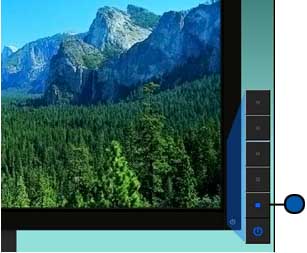
Figure 1: Menu Button
- Select Preset Modes.
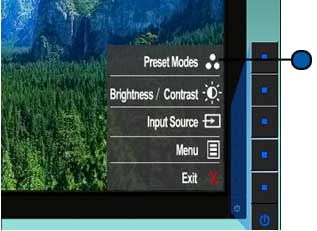
Figure 2: Preset Mode
- Choose the mode that seems most appropriate and try it out.
Try Using Custom Color Settings
One of the preset modes available is Custom Color which allows you to change specific color settings to get the proper balance that best suits your graphic type. To activate the Custom Color feature:
- Select the Menu button (Figure 3).
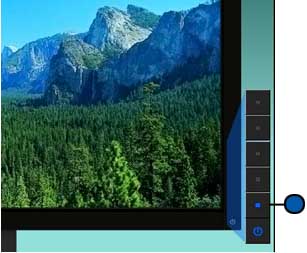
Figure 3: Menu Button
- Select Preset Modes (Figure 4).
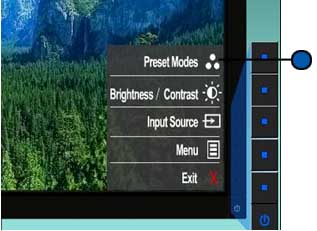
Figure 4: Preset Modes
- Select Custom Color (Figure 5).
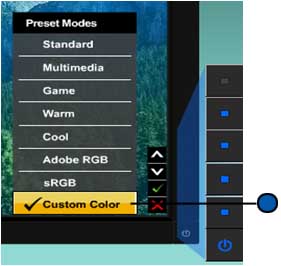
Figure 5: Custom Color
- In the Custom Color function (Figure 6), you can adjust color representation by adjusting the individual gain level of Red, Green, or Blue. You may undo your changes by selecting Menu, Color Settings, Reset Color Settings.
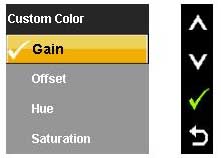
Figure 6: Custom Color Menu
Adjust the Brightness and Contrast
You may be able to reach an acceptable color balance by adjusting the Brightness and Contrast.
- Select the Menu button.
- Select Brightness/Contrast.
- Use the up and down arrow buttons to adjust brightness and contrast, then press the checkmark to enter.
Perform a Factory Reset
To return the monitor settings to the original configuration, you can perform a Factory Reset.
- Select the Menu button.
- Select Menu.
- Select Other Settings, and then Factory Reset.
- The screen will display the words Auto Adjustment in Progress.
Affected Products
Dell U2410Article Properties
Article Number: 000145374
Article Type: How To
Last Modified: 02 May 2026
Version: 8
Find answers to your questions from other Dell users
Support Services
Check if your device is covered by Support Services.