PowerEdge: iDRAC(Integrated Dell Remote Access Controller) 가상 콘솔을 시작하는 방법
Summary: iDRAC 가상 콘솔은 웹 인터페이스 또는 URL을 사용하여 시작할 수 있습니다. iDRAC 가상 콘솔 뷰어 사용에 대해서도 설명합니다.
This article applies to
This article does not apply to
This article is not tied to any specific product.
Not all product versions are identified in this article.
Instructions
iDRAC의 가상 콘솔은 관리 스테이션의 키보드, 비디오 및 마우스를 사용하여 원격 시스템을 관리하여 관리되는 서버에서 해당 디바이스를 제어합니다. 이 기능은 랙 및 타워 서버에 라이선스가 부여된 기능입니다. 이 기능은 블레이드 서버에서 기본적으로 사용할 수 있습니다. iDRAC 라이선스를 업그레이드해야 하거나 iDRAC, CMC, OpenManage Enterprise, OpenManage Integration with Microsoft Windows Admin Center, OpenManage Integration with ServiceNow 및 DPAT 평가판 라이선스 에서 iDRAC 평가판 라이선스를 다운로드하여 30일 평가를 위한 iDRAC 가상 콘솔을 활성화하려면 영업 팀에 문의하십시오.
목차:
iDRAC 가상 콘솔을 사용하기 전에 관리 시스템에서 액세스할 수 있도록 IP 주소를 이용해 iDRAC를 구성해야 합니다. 단계는 세대별로 다르므로 추가 정보는 특정 iDRAC 및 펌웨어 버전에 대한 iDRAC 사용자 가이드를 검토하십시오. iDRAC 설명서를 참조하십시오.
웹 인터페이스를 사용하여 iDRAC 가상 콘솔 실행
지원되는 웹 브라우저를 사용하여 관리 시스템에서 iDRAC의 웹 인터페이스에 로그인합니다. iDRAC 사용자 이름 및 iDRAC 암호를 사용하여 로그인합니다. iDRAC 암호에 대한 자세한 내용은 iDRAC(Integrated Dell Remote Access Controller)의 기본 사용자 이름 및 암호는 무엇입니까?를 참조하십시오.
iDRAC9 가상 콘솔의 경우:
- iDRAC9 대시보드(홈페이지)에서 Launch Virtual Console을 클릭합니다.
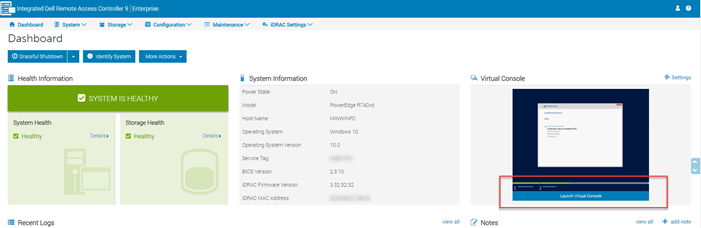
그림 1: iDRAC9 대시보드
- iDRAC9 Configuration 메뉴에서 Virtual Console 을 선택한 다음 Launch Virtual Console을 클릭합니다.
iDRAC8 및 iDRAC7 가상 콘솔의 경우:
- Overview, Server, Virtual Console로 차례로 이동합니다. Virtual Console 페이지가 표시됩니다. Launch Virtual Console을 클릭합니다. Virtual Console Viewer가 시작됩니다.
- Overview, Server, Properties로 차례로 이동합니다. System Summary 페이지가 표시됩니다. Virtual Console Preview 섹션에서 Launch를 클릭합니다. Virtual Console Viewer가 시작됩니다.
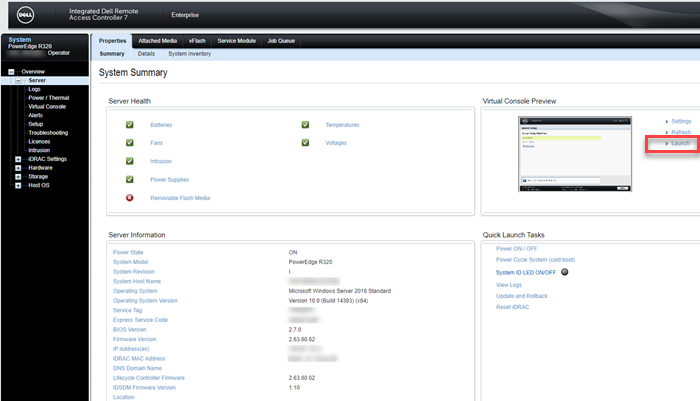
그림 2: iDRAC8 또는 iDRAC7 시스템 요약
참고: 신뢰할 수 있는 인증서를 찾을 수 없음을 나타내는 인증서 경고 메시지가 표시될 수 있습니다. 계속(Continue)을 클릭합니다. 자세한 내용은 Java 또는 ActiveX 플러그인을 사용하여 가상 콘솔 또는 가상 미디어를 실행하는 동안 경고 메시지 비활성화를 참조하십시오.
참고: 원격 서버의 전원이 꺼져 있거나 서버의 내장 비디오가 비활성화되어 있으면 "No Signal" 메시지가 표시됩니다.
URL을 사용하여 iDRAC 가상 콘솔 실행
- 지원되는 웹 브라우저를 열고 주소 상자에 소문자로 다음 URL을 입력합니다 . https://[iDRAC_IP]/console
참고: [iDRAC_IP] = 사용자 환경에 있는 iDRAC의 IP
- iDRAC 사용자 이름 및 비밀번호를 사용하여 로그인합니다.
iDRAC 가상 콘솔 뷰어 사용
Virtual Console Viewer는 다양한 컨트롤을 제공합니다. 여기에는 마우스 동기화, 가상 콘솔 확장, 채팅 옵션, 키보드 매크로, 전원 동작, 다음 부팅 장치 및 가상 미디어 기능에 대한 액세스가 포함됩니다. 자세한 내용은 iDRAC6, iDRAC7, iDRAC8 및 iDRAC9에서 가상 미디어 기능 사용을 참조하십시오. 가상 미디어를 사용하면 관리되는 서버가 관리 스테이션의 미디어 디바이스 또는 관리되는 서버의 디바이스처럼 네트워크 공유의 ISO CD/DVD 이미지에 액세스할 수 있습니다. 가상 미디어 기능을 사용하여 다음을 수행할 수 있습니다.
- 네트워크를 통해 원격 시스템에 연결된 미디어에 원격으로 액세스
- 애플리케이션 설치
- 드라이버 업데이트
- 관리되는 시스템에 운영 체제 설치
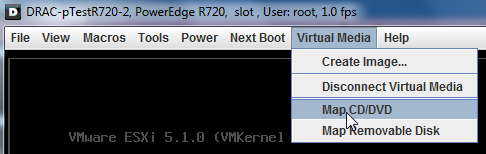
그림 3: 가상 미디어 및 지도 CD/DVD
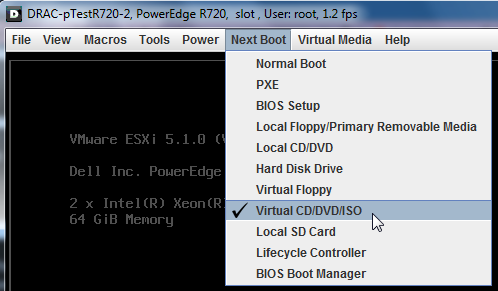
그림 4: 다음 부팅 및 가상 CD/DVD/ISO
Affected Products
C Series, HS Series, Modular Infrastructure, Rack Servers, Tower Servers, XE Servers, XR Servers, iDRAC7, iDRAC8, iDRAC9, PowerEdge XR2, PowerEdge C4130, Poweredge C4140, PowerEdge c6320, PowerEdge c6320p, PowerEdge C6420, PowerEdge C6520
, PowerEdge C6525, PowerEdge C6615, PowerEdge C6620, Poweredge FC430, Poweredge FC630, PowerEdge FC640, Poweredge FC830, PowerEdge FD332, PowerEdge FM120x4 (for PE FX2/FX2s), PowerEdge FX2/FX2s, PowerEdge HS5610, PowerEdge HS5620, PowerEdge M420, PowerEdge M520, PowerEdge M520 (for PE VRTX), PowerEdge M620, PowerEdge M620 (for PE VRTX), PowerEdge M630, PowerEdge M630 (for PE VRTX), PowerEdge M640, PowerEdge M640 (for PE VRTX), PowerEdge M820, PowerEdge M820 (for PE VRTX), PowerEdge M830, PowerEdge M830 (for PE VRTX), PowerEdge MX740C, PowerEdge MX750c, PowerEdge MX760c, PowerEdge MX840C, PowerEdge R220, PowerEdge R230, PowerEdge R240, PowerEdge R250, PowerEdge R260, PowerEdge R320, PowerEdge R330, PowerEdge R340, PowerEdge R350, PowerEdge R360, PowerEdge R420, PowerEdge R420XR, PowerEdge R430, PowerEdge R440, PowerEdge R450, PowerEdge R520, PowerEdge R530, PowerEdge R530xd, PowerEdge R540, PowerEdge R550, PowerEdge R620, PowerEdge R630, PowerEdge R640, PowerEdge R6415, PowerEdge R650, PowerEdge R650xs, PowerEdge R6515, PowerEdge R6525, PowerEdge R660, PowerEdge R660xs, PowerEdge R6615, PowerEdge R6625, PowerEdge R720, PowerEdge R720XD, PowerEdge R730, PowerEdge R730xd, PowerEdge R740, PowerEdge R740XD, PowerEdge R740XD2, PowerEdge R7415, PowerEdge R7425, PowerEdge R750, PowerEdge R750XA, PowerEdge R750xs, PowerEdge R7515, PowerEdge R7525, PowerEdge R760, PowerEdge R760XA, PowerEdge R760xd2, PowerEdge R760xs, PowerEdge R7615, PowerEdge R7625, PowerEdge R820, PowerEdge R830, PowerEdge R840, PowerEdge R860, PowerEdge R920, PowerEdge R930, PowerEdge R940, PowerEdge R940xa, PowerEdge R960, PowerEdge T130, PowerEdge T140, PowerEdge T150, PowerEdge T160, PowerEdge T320, PowerEdge T330, PowerEdge T340, PowerEdge T350, PowerEdge T360, PowerEdge T420, PowerEdge T430, PowerEdge T440, PowerEdge T550, PowerEdge T560, PowerEdge T620, PowerEdge T630, PowerEdge T640, PowerEdge XE2420, PowerEdge XE7420, PowerEdge XE7440, PowerEdge XE8545, PowerEdge XE8640, PowerEdge XE9680, PowerEdge XR11, PowerEdge XR12, PowerEdge XR4510c, PowerEdge XR4520c, PowerEdge XR5610, PowerEdge XR7620, PowerEdge XR8610t, PowerEdge XR8620t
...
Products
iDRAC7 with Lifecycle Controller Version 2.43.43.43, iDRAC7 with Lifecycle Controller Version 2.41.40.40, iDRAC8 with Lifecycle Controller version 2.84.84.84, iDRAC8 with Lifecycle Controller version 2.85.85.85, iDRAC9 - 7.xx SeriesArticle Properties
Article Number: 000179797
Article Type: How To
Last Modified: 15 Apr 2025
Version: 12
Find answers to your questions from other Dell users
Support Services
Check if your device is covered by Support Services.