Chromebook Best Practices for Care and Use
Summary: This article contains information that can be used to help you have a better experience with your Chromebook.
This article applies to
This article does not apply to
This article is not tied to any specific product.
Not all product versions are identified in this article.
Instructions
Table of Contents:
- Overview
- Preventive Care
- Cleaning
- Power (Cable and Batteries)
- Carrying and Transporting the Chromebook
- Sound
- Software
Overview
One of the best features of the Chromebook is the fact that it is a laptop. It enables you to take your homework and information wherever you go.
The following are ideas of some of the best practices for personal, schools, and corporations to follow for the care of their Chromebooks.
Preventive Care
-
Do not throw or slide the Chromebook.
-
Always keep the Chromebook in a protective (if offered or provided).
-
Keep the Chromebook dry, protected from rain, snow, and any other liquids.
-
Take caution with food or drinks around the device.
-
Do not lean on the top of the Chromebook or place anything near the Chromebook that could put pressure on the screen. This pressure could possibly push the LCD screen into the keyboard and may eventually damage the LCD screen.
-
Cords, cables, and removable storage devices must be inserted carefully into the Chromebook.
-
Avoid touching the LCD screen with sharp or pointed objects: Example, Pencils, pens, and so forth
-
Do not leave your Chromebook in a car or any location that can expose the Chromebook to extreme temperature or direct sunlight for extended periods of time. Large temperature swings can damage a Chromebook. Putting a Chromebook (or laptop bag) in a vehicle is also an inviting target for a thief.
-
Chromebooks should be shut down when not in use to conserve battery life.
-
Close the Chromebook carefully from the top center of the LCD screen (do not slam it shut).
-
Do not stack Chromebooks or other laptops when storing them or under other items that could put pressure on the Chromebooks.
-
Do not place anything on the keyboard before closing the lid, such as pens, pencils, spiral notebooks, or as storage for loose papers.
-
Do not insert objects (other than USB or the power cable), especially metal into the openings of the Chromebook.
-
Do not rotate or open the LCD screen beyond its design limit. Chromebooks have a design limit as to how far the LCD screen can be rotated open. If the LCD is rotated beyond this limit, damage to the LCD, hinges, or Chromebook will occur. Avoid forcing the LCD screen beyond this limit once resistance is felt.
-
It is best not to place your Chromebook on uneven surfaces where it might accidentally fall.
-
As a recommendation, at the end of each day the Chromebook should be plugged in so that the battery is fully charged for the next day.
Cleaning
NOTE: Shut down your Chromebook before cleaning.
-
Clean your Chromebook often. Taking a few minutes to clean your Chromebook of dust, grime, residue, and so on, will make a huge difference in your laptop's lifespan. Focus on the following: LCD screen, keyboard, chassis, and vents:
-
LCD Screen Cleaning - Gently wipe the LCD with a clean soft or microfiber cloth. Do not use window cleaner or any type of household cleaner on the LCD. Use a cleaner specially designed for an LCD.
-
Keyboard and Chassis Cleaning - Wipe surfaces lightly with a clean soft or microfiber cloth.
-
Vent Cleaning - Use a can of compressed air to clear out any possible dust or debris.
-
-
For more information about how to clean your computer, go to: Guidance for Keeping Your Dell Technologies Equipment Clean
Power (Cable and Batteries)
-
Be mindful of where the power cable is plugged in, as the cable may be a tripping hazard.
-
When inserting or removing the power cable into the Chromebook, ensure that the connector is lined up with the Chromebook’s port.
- Be careful not to pull or twist around your Chromebook when any cables are attached.
- Be careful not to pull or twist around your Chromebook when any cables are attached.
-
When unplugging the power cable from the wall socket, pull directly on the plug, otherwise the cord could break off from the plug.
-
If you unplug the AC Adapter (if possible) once the battery is fully charged and have your Chromebook running on battery power. Plugging the AC Adapter back in once the battery charge falls below 50%, can extend the life of your battery.
-
Chromebooks should be shut down when not in use to conserve battery life.
Carrying and Transporting the Chromebook
Caution: It is recommended that the Chromebook is put to sleep or shut down completely before carrying or transporting the Chromebook.
-
Before carrying or transporting your Chromebook, remove any plugged-in devices, USB drives, or the power cable. If any connected devices are hit, it can damage the Chromebook ports, or the devices themselves.
-
Do not pick up your Chromebook by the LCD screen. Close the lid of the Chromebook before carrying it from one location to another. This ensures that the Chromebook is not damaged during transit.
-
For the highest level of protection, consider purchasing a protective Chromebook case.
-
It is best to close the lid of the Chromebook before carrying or transporting it from one location to another. If your Chromebook is a 360 2-in-1, ensure it is not in tablet mode with the screen exposed.
-
Do not place anything in the carrying case that can press against the Chromebook chassis or outer LCD screen.
-
Place the Chromebook gently (compared to dropping it) into the laptop bag or backpack (with laptop padding) to avoid damage to the chassis or outer LCD screen.
-
Avoid placing too many items around the Chromebook during transporting (laptop bag or backpack). Stuffing the Chromebook in your backpack with too many books around it could damage the LCD screen.
-
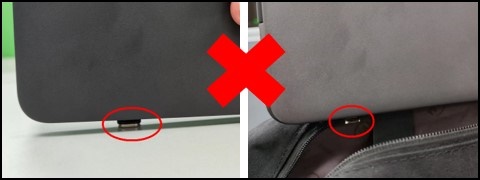
A best practice for using USB Type-C devices is to unplug them when they are not in use.
Correct Incorrect 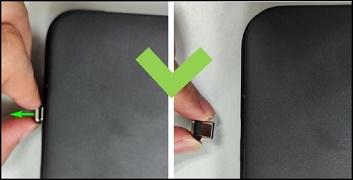
Sound
NOTE: The following is for school environments.
-
Unless specified by the teacher, the sound should always be muted. Headphones may be used at the discretion of the teacher.
Software
-
Virus protection is not necessary on Chromebooks, they have free, integrated malware, and virus protection that is continuously updated by Google.
-
The Chromebook Operating System (OS) updates itself automatically, so you do not need to manually update the Chromebook.
Affected Products
ChromebookArticle Properties
Article Number: 000182121
Article Type: How To
Last Modified: 21 May 2025
Version: 8
Find answers to your questions from other Dell users
Support Services
Check if your device is covered by Support Services.