PowerProtect: VM Backup Fails ABV0016 "Unable to connect to target Data Domain host"
Summary: The PowerProtect VMware Protection Policy was recently implemented and fails with exit status ABV0016.
This article applies to
This article does not apply to
This article is not tied to any specific product.
Not all product versions are identified in this article.
Symptoms
The PowerProtect Appliance protects the vSphere environment with the Transparent Snapshot Data Mover (TSDM) solution. The VMware Protection Policy was recently implemented and fails with exit status ABV0016.
The PowerProtect Interface shows:
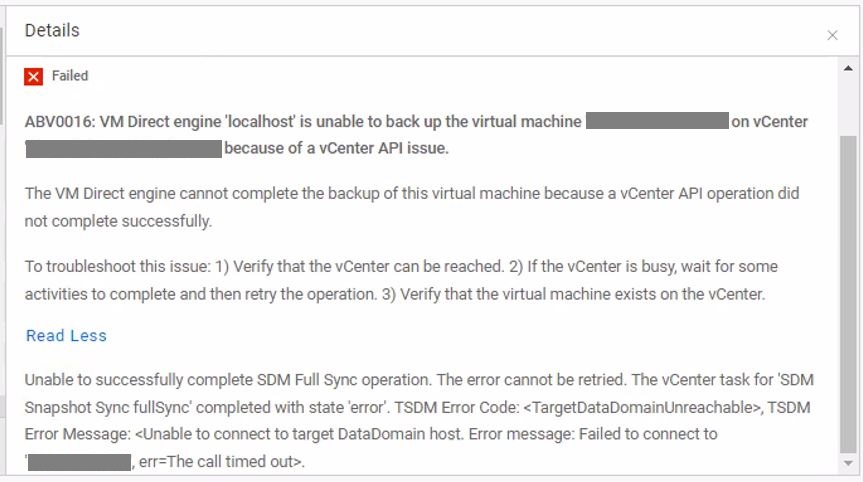
ABV0016: VM Direct engine 'localhost' is unable to back up the virtual machine 'my-vm-name' on vCenter 'my-vcernter-name' because of a vCenter API issue.

The VM Direct engine cannot complete the backup of this virtual machine because of a vCenter API operation did not complete successfully.

To troubleshoot this issue: 1) Verify that the vCenter can be reached. 2) If the vCenter is busy, wait for some activities to complete and then retry the operation. 3) Verify that the virtual machine exists on the vCenter.

Read Less

Unable to successfully complete SDM Full Sync operation.  The error cannot be retried.  The vCenter task for 'SDM Snapshot Sync fullSync' completed with state 'error'. TSDM Error Code: <TargetDataDomainUnreacheable>, TSDM Error Message: <Unable to connect to target DataDomain host. Error message: Failed to connect to 'xxx.xxx.xxx.xxx', err=The call timed out>.
Cause
The error the ESXi host tsdm daemon generates is related to being unable to reach the target Data Domain over the referenced IP address. The issue is caused due to name resolution, firewall, Intrusion detection software, or network routing.
Resolution
Resolve the communication problem between the ESXi host and target Data Domain.
Here are some common items to check:
- The Network Administrator should check that there are no firewall rules restricting traffic between the endpoints.
- The Network Administrator should check that there is no intrusion detection software interfering with the traffic between the endpoints.
- Validate name resolution (FQDN, short name, IP) from the ESXi host and Data Domain: nslookup <value>
DNS = 192.168.1.100
DD = 192.168.100.20

[root@my-esx:~] nslookup my-dd.my-domain.com
Server:         192.168.1.100
Address:        192.168.1.100:53

Name:   my-dd.my-domain.com
Address: 192.168.100.20

[root@my-esx:~] nslookup 192.168.100.20
Server:         192.168.1.100
Address:        192.168.1.100:53

91.233.241.10.in-addr.arpa      name = my-dd.my-domain.com

[root@my-esx:~] nslookup my-dd
Server:         192.168.1.100
Address:        192.168.1.100:53

Name:   my-dd.my-domain.com
Address: 192.168.100.20

[root@my-esx:~]
- Validate the ESXi host can ping the target Data Domain interface IP Address referenced in the error: ping <value>
DD = 192.168.100.20

[root@my-esx:~] ping -c 4 192.168.100.20
PING 192.168.100.20 (192.168.100.20): 56 data bytes
64 bytes from 192.168.100.20: icmp_seq=0 ttl=64 time=0.249 ms
64 bytes from 192.168.100.20: icmp_seq=1 ttl=64 time=0.246 ms
64 bytes from 192.168.100.20: icmp_seq=2 ttl=64 time=0.209 ms
64 bytes from 192.168.100.20: icmp_seq=3 ttl=64 time=0.259 ms

--- 192.168.100.20 ping statistics ---
4 packets transmitted, 4 packets received, 0% packet loss
round-trip min/avg/max = 0.209/0.241/0.259 ms

[root@my-esx:~]
- Ensure the ESXi firewall outgoing connections are configured for the daemon-tsdm service and the required ports (111,2049,2053): esxcli network firewall ruleset rule list | grep tsdm
[root@my-esx:~] esxcli network firewall ruleset rule list | grep tsdm
daemon-tsdm                  Outbound   TCP       Dst               111       111
daemon-tsdm                  Outbound   TCP       Dst              2049      2049
daemon-tsdm                  Outbound   TCP       Dst              2053      2053
- Validate that the ESXi host can reach the required Data Domain ports 111 and 2049 (The firewall must be temporarily disabled): nc -w 2 -z my-dd <port>
DD = 192.168.100.20

[root@my-esx:~] esxcli network firewall set --enabled false
[root@my-esx:~] esxcli network firewall refresh
[root@my-esx:~] esxcli network firewall get
   Default Action: DROP
   Enabled: false
   Loaded: true
[root@boont:~] nc -w 2 -z 192.168.100.20 111
Connection to 192.168.100.20 111 port [tcp/sunrpc] succeeded!
[root@boont:~] nc -w 2 -z 192.168.100.20 2049
Connection to 192.168.100.20 2049 port [tcp/nfs] succeeded!
[root@my-esx:~] esxcli network firewall set --enabled true
[root@my-esx:~] esxcli network firewall refresh
[root@my-esx:~] esxcli network firewall get
   Default Action: DROP
   Enabled: true
   Loaded: true
[root@my-esx:~]
- Validate that the MTU is set to the same value on the ESXi hosts and Data Domain (default 1500).
- Ensure that the default gateway is properly set on the Data Domain or a route table is configured for the ESXi IP subnet.
- Capture a tcpdump from the ESXi host and Data Domain to have the Network Administrator determine where the packets are being affected on the network.
Article Properties
Article Number: 000216068
Article Type: Solution
Last Modified: 18 Nov 2025
Version: 2
Find answers to your questions from other Dell users
Support Services
Check if your device is covered by Support Services.