NetWorker: SAP MaxDB Backup, Restore, and Citations
Summary: This article provides an overview of SAP MaxDB backup types and methods:
This article applies to
This article does not apply to
This article is not tied to any specific product.
Not all product versions are identified in this article.
Instructions
Types of SAP MaxDB Backups
Complete Data Backup
A complete data backup captures the entire database at a specific point in time. This ensures a full copy of the database, which can be restored if there is a data loss.
Incremental Data Backup
Incremental data backups save only the changes made since the last complete or incremental backup. This method is efficient in terms of storage and time, as it reduces the volume of data to be backed up.
Log Backup
Log backups involve saving the transaction logs generated by the database. These logs can be used to restore the database to a specific point in time by replaying the transactions recorded in the logs.
Methods of SAP MaxDB Backup
Native Backup
Backup to File
Native backups can be directed to files stored on the local filesystem. This method is straightforward and provides quick access to the backup files.
External Tool Backup
External tools such as NetWorker, TSM, and Backint can be used to manage SAP MaxDB backups. These tools offer advanced features and integration capabilities.
NetWorker
NetWorker supports comprehensive backup and recovery solutions, including scheduled and automated backups.
TSM
Tivoli Storage Manager (TSM) is another tool that integrates with SAP MaxDB to provide robust backup and recovery options.
Backint
Backint is a tool that interfaces with various backup systems, providing flexibility and scalability for SAP MaxDB backups.
Client Initiated Backup
-
Create a Directory for PIPE:
mkdir /backup
chown sdb /backup
chgrp sdba /backup
chmod 700 /backup
2. Create Directory for ENV file:
maxdb:/nsr # mkdir sapdb
maxdb:/nsr # cd sapdb/
maxdb:/nsr/sapdb # touch env
maxdb:/nsr/sapdb # vi env
3. Update the ENV file details:
NSR_HOST nwserver
NSR_HOME /usr/sbin
NSR_POOL SAP
NSR_BACKUPNAME MaxDB:<database_name>_on_<node>
NSR_SAVETIMEFORMAT "yyyy/mm/dd HH:MM:SS AM"
NSR_AVOIDPSSIDBUG yes
NSR_EXPIRE month
NSR_ADDITIONAL_SAVE_PARAMETERS -D 5
NSR_IGNOREERROR " UNKOWN ERROR 109 (0x6d)"
NSR_IGNOREERROR " using unlocked access"
NSR_IGNOREERROR " the pipe has been ended"
4. Create the backup Template from MaxDB Studio.
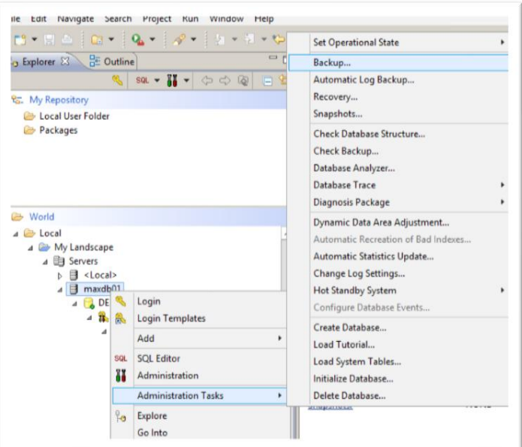

5. Start Client Initiated Backup from MaxDB Studio using the Backup Option. Check Backup Progress and Completion Status.
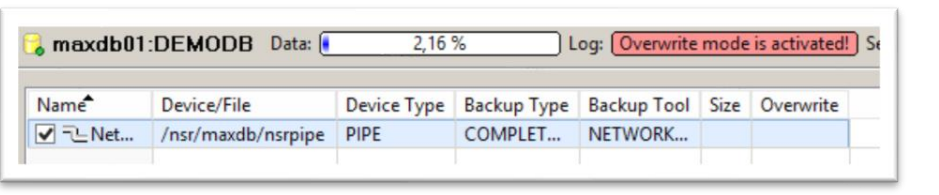
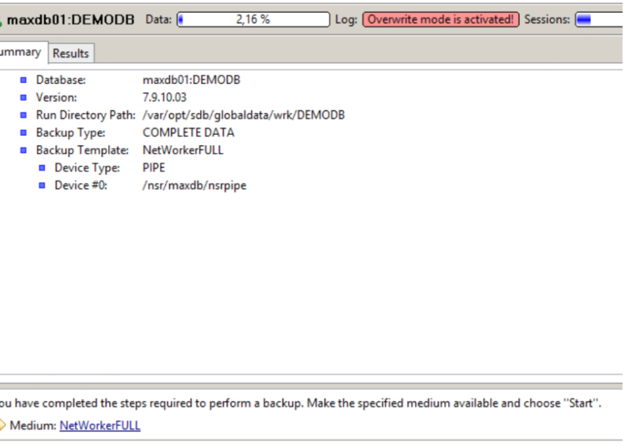
Server Initiated Backups
NMC configuration supports server-initiated backups for all types of MaxDB backups (Complete, Incremental, and Logs). However, automatic log backups are not supported.
Steps:
- Create a client instance manually.
- The saveset can have a small Dummy File.
- Backup is triggered using a PRE COMMAND or POST COMMAND script.
- The actual backup runs when the PRE or POST script is ran.
- This script is placed in the
/usr/sbindirectory and is called by updating the PRE/POST Command in "Apps and Modules.” - Log path can be defined in the script.
Backup Script Example
#!/bin/sh
# Backup command for MaxDB FULL Backups
LOGFILE=/nsr/applogs/MaxDBFull.log
DATE=$(date)
echo "==========================================================" >> $LOGFILE
echo "MaxDB FULL Backup starting at $DATE" >> $LOGFILE
echo "==========================================================" >> $LOGFILE
/opt/sdb/MaxDB/bin/dbmcli -uUTL -u DBADMIN,Password1 -d DEMODB backup_start NetWorkerFULL 2>&1 >> $LOGFILE
exit $?
Archive Log Backup
- Deactivate Overwrite Mode.
- Create a Log Backup Template.
- Use the
dbmclicommand to take log backups (Networker_log is the Template Name) - Automatic Log backup support is available.
dbmcli -uUTL -u DBADMIN,Password1 -d TRNDB backup_start NetWorker_Log
Methods of SAP MaxDB Restore
Restore from MaxDB Studio.1. Initiate Restore from MaxDB Studio.
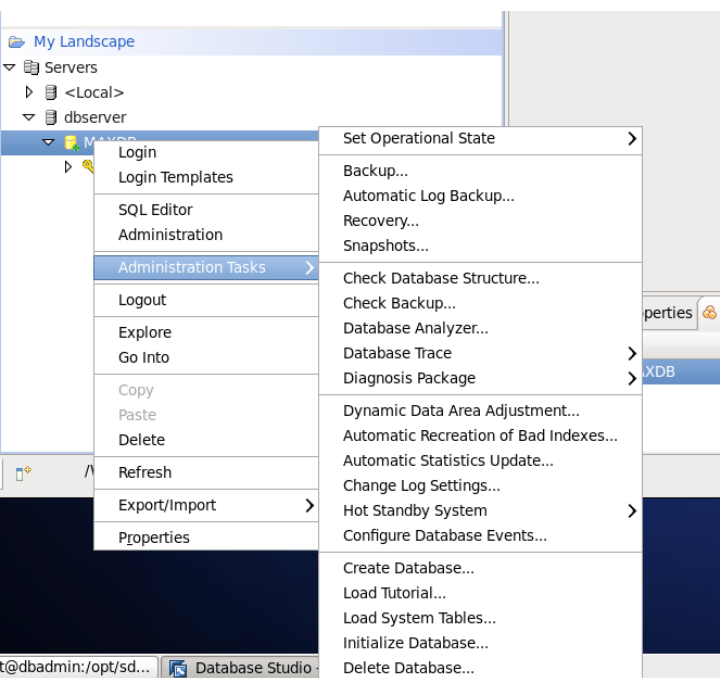
2. Choose the PIT option or the Last Full Backup to restore.

3. Verify the FULL backup needed to recover. Select the one needed.
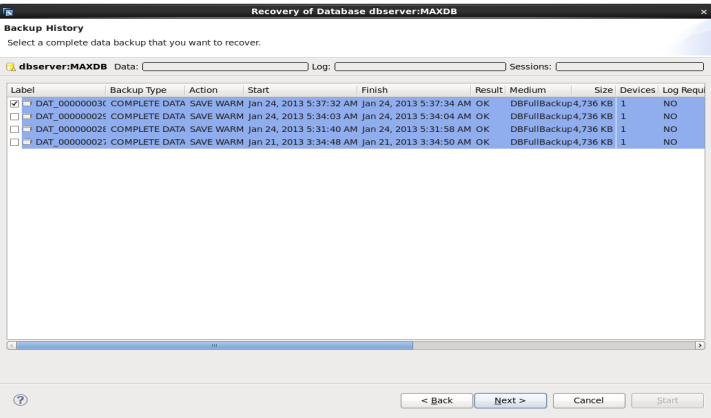
4. Start Recovery.
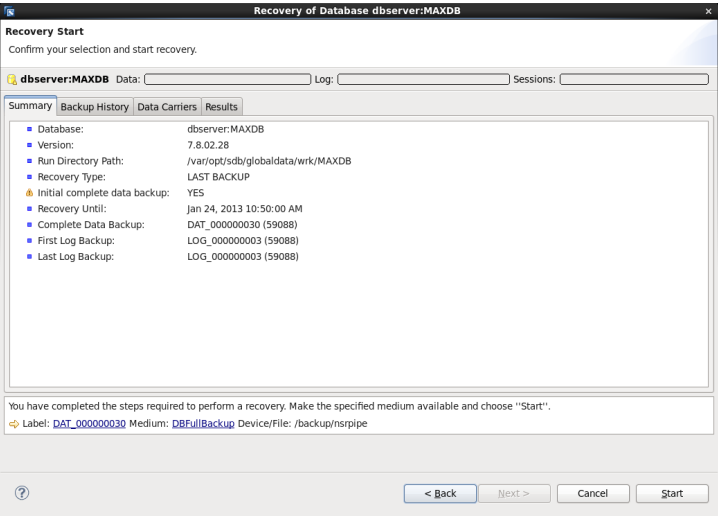
6. Verify Recovery.

Limitations (Restore and Recovery from Native "recover" binary)
The DBMCLI command is used to Call the NetWorker Save and Recover binaries to perform the Backup and Restore of the SAP MaxDB database.
Use of these binaries directly to perform the Backup and Restore of the Database or Datafiles are not supported.
Both backup and restore should be performed along with the necessary parameters in the Backup template and Environment variables as discussed in the attached document.
We have noticed in multiple cases. Customers can use the recover command with the named pipe to perform restore.
recover.exe -s <server_name> -a -t <nsavetime> -c ,client_name> -iY <Pipe_Name_Used_For_Backup>
NOTE: This method is still unsupported although it may work under certain circumstances.
Article Properties
Article Number: 000225343
Article Type: How To
Last Modified: 28 May 2024
Version: 1
Find answers to your questions from other Dell users
Support Services
Check if your device is covered by Support Services.