Dell Command Integration Suite for System Center에서 Windows 11 드라이버 팩을 가져오지 못함
Summary: 다음 문서에서는 Dell Command | Integration Suite for System Center 응용 프로그램.
This article applies to
This article does not apply to
This article is not tied to any specific product.
Not all product versions are identified in this article.
Symptoms
영향을 받는 제품:
- Dell Command | Integration Suite for System Center
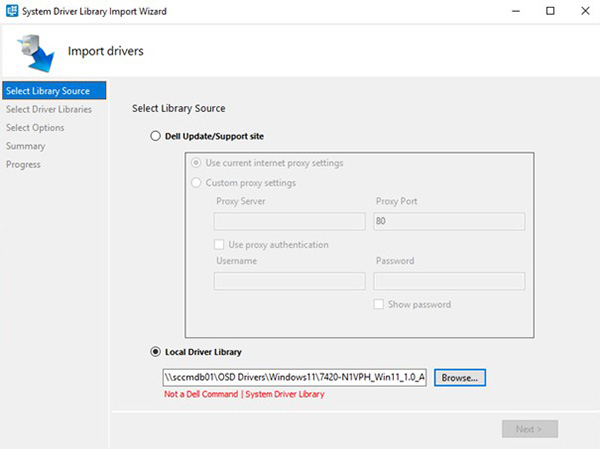
고객이 전화를 걸어 Dell Command | Integration Suite for System Center 응용 프로그램.
이들은 "Not a Dell Command | 시스템 드라이버 라이브러리" 오류가 화면에 표시됩니다.
Cause
이 문제는 드라이버 팩과 함께 사용되는 Dell Update Package 프레임워크의 문제로 인해 발생합니다. 패키지 프레임워크에서 드라이버 팩의 압축을 푸는 데 문제가 있었습니다.
이제 영향을 받는 제품 Windows 11 드라이버 팩에서 이 문제가 해결되었습니다.
Resolution
컴퓨터에 최신 Windows 11 드라이버 팩을 수동으로 다운로드하면 문제가 해결됩니다. 최신 Windows 11 드라이버 팩을 다운로드하고 설치하려면 아래에 언급된 단계를 따르십시오.
참고: 사용자에게 장애가 발생한 컴퓨터에 대한 관리자 권한이 있어야 운영 체제를 변경하거나 소프트웨어를 업데이트할 수 있습니다.
- https://www.dell.com/support/drivers 로 이동
- Dell 컴퓨터를 식별합니다.
- SupportAssist 다운로드 및 설치를 클릭하여 Dell 컴퓨터를 자동으로 탐지합니다. 화면의 지시에 따라 Dell SupportAssist를 설치합니다. 자세한 내용은 Dell 기술 자료 문서: Dell SupportAssist(이전 Dell System Detect): 개요 및 일반적인 질문
- 컴퓨터의 서비스 태그를 입력하고 검색을 클릭합니다.
- 또는 모든 제품 찾아보기를 클릭하고 카탈로그에서 Dell 컴퓨터를 선택합니다.
- Dell 컴퓨터에 설치된 Windows 11 운영 체제 를 선택합니다.
- 범주에서 시스템 관리를 선택합니다.
- 최신 Dell Command Deploy 드라이버 팩 또는 Dell Command Deploy WinPE 드라이버 팩을 선택합니다.
참고: 드라이버 팩 배포에 대한 자세한 내용은 다음 Dell 기술 자료 문서를 참조하십시오.
Affected Products
Dell Command | Integration Suite for Microsoft System CenterArticle Properties
Article Number: 000216651
Article Type: Solution
Last Modified: 17 Jul 2025
Version: 4
Find answers to your questions from other Dell users
Support Services
Check if your device is covered by Support Services.