Vxrail: Upgrade Fails with 'bad Script Return Code: 1' Due to Vmware Vsphere Profile-driven STORAGE Service Issue
Resumen: VxRail upgrade on some releases encounters error code 1. Logs show a PBM error adding a disk, and the vSphere Storage Service reports ‘Healthy with errors’, blocking profile access.
Síntomas
During a VxRail upgrade for 4.7.X, 7.0.X, or 8.0.X, there is the following error "Bad script return code: 1"
lcm-web.log:
INFO : Starting adding new disk sdc
INFO : Checkiing whether sdc exists ...
INFO : No sdc disk on VXM, need to perform add.
INFO : Handling VM <VxM Name Here>
INFO : Get VM Storage Profile name VXRAIL-SYSTEM-STORAGE-PROFILE, id <Long string of characters>.
INFO : Vm profileId is <Long string of characters>.
ERROR : Failed to add a new disk: (vodl.fault.SystemError)
{
dynamicType = <unset>
dynamicProperty = (vmodl.DynamicProperty) []
Msg = 'A general system error occurred: PBM error occurred during Pre-ReconfigureCallback: Fault cause: vmodl.fault.SystemError\n;\n'
faultCause = <unset>
faultMessage = (vmodl.LocalizableMessage) []
Reason = 'PBM error occurred during Pre-ReconfigurCallback: Fault cause: vmodl.fault.SystemError\n;\n'
}
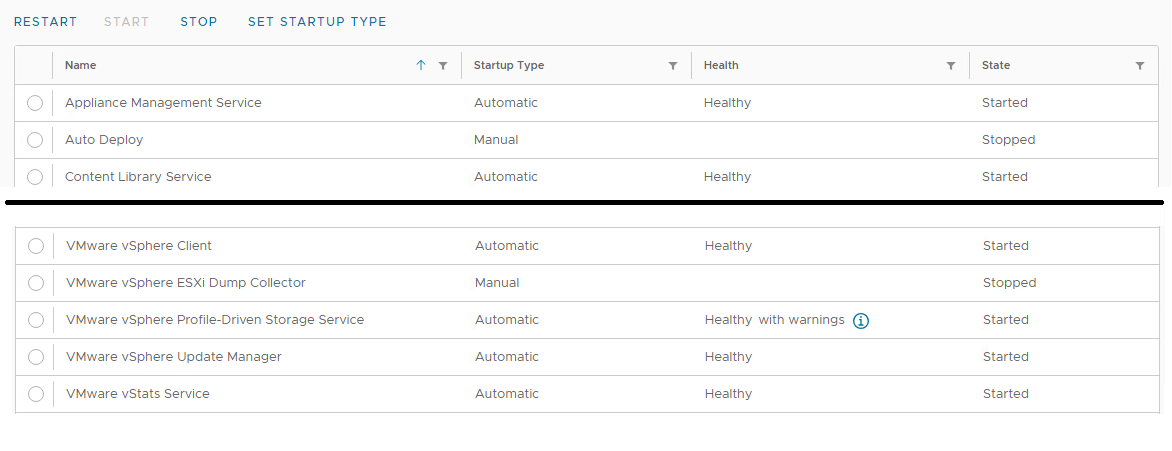
When checking the vCenter VAMI, the VMware vSphere Profile-Driven Storage Service shows Health as 'Healthy with errors " (or warnings) and State as 'Started'.
To check the VAMI, login as root to the vCenter VAMI from a web-browser using https://vCenterFQDN:5480 or IPaddress:5480.
click Services.
Causa
The VMware vSphere Profile-Driven Storage Service did not start correctly. This is causing issues viewing storage profiles in the vSphere Client.
Resolución
To resolve this issue, follow the steps below to restart the vCenter (and PSC for 6.7 and below):
If the vCenter version is 6.7.X or below:
- In the vSphere client, click the vCenter VM.
- Find which host the vCenter VM is running on.
- Then click the PSC VM.
- Migrate the PSC VM to the same ESXi host as the vCenter VM.
- Log in as root to the ESXi host from a web browser using https and the ESXi FQDN or Management IP address.
- Left-click Virtual Machines.
- Left-click the box for the vCenter VM.
- Left-click Actions.
- Hover over Guest operating system.
- Left-click Shut down.
- Left-click Virtual Machines.
- Left-click the box for the vCenter VM to clear it.
- Left-click the box for the PSC VM.
- Left-click Actions.
- Hover over Guest operating system.
- Left-click Restart.
- Wait about 3 - 5 minutes.
- Left-click the box for the PSC VM to clear it.
- Left-click the box for the vCenter VM.
- Left-click Actions.
- Hover over Guest operating system.
- Left-click Restart.
If the vCenter version is 7.0 or newer:
- In vSphere, click the vCenter VM.
- Find which host the vCenter VM is running on.
- Log in as root to the ESXi host from a web browser using https and the ESXi FQDN or Management IP address.
- Left-click Virtual Machines.
- Left-click the box for the vCenter VM.
- Left-click Actions.
- Hover over Guest operating system.
- Left-click Restart.