在不解除安裝 Dell Data Protection Personal Edition 的情況下解密 Dell 資料保護磁碟機
Resumen: 本文提供無需解除安裝 Dell Data Protection 即可解密程序的演練 |Personal Edition。
Este artículo se aplica a
Este artículo no se aplica a
Este artículo no está vinculado a ningún producto específico.
No se identifican todas las versiones del producto en este artículo.
Instrucciones
受影響的產品:
- Dell Data Protection | Personal Edition
受影響的版本:
- 8.0 版至 8.13 版
受影響的作業系統:
- Windows
使用者可能出於各種原因想要從計算機中刪除加密。如果使用者想要在不解除安裝 Dell Data Protection 軟體的情況下解密磁碟機,本指南將示範如何移除 Windows 7、8.1 和 10 的軟體。
如何在 Windows 中移除加密:
- 啟動 Dell Data Protection |加密 軟體。
Windows 10
- 前往任務列上的 開始圖示 。

- 轉到 所有應用。

- 前往 Dell。

- 前往 Dell Data Protection Encryption。
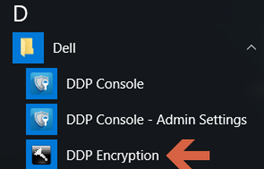
Windows 8.1
- 前往 開始圖示。

- 選取 箭頭 以查看應用程式。

- 前往 Dell 資料夾,然後選取 Dell Data Protection |加密。
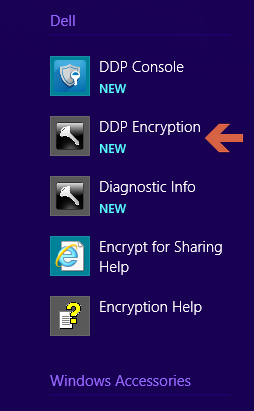
Windows 7
- 前往 開始圖示。

- 轉到 所有程式。

- 前往 Dell。
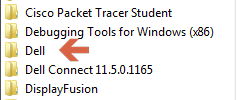
- 前往 Dell Data Protection |加密。
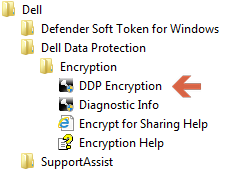
- 前往任務列上的 開始圖示 。
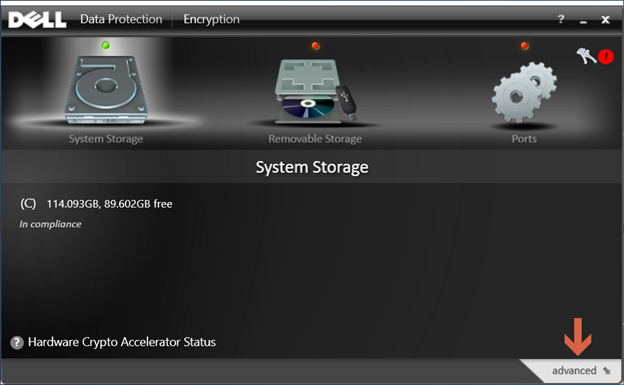
- 選取右下角 的進階 。
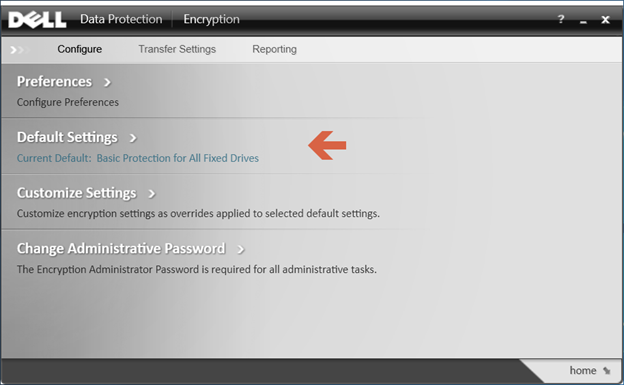
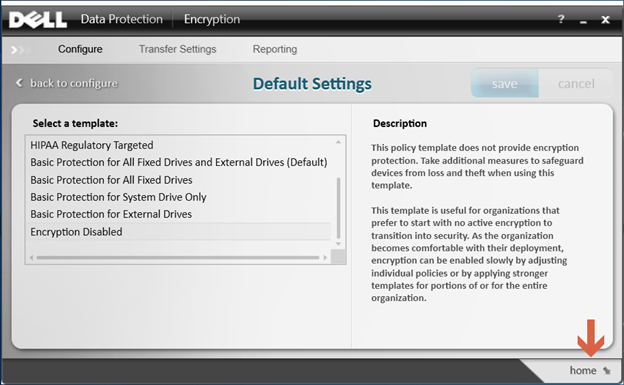
- 選擇 預設設定。
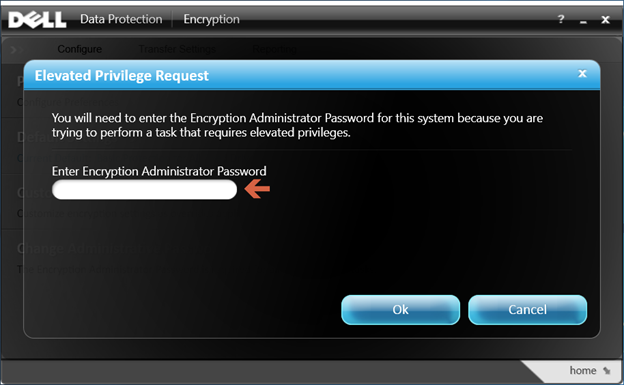
- 輸入 Dell Data Protection 軟體設定時建立的 加密系統管理員密碼 。
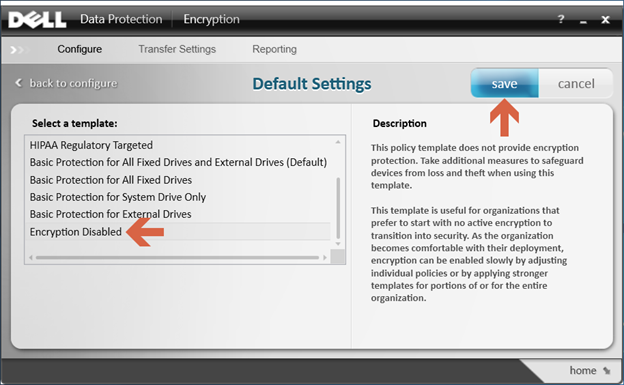
- 在 「選取範本」下,使用捲動選項移至 加密停用 選項,然後選取 儲存。
- 選取右下角的「 返回首 頁」選項。
- 解密程序隨即開始。
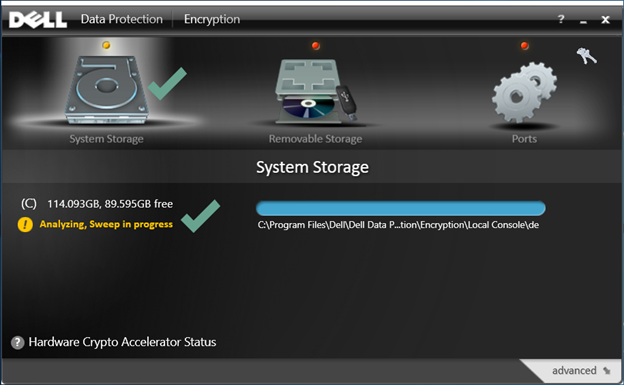 注意:這可能需要數小時才能完成,具體取決於計算機和加密的文件數量。
如要聯絡支援部門,請參閱 Dell Data Security 國際支援電話號碼。
請前往 TechDirect,以線上產生技術支援要求。
如需更多深入見解與資源,請加入 Dell 安全性社群論壇。
Productos afectados
Dell EncryptionPropiedades del artículo
Número del artículo: 000125212
Tipo de artículo: How To
Última modificación: 19 abr 2026
Versión: 15
Encuentre respuestas a sus preguntas de otros usuarios de Dell
Servicios de soporte
Compruebe si el dispositivo está cubierto por los servicios de soporte.