PowerFlex 4.X: OS Conversion Failure Due To Missing Virtual IPs
Resumen: OS conversion for a Resource Group (RG) completes and causes DU when an MDM cluster has fewer virtual IPs than MDM DATA IPs.
Síntomas
- OS conversion operation is run on one or more nodes in a Storage Only (SO) RG, and the process fails.
- The target node is successfully converted to SLES OS.
- The MDM cluster has a different configuration Mode after the conversion operation, and the State is showing as Degraded.
--query_clusteroutput may show nodes that were originally Manager MDMs as a Tie-Breaker and vice versa. The role may not match theactor_rolesetting in the MDM configuration file -/opt/emc/scaleio/mdm/cfg/conf.txt.
Example:
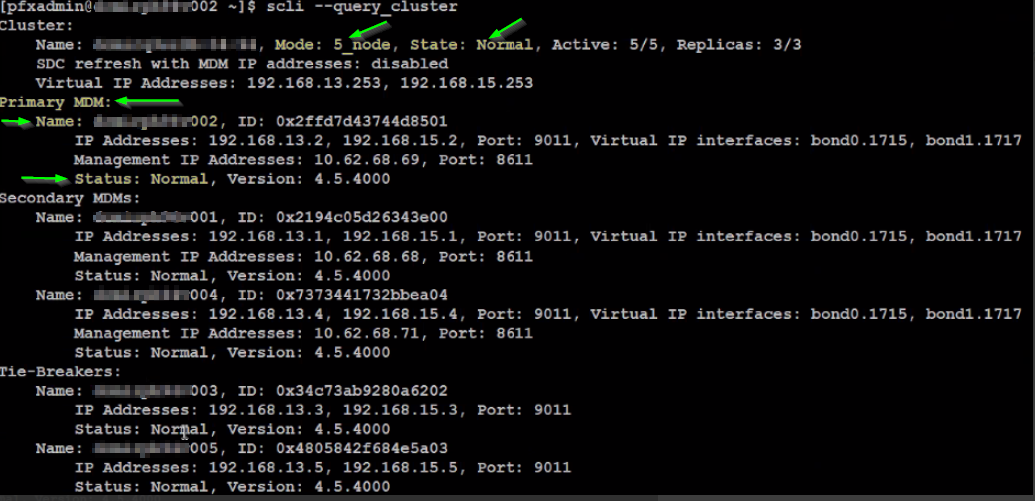
Pre-OS conversion
MDM cluster has a 5_node configuration Mode and a Normal (healthy) State, and node xxx002 is in a Normal Status and a Manager MDM (Primary):
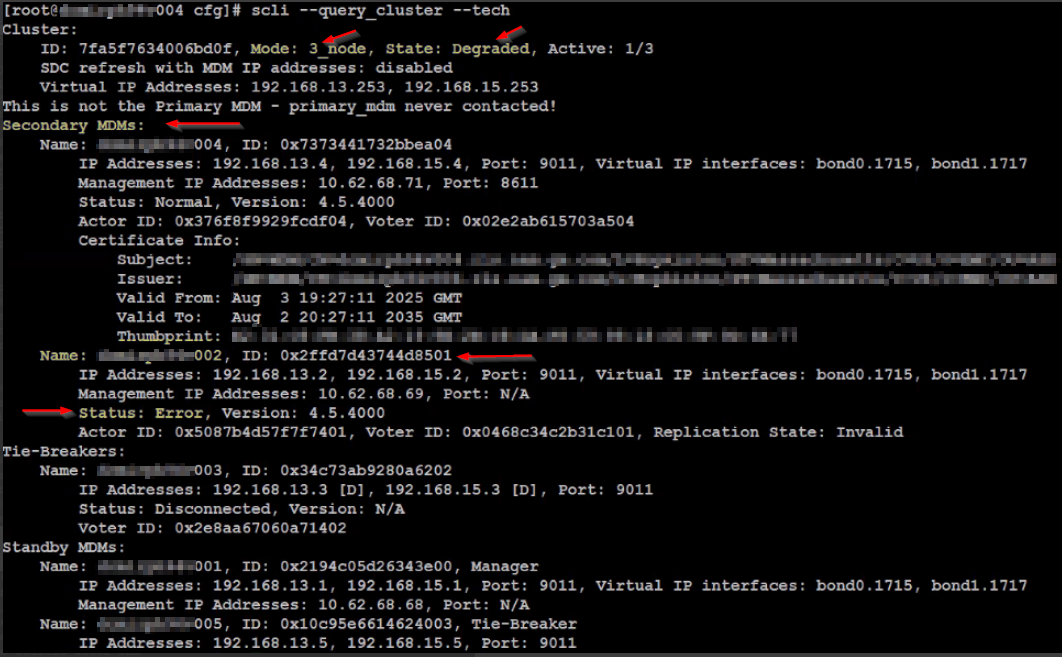
Post-OS conversion
MDM cluster has a 3_node configuration Mode and a Degraded (not healthy) State, and node xxx002 is in an Error Status and a Manager MDM (Secondary):
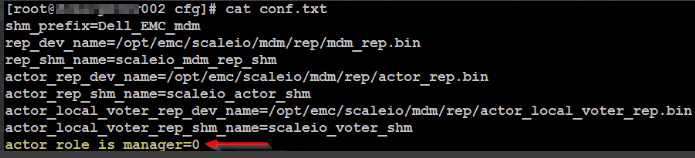
The configuration file for node xxx002 is set to actor_role_is_manager=0, i.e., Tie-Breaker:
Impact
The MDM cluster is in a failed and unexpected state - possible DU.
Causa
During an OS conversion, PFMP rebalances MDM roles among available nodes. PFMP uses the MDM cluster's Virtual IP Addresses as the anchor for installing and adding MDM cluster nodes and Standby Manager/Tie-Breakers.
After a node’s OS is successfully converted to SLES, the MDM cluster nodes' rebalance process is triggered, and since the Virtual IP Addresses indicate that there are 2 IPs to look for, and the nodes have 4 IPs, it causes the search to fail, and the installation proceeds, by defaulting the installation to a Standby Tie-Breaker.
Cluster:
    Name: sio-1, ID: 0a1707234b50f20f, Mode: 5_node, State: Normal, Active: 5/5, Replicas: 3/3
	...
    Virtual IP Addresses: 10.122.160.100, 10.123.160.100	<<<<<
Primary MDM:
    Name: sio-101, ID: 0x6bd7be1d61b4c900
        IP Addresses: 10.122.160.101, 10.123.160.101, 10.122.224.101, 10.123.224.101, Port: 9011, Virtual IP interfaces: bond0.393, bond1.398	<<<<<
        ...
Secondary MDMs:
    Name: sio-102, ID: 0x0b5a343e4caba901
        IP Addresses: 10.122.160.102, 10.123.160.102, 10.122.224.102, 10.123.224.102, Port: 9011, Virtual IP interfaces: bond0.393, bond1.398	<<<<<
        ....
    Name: sio-104, ID: 0x749bb9791864d903
        IP Addresses: 10.122.160.104, 10.123.160.104, 10.122.224.104, 10.123.224.104, Port: 9011, Virtual IP interfaces: bond0.393, bond1.398	<<<<<
        ....
Tie-Breakers:
    Name: sio-105, ID: 0x612f04b03a127004
        IP Addresses: 10.122.160.105, 10.123.160.105, 10.122.224.105, 10.123.224.105, Port: 9011	<<<<<
        ...
    Name: sio-103, ID: 0x154f223f2046a305
        IP Addresses: 10.122.160.103, 10.123.160.103, 10.122.224.103, 10.123.224.103, Port: 9011	<<<<<
        ...
Standby MDMs:
    Name: sio-106, ID: 0x6bd7be1d61b4c900, Manager
        IP Addresses: 10.122.160.106, 10.123.160.106, 10.122.224.106, 10.123.224.106, Port: 9011, Virtual IP interfaces: bond0.393, bond1.398	<<<<<
        ...
	Name: sio-107, ID: 0x612f04b03a127004, Tie-Breaker
        IP Addresses: 10.122.160.107, 10.123.160.107, 10.122.224.107, 10.123.224.107, Port: 9011	<<<<<
    Name: sio-108, ID: 0x0b5a343e4caba901, Manager
        IP Addresses: 10.122.160.108, 10.123.160.108, 10.122.224.108, 10.123.224.108, Port: 9011, Virtual IP interfaces: bond0.393, bond1.398	<<<<<
        ...
    Name: sio-112, ID: 0x612f04b03a127004, Tie-Breaker
        IP Addresses: 10.122.160.112, 10.123.160.112, 10.122.224.112, 10.123.224.112, Port: 9011	<<<<<
As a result, the installation process will revert to the default MDM role, Tie-Breaker, and all the MDMs will be installed as Tie-Breakers, thus breaking the MDM cluster:
DEBUG [2025-11-23T06:51:03.699277] 316828: provider/elementmanager/scaleio.rb:5702:in `add_mdm': scaleio-block-legacy-gateway: Failed to add MDM sio-102 to VxOS cluster with error {"message"=>"Illegal number of IP addresses. The Primary MDM, the Secondary MDM, and the Tie-Breaker must each have the same number of IP addresses.", "httpStatusCode"=>500, "errorCode"=>298}. Retying 1 Resolución
If the MDM cluster is in a failed state as mentioned above, contact the EE team for assistance in recovering the cluster.
To avoid a failed OS conversion or a DU, perform the following actions before attempting an OS conversion.
The MDM cluster members and Standby MDMs must have the same count of IP Addresses (DATA IPs) as the cluster's Virtual IP Addresses by increasing the Virtual IP interfaces and adding Virtual IP Addresses, or reducing the MDM's DATA IPs.
Follow one of the following options to remediate the issue: either increase the MDM cluster's Virtual IPs to align with the Primary/Secondary/Tie-Breaker/Standby MDMs' DATA IP count, or reduce the DATA IPs to align with the MDM cluster's Virtual IP count.
Increase MDM cluster's Virtual IPs.
- Make sure to add the virtual_ip_interfaces in the same order as the corresponding SDS IP roles.
- Make sure to add the virtual_ip_interfaces in the same order as their corresponding cluster_virtual_ips.
- Make sure to add the new cluster_virtual_ips, to the SDC/s.
1) Add additional Virtual IPs to the cluster, and Virtual IP Interfaces to the Primary and Secondary MDMs.
a. Clear the existing Virtual IPs:
scli --modify_cluster_virtual_ips --clear_all
b. Add the old and new Virtual IPs (comma-separated list, omit the space after each comma):
scli --modify_cluster_virtual_ips --cluster_virtual_ip <Virtual IP 1,Virtual IP 2,Virtual IP 3,Virtual IP 4>
c. Clear the existing Virtual IP Interfaces:
scli --modify_virtual_ip_interfaces --clear_all
2) Update the SDC/s and any other client that uses the Cluster's Virtual IPs, with the new IPs:
To bring the changes into effect, a server restart is required.
- Linux:
/opt/emc/scaleio/sdc/bin/drv_cfgThe new IP address list is comma-separated list, and must omit the space after each comma. If you want to retain the existing address(es), include them in this list.
drv_cfg --mod_mdm_ip --ip <One of the existing MDM IP addresses> <All MDM IP addresses>
- Windows:
C:\Program Files\emc\scaleio\sdc\bin\drv_cfg
The new IP address list is comma-separated list, and needs to omit the space after each comma. If you want to retain the existing address(es), include them in this list.
- ESXi:
- Get the running configuration. The command will return a string representing all the ESXi configuration parameters currently set, the SDC GUID, and MDM IPs:
cat /etc/vmware/esx.conf | grep scini | grep options-
- Use the details from the output to run the command to add the new Virtual IPs (comma-separated list, omit the space after each comma):
<XXX> - is a user-generated GUID string. The GUID can be validated using the SCLI command '--query_all_sdc' on the Primary MDM.
<LIST_VIP_MDM_IPS> is a comma-separated list of all the MDM IP addresses, or the virtual IP address of the MDM. Do not include Tie-Breaker IP addresses here.
- Use the details from the output to run the command to add the new Virtual IPs (comma-separated list, omit the space after each comma):
- Enter the ESXi into Maintenance Mode and reboot.
3) Remove the RG, using the PFMP UI, and re-add using all the MDM cluster Virtual IP Addresses, old, and new.
4) After the OS conversation has completed successfully and the system is in a Healthy State, to revert the changes, run steps 1-3.
Decrease MDM DATA IPs.
1) Reduce the MDM cluster into a 3_node or 1_node mode, based on the current cluster mode.
2) Re-add all MDMs (Standby, TB, and Secondary), with fewer MDM DATA IPs, based on the amount of the cluster's VIPs.
Impacted Versions
PFMP 4.x
Fixed In Version
PFMP 5.1
Información adicional
Related Articles:
PowerFlex 4.X: OS Conversion Failure Due To Incorrect SDS IP Role Order
PowerFlex 4.X: OS Conversion Failure Due To Unconfigured Standby MDM