PowerProtect Data Manager: Data Domain Certificates Show as Expired in the UI
Resumen: The PowerProtect Data Manager (PPDM) appliance is used to protect the environment with Data Domain (DD) storage. The DD certificates display as expired in the PPDM UI. The Renew Certificate action in PPDM fails because the HTTPS certificate on the DD appliance itself has already expired. PPDM cannot retrieve a valid certificate until the DD generates a new one. ...
Este artículo se aplica a
Este artículo no se aplica a
Este artículo no está vinculado a ningún producto específico.
No se identifican todas las versiones del producto en este artículo.
Síntomas
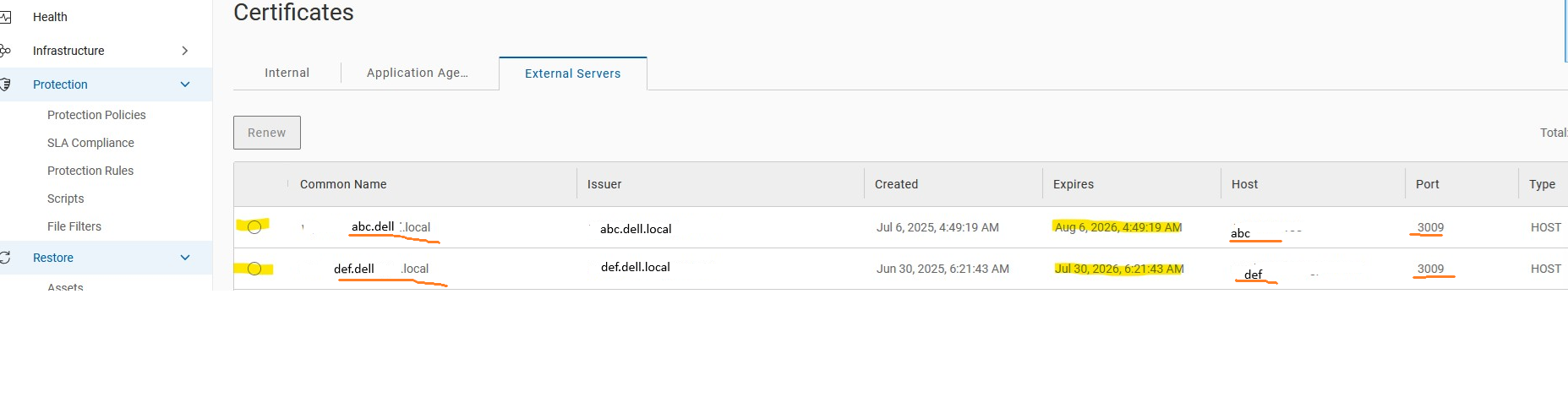
- Certificates are showing as expired in the PPDM UI.
- Selecting Renew Certificate in PPDM does not resolve the issue.
- An error is generated during the renewal process.
- Example output:
Causa
The Renew Certificate action in the PPDM UI cannot successfully update the Data Domain certificate when the HTTPS certificate on the Data Domain appliance itself has already expired.
The Data Domain HTTPS certificate must first be renewed directly on the Data Domain system. Once a valid certificate exists on the Data Domain appliance, PPDM can retrieve and update the certificate information successfully.
Resolución
Generate a New Certificate on the Data Domain
- Log in to the Data Domain CLI.
- Generate a new self-signed HTTPS certificate:
adminaccess certificate generate self-signed-cert
Verify the New Certificate
- Confirm the new certificate was generated:
adminaccess certificate show - Verify the output shows a new HTTPS certificate. Confirm the Valid Until date reflects the new expiration.
- Example output:
# adminaccess certificate show

Subject           Type   Application   Valid From                 Valid Until                Fingerprint
---------------   ----   -----------   ------------------------   ------------------------   -----------------------------------------------------------
my-ddve.domain.lan   host   https         Mon Aug 03 12:05:29 2026   Fri Sep 03 12:05:29 2027   4F:C5:65:80:CB:E1:16:FA:C2:9E:EE:0C:AC:38:70:3E:DE:06:0B:65
Renew the Certificate in PPDM
- Log in to the PPDM UI.
- Navigate to Administration → Certificates → External Servers.
- Select the affected Data Domain system.
- Click Renew.
- When the Verify Certificate window appears, click Accept.
- Confirm the certificate status changes from expired to valid.
Contact Dell Support
- If the certificate renewal fails after generating a new certificate on the DD, contact Dell Support for further investigation. Reference this KB article.
Información adicional
Propiedades del artículo
Número del artículo: 000505673
Tipo de artículo: Solution
Última modificación: 08 sept 2026
Versión: 1
Encuentre respuestas a sus preguntas de otros usuarios de Dell
Servicios de soporte
Compruebe si el dispositivo está cubierto por los servicios de soporte.