NetWorker: How To Identify Binary Version Details
Resumen: This KB gives a general overview of how to identify NetWorker binary or executable version details for both Linux and Windows NetWorker hosts. This information can be useful in confirming if the correct version is in use or when comparing default vs. debug files. ...
Este artículo se aplica a
Este artículo no se aplica a
Este artículo no está vinculado a ningún producto específico.
No se identifican todas las versiones del producto en este artículo.
Instrucciones
This KB gives a general overview of how to identify NetWorker binary or executable version details for both Linux and Windows NetWorker hosts. This information can be useful in confirming if the correct version is in use or when comparing default vs. debug files.
Linux:
- On Linux based NetWorker hosts, confirm the install path:
find / -name binary_name
Or:
which PROCESS_NAME
- Use the strings command against the binary file:
strings /path/to/binary | grep -i "@(#)"
Example:
nve:~ # strings /usr/sbin/nsrexecd | grep -i "@(#)"
@(#) Product:      NetWorker
@(#) Release:      19.12.0.0.Build.21
@(#) Build number: 21
@(#) Build date:   Sat Dec 21 17:59:07 2024
@(#) Build arch.:  linux86w
@(#) Build info:   DBG=0,OPT=-O2 -fno-strict-aliasing
NOTE: For full details remove the
| grep -i "@(#)" from the command.
Windows:
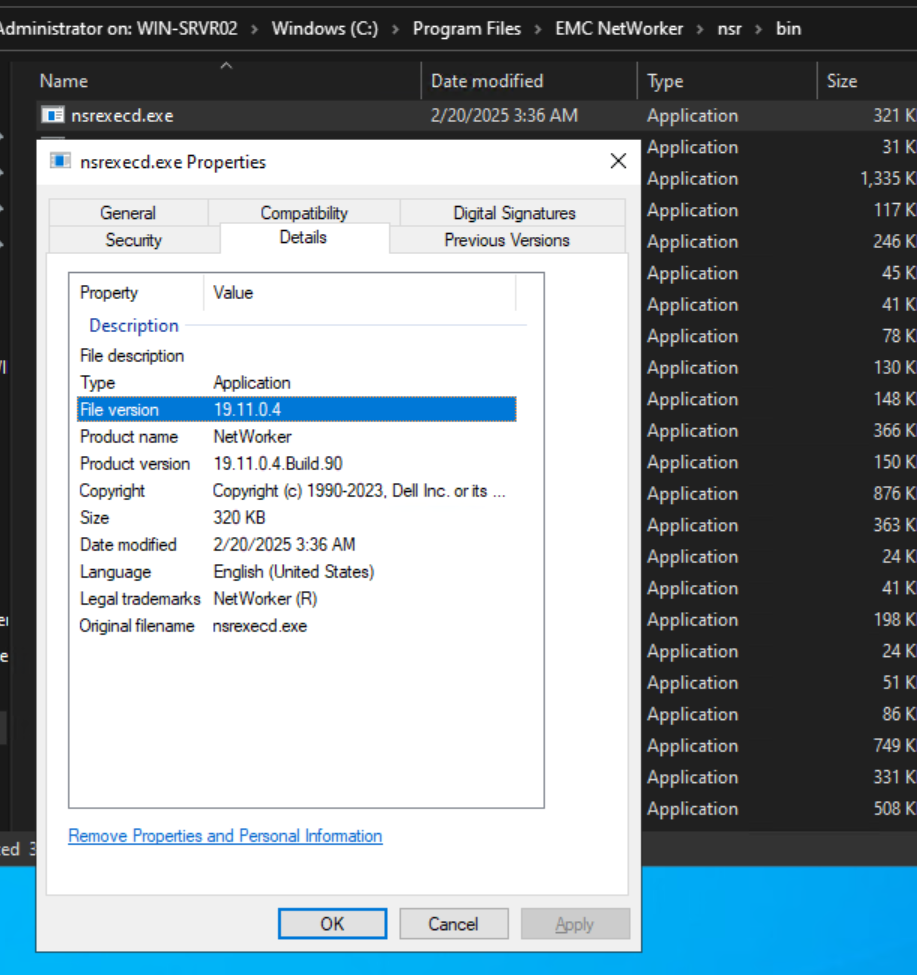
- Open Windows File Explorer and go to the NetWorker install path.
- Go to the NetWorker bin directory, e.g:
..\Program Files\EMC NetWorker\nsr\bin - Open the file properties of the executable in question, and select the Details tab:
Información adicional
Productos afectados
NetWorkerProductos
NetWorkerPropiedades del artículo
Número del artículo: 000158059
Tipo de artículo: How To
Última modificación: 09 jun 2025
Versión: 6
Encuentre respuestas a sus preguntas de otros usuarios de Dell
Servicios de soporte
Compruebe si el dispositivo está cubierto por los servicios de soporte.