How to Uninstall VMware Carbon Black Cloud Endpoint
Resumen: VMware Carbon Black Cloud Endpoint can be uninstalled by following these instructions for Windows, Mac, and Linux.
Instrucciones
VMware Carbon Black Cloud Endpoint may be uninstalled to:
- Troubleshoot the product.
- Address operating system incompatibilities.
- Fix licensing discrepancies.
This article covers the steps to uninstall the product.
Affected Products
- VMware Carbon Black Cloud Endpoint
Affected Operating Systems
- Windows
- Mac
- Linux
VMware Carbon Black Onboarding Part 4: Uninstall and Troubleshooting
Duration: 03:03
Closed captions: Available in multiple languages
Click Windows, Mac, or Linux for the steps to uninstall VMware Carbon Black Cloud Endpoint.
Windows
VMware Carbon Black Cloud Endpoint on Windows can be uninstalled through the:
Click the preferred method for more information.
UI
- The UI uninstall method is only available for devices without an uninstall code that is enabled in the policy. For more information, refer to How to Manage the VMware Carbon Black Cloud Endpoint Uninstall Code.
- For devices using the uninstall code policy, perform the uninstall by using either the CLI or Cloud method.
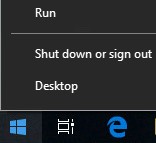
- As an administrator, right-click the Windows start menu and then click Run.
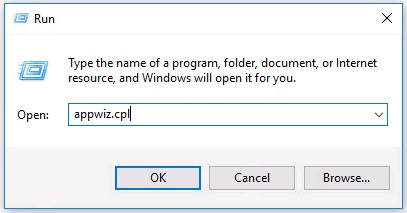
- In the Run UI, type
appwiz.cpland then press OK.
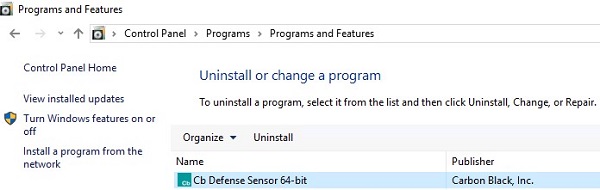
- In Programs and Features, double-click
Cb Defense Sensor [BIT].
 Note:
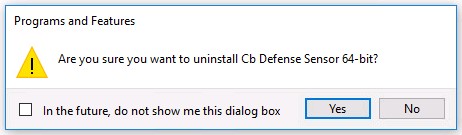
Note:[BIT]= 32 or 64 bit - Click Yes.
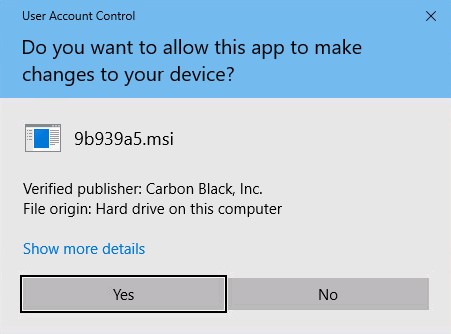
- If User Account Control (UAC) is enabled, click Yes.
 Note: On uninstall, the device is deregistered in the VMware Carbon Black Cloud. To remove the device from the console, refer to How to Remove Devices from the VMware Carbon Black Cloud.
CLI
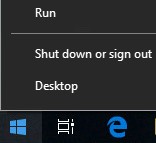
- As an administrator, right-click the Windows start menu and then click Run.
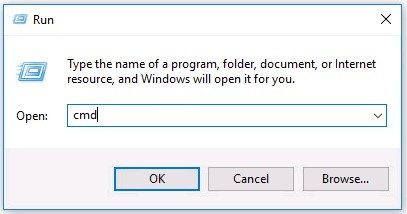
- In the Run UI, type
cmdand then press CTRL+SHIFT+ENTER. This runs Command Prompt as an admin.
- In Command Prompt, type
cd [DIRECTORY]\Conferand then press Enter.
 Note:
Note:[DIRECTORY]= The path where the Confer directory resides- The path in the example image may differ in your environment.
- Type
uninstall.exe /uninstall [UNINSTALL CODE]and then press Enter.
 Note:
Note:[UNINSTALL CODE]= The device uninstall code- If the device uninstall code is disabled, it should be omitted from the command. For more information, refer to How to Manage the VMware Carbon Black Cloud Endpoint Uninstall Code.
- The device uninstall code will differ in your environment.
- Type
exitand then press Enter.
 Note: On uninstall, the device is deregistered in the VMware Carbon Black Cloud. To remove the device from the console, refer to How to Remove Devices from the VMware Carbon Black Cloud.
Cloud
- In a web browser, go to [REGION].conferdeploy.net.
Note: [REGION] = Region of tenant
- Americas = https://defense-prod05.conferdeploy.net/
- Europe = https://defense-eu.conferdeploy.net/
- Asia Pacific = https://defense-prodnrt.conferdeploy.net/
- Australia and New Zealand = https://defense-prodsyd.conferdeploy.net
- Americas = https://defense-prod05.conferdeploy.net/
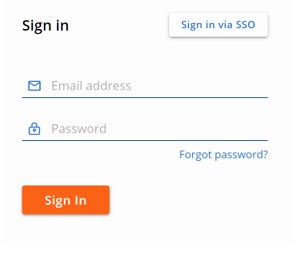
- Sign In to the VMware Carbon Black Cloud.
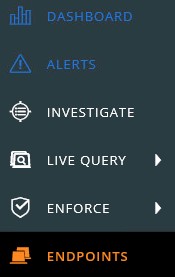
- In the left menu pane, click Endpoints.
- Locate and then check the targeted DEVICE NAME.
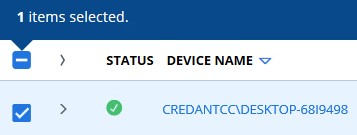 Note: The example DEVICE NAME will differ in your environment.
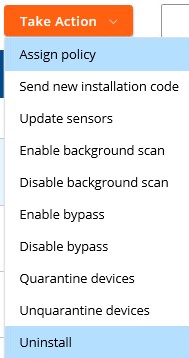
 - Click Take Action and then select Uninstall.
- Click Uninstall.
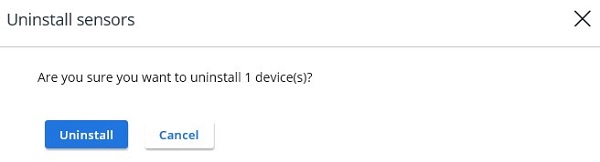 Note: With an active connection, the device is uninstalled within 15 minutes.

Mac
VMware Carbon Black Cloud Endpoint can be uninstalled on Mac through the:
Click the preferred method for more information.
UI
- Double-click
confer_installer_mac-[VERSION].dmg.
 Note:
Note:[VERSION]= The sensor version (may differ from the example image)- To obtain the installer, refer to How to Download the VMware Carbon Black Cloud Endpoint Sensor.
- Double-click CbDefense Uninstall.
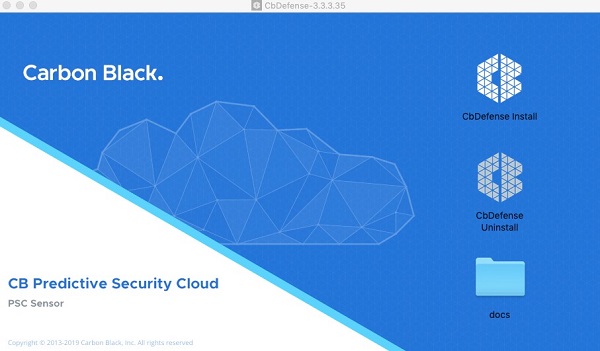
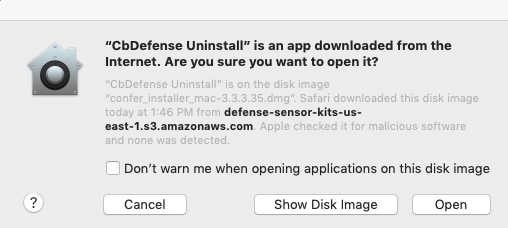
- If prompted, click Open. Otherwise, go to Step 4.
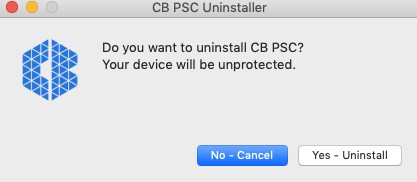
- Click Yes - Uninstall.
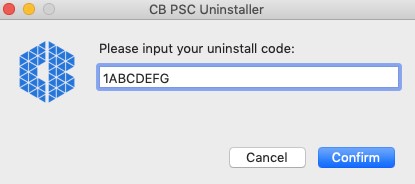
- If prompted, populate the uninstall code and then click Confirm. Otherwise, go to Step 6.
 Note:
Note:- If the endpoint uninstall code is not enabled in your environment, this prompt does not appear. For more information, refer to How to Manage the VMware Carbon Black Cloud Endpoint Uninstall Code.
- The endpoint uninstall code in the example image will differ in your environment.
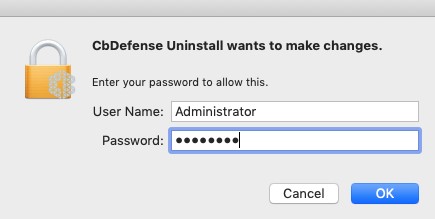
- Populate the User Name and Password. Once populated, click OK.
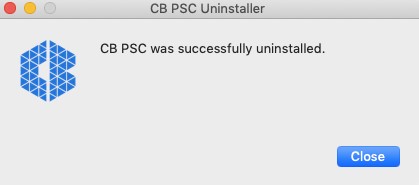
- Click Close.
 Note: On uninstall, the device is deregistered in the VMware Carbon Black Cloud. To remove the device from the console, refer to How to Remove Devices from the VMware Carbon Black Cloud.
Terminal
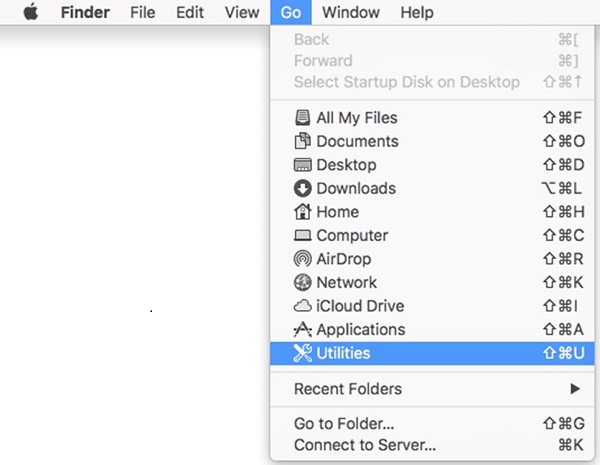
- From the Apple menu, click Go and then select Utilities.
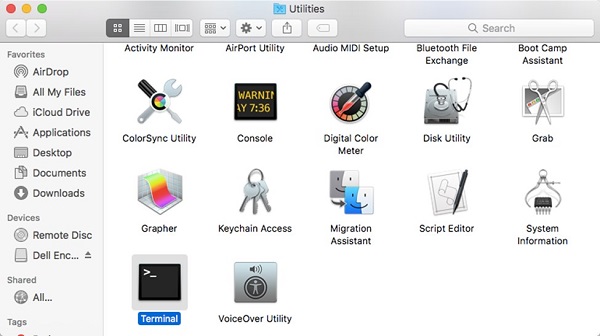
- In the Utilities menu, double-click Terminal.
- In Terminal, type
sudo /Applications/Confer.app/uninstall -y -c [UNINSTALL CODE]and then press Enter.
 Note:
Note:[UNINSTALL CODE]= The device uninstall code- If the device uninstall code is disabled, it may be omitted from the command. For more information, refer to How to Manage the VMware Carbon Black Cloud Endpoint Uninstall Code.
- The endpoint uninstall code in the example image will differ in your environment.
- Populate the Password for the account being used and then press Enter.

- Once uninstallation is complete, type
exitand then press Enter.
 Note: On uninstall, the device is deregistered in the VMware Carbon Black Cloud. To remove the device from the console, refer to How to Remove Devices from the VMware Carbon Black Cloud.
Cloud
- In a web browser, go to [REGION].conferdeploy.net.
Note: [REGION] = Region of tenant
- Americas = https://defense-prod05.conferdeploy.net/
- Europe = https://defense-eu.conferdeploy.net/
- Asia Pacific = https://defense-prodnrt.conferdeploy.net/
- Australia and New Zealand = https://defense-prodsyd.conferdeploy.net
- Americas = https://defense-prod05.conferdeploy.net/
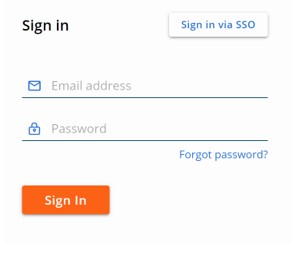
- Sign In to the VMware Carbon Black Cloud.
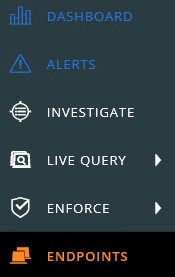
- In the left menu pane, click Endpoints.
- Locate and then check the targeted DEVICE NAME.
 Note: The DEVICE NAME in the example image will differ in your environment.
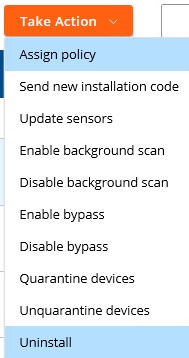
 - Click Take Action and then select Uninstall.
- Click Uninstall.
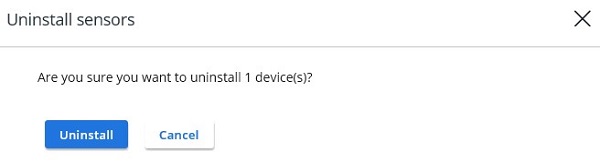 Note: With an active connection, the device is uninstalled within 15 minutes.
Linux
The resolution differs between CentOS, Red Hat Linux, SUSE, or Amazon Linux, and Ubuntu. Click the appropriate operating system for the steps to uninstall VMware Carbon Black Cloud Endpoint.
CentOS, Red Hat Linux, SUSE, or Amazon Linux
- Open Terminal.

- Type
sudo rpm -e cb-psc-sensorand then press Enter.

- Populate the password for the account being used and then press Enter.

- Once uninstallation is complete, type
exitand then press Enter.
 Note: On uninstall, the device is deregistered in the VMware Carbon Black Cloud. To remove the device from the console, refer to How to Remove Devices from the VMware Carbon Black Cloud.
Ubuntu
- Open Terminal.

- Type
sudo dpkg –purge cb-psc-sensorand then press Enter.

- Populate the password for the account being used and then press Enter.

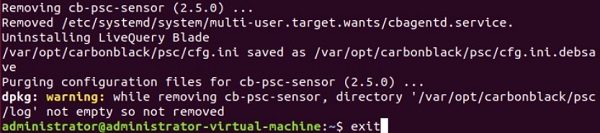
- Once uninstallation is complete, type
exitand then press Enter.
 Note: On uninstall, the device is deregistered in the VMware Carbon Black Cloud. To remove the device from the console, refer to How to Remove Devices from the VMware Carbon Black Cloud.
To contact support, reference Dell Data Security International Support Phone Numbers.
Go to TechDirect to generate a technical support request online.
For additional insights and resources, join the Dell Security Community Forum.