PowerProtect Data Manager: How to change the interface timeout
Resumen: The PowerProtect Interface times out after the default 1800 seconds (30 minutes).
Este artículo se aplica a
Este artículo no se aplica a
Este artículo no está vinculado a ningún producto específico.
No se identifican todas las versiones del producto en este artículo.
Instrucciones
How to increase the PowerProtect Interface timeout in 19.22.0.24 and older.
- Open an SSH session to PowerProtect and authenticate with the admin account.
- Make a copy of the
app-config.jsonfile:cp -p /usr/local/brs/lib/ecdm-ui/main/app-config.json /usr/local/brs/lib/ecdm-ui/main/app-config.json.orig - Update the
idle-timeoutvalue in theapp-config.jsonfile with a value between 1 and 3600 seconds.- Text editor:
vi /usr/local/brs/lib/ecdm-ui/main/app-config.json - The
sedutility:sed -i 's/"idle-timeout": 1800/"idle-timeout": 3600/' /usr/local/brs/lib/ecdm-ui/main/app-config.json
- Text editor:
- Verify that the
app-config.jsonfile was properly updated:grep 'idle-timeout' /usr/local/brs/lib/ecdm-ui/main/app-config.json
Note: The default 1800 seconds (30 minutes) is used if the value is not between 1 and 3600 seconds.
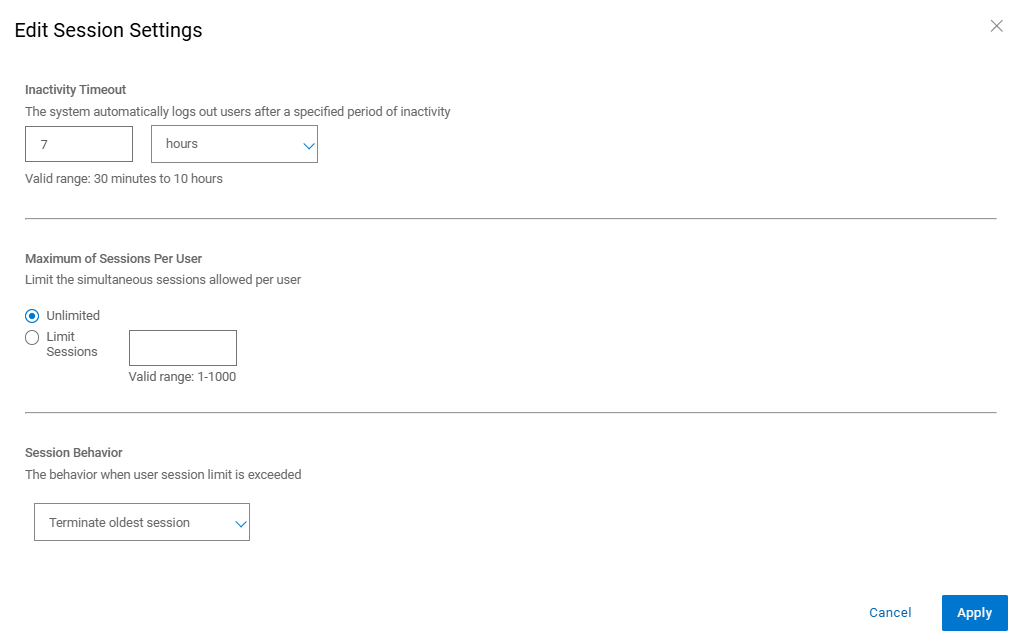
How to increase the PowerProtect Interface timeout in 20.1.0.0-17 and newer.
In the PowerProtect Interface, navigate to "Administration > Access Control > Session Settings."
Información adicional
The default app-config.json file:
admin@ppdm:/> cat /usr/local/brs/lib/ecdm-ui/main/app-config.json
{
    "idle-timeout": 1800
}
admin@ppdm:/>
The app-config.json file after the update:
admin@ppdm:/> cat /usr/local/brs/lib/ecdm-ui/main/app-config.json
{
    "idle-timeout": 3600
}
admin@ppdm:/>
Propiedades del artículo
Número del artículo: 000221611
Tipo de artículo: How To
Última modificación: 22 may 2026
Versión: 3
Encuentre respuestas a sus preguntas de otros usuarios de Dell
Servicios de soporte
Compruebe si el dispositivo está cubierto por los servicios de soporte.