How to Boot to an External Device Using USB Type-C Connection
Resumen: BIOS settings to select to boot to an external device using USB TYPE-C connection for XPS, Precision, and Latitude laptops.
Este artículo se aplica a
Este artículo no se aplica a
Este artículo no está vinculado a ningún producto específico.
No se identifican todas las versiones del producto en este artículo.
Síntomas
XPS, Precision, and Latitude may not be able to boot to externally connected USB Type-C devices. The computer may report a "Device not identified" error.
Causa
The default specification bypasses the USB boot sequence to reduce the boot times in the default configuration. Due to this default configuration, the computer does not boot to the external device.
Resolución
Enable below two options to support boot from an external device.
- At boot, Press the F2 key or alternately press the F12 key then select the option to enter the BIOS setup.
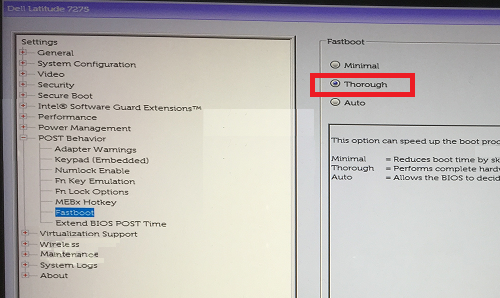
- In POST Behavior, select Fastboot then select the Thorough option.
- In System Configuration, select USB/Thunderbolt Configuration, then select Enable Thunderbolt Boot Support.
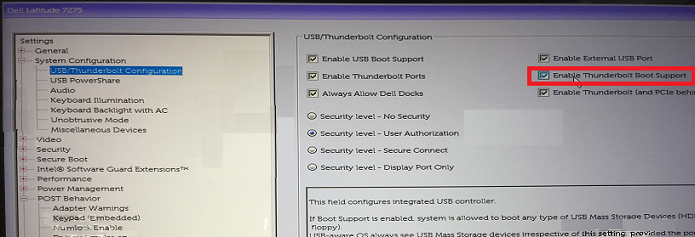
Note: Check to Enable USB Boot Support to recognize the USB boot device. - In the General Tab, select Advanced Boot Configuration, then check Enable Legacy Option ROMs and Enable UEFI Network Stack if not already checked.
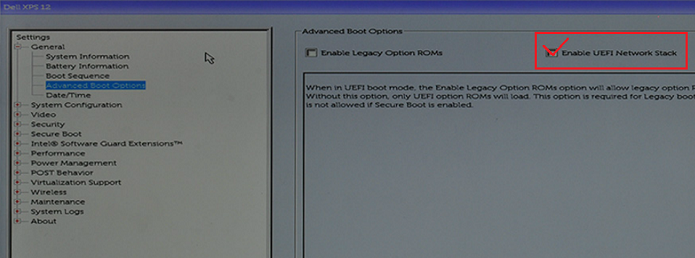
- Reboot the computer, the USB Type-C device should now appear in the boot options.
See these Dell Knowledge Base articles for related information:
Productos afectados
Latitude 7275, Precision 3520, Precision 5520, Precision 3510, Precision 5510, XPS 12 9250Propiedades del artículo
Número del artículo: 000131221
Tipo de artículo: Solution
Última modificación: 20 abr 2026
Versión: 13
Encuentre respuestas a sus preguntas de otros usuarios de Dell
Servicios de soporte
Compruebe si el dispositivo está cubierto por los servicios de soporte.