Dell Security Management Server VirtualでのpgAdminを使用したPostgresデータベースへのアクセス
Resumen: この記事では、pgAdminを使用してDell Security Management Server Virtual Postgresデータベースにアクセスする方法について説明します。
Este artículo se aplica a
Este artículo no se aplica a
Este artículo no está vinculado a ningún producto específico.
No se identifican todas las versiones del producto en este artículo.
Instrucciones
対象製品:
- Dell Security Management Server Virtual
- Dell Data Protection | Virtual Edition
Dell Security Management Server Virtual(旧Dell Data Protection |Virtual Edition)、Postgresにアクセスする必要があります。これはコマンドラインで実行できますが、pgAdminなどのサードパーティツールを使用すると、より優れたエクスペリエンスを提供できます。
データベースにアクセスするには、次の手順を実行します。
- パスワードを設定します 。
- リモート アクセスを許可します。
注:これらのオプションは、Dell Security Management Server Virtualコンソールの詳細 設定 メニュー内にあります。
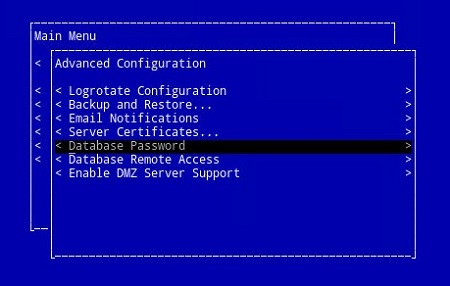

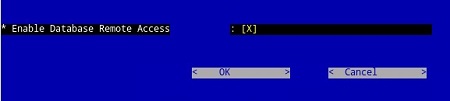
pgAdminの3
- アクセスが設定されたので、 pgAdminを起動します。ドロップダウン メニューから、ファイル>サーバーの追加...を選択します。
![[Add Server]をクリックします](https://supportkb.dell.com/img/ka0Do000000dkHLIAY/ka0Do000000dkHLIAY_ja_4.jpeg)
- [New Server Registration]画面に必要なフィールドに入力します。
- [Name]:使用するサーバーのフレンドリ名がpgAdminコンソールに表示されます。
- ホスト: Dell Data Protection |Virtual Editionサーバー
- ポート: データベースにアクセスするためのポート番号(デフォルトでは5432で、事前に入力されている必要があります)。
- ユーザー名:
ddp_admin - パスワード: Dell Data Protection |Virtual Editionサーバー コンソール。
![[New server Registration]画面のフィールドに入力します](https://supportkb.dell.com/img/ka0Do000000dkHLIAY/ka0Do000000dkHLIAY_ja_5.jpeg)
- その情報を入力したら、[ OK ]を押して、pgAdminコンソールへのサーバーの追加を完了します。
![[サーバー]を展開して、お使いのサーバーがリストされていることを確認します](https://supportkb.dell.com/img/ka0Do000000dkHLIAY/ka0Do000000dkHLIAY_ja_6.jpeg)
- ddp_8_2_0を選択すると、赤いXが消え、SQLアイコンが使用可能になります。
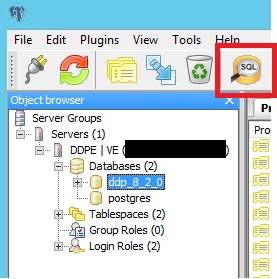
- そのアイコンをクリックすると、 クエリウィンドウが表示されます。
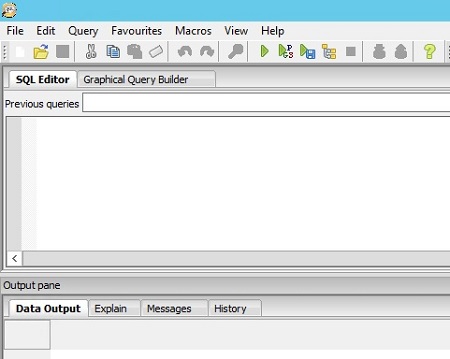
pgAdminの4
- アクセスが設定されたので、pgAdminを開きます。ドロップダウン メニューから、Object>Create>Serverを選択します。
![[Server]をクリックします。](https://supportkb.dell.com/img/ka0Do000000dkHLIAY/ka0Do000000dkHLIAY_ja_9.jpeg)
- サーバーに 名前 を付けます (pgAdmin ブラウザでは次のように表示されます)。

- 接続タブをクリックします。次のフィールドに入力します。
- ホスト: Dell Data Protection |Virtual Editionサーバー
- ポート: データベースにアクセスするためのポート番号(デフォルトでは5432で、事前に入力されている必要があります)。
- ユーザー名:
ddp_admin - パスワード: Dell Data Protection |Virtual Editionサーバー コンソール。

- サーバーを開き、 ddp データベースに移動します。

- データベースを右クリックし、[Query Tool...]を選択します。
![[Query Tool...] をクリックします。](https://supportkb.dell.com/img/ka0Do000000dkHLIAY/ka0Do000000dkHLIAY_ja_13.jpeg)
これにより、クエリウィンドウが表示されます。

サポートに問い合わせるには、「Dell Data Securityのインターナショナル サポート電話番号」を参照してください。
TechDirectにアクセスして、テクニカル サポート リクエストをオンラインで生成します。
さらに詳しい情報やリソースについては、「デル セキュリティ コミュニティー フォーラム」に参加してください。
Productos afectados
Dell EncryptionPropiedades del artículo
Número del artículo: 000131368
Tipo de artículo: How To
Última modificación: 19 jun. 2026
Versión: 13
Encuentre respuestas a sus preguntas de otros usuarios de Dell
Servicios de soporte
Compruebe si el dispositivo está cubierto por los servicios de soporte.