How to Schedule Managed Reports for Dell Data Security Servers
Resumen: Learn about how to schedule managed reports on Dell Data Security Server and Dell Data Security Server Virtual by following these instructions.
Este artículo se aplica a
Este artículo no se aplica a
Este artículo no está vinculado a ningún producto específico.
No se identifican todas las versiones del producto en este artículo.
Instrucciones
An administrator can schedule Managed Reports to be sent to a list of email recipients for Dell Data Security servers (Dell Security Management Server or Dell Security Management Server Virtual).
Affected Products:
- Dell Security Management Server
- Dell Security Management Server Virtual
Affected Versions:
- Version 10.1.0 and later
A New or Existing managed report may be scheduled to send to one or more email addresses. Click the appropriate task for more information.
Note:
- Email notifications require SMTP settings to be configured on the Dell Data Security server.
- For more information, reference How to Configure SMTP Settings for Dell Data Security Servers.
New
- Sign in to the Dell Data Security administration console.
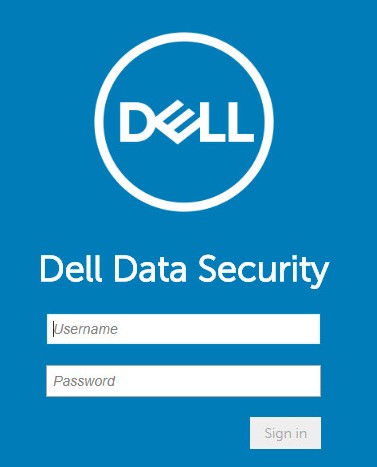 Note: For more information, reference How to Access the Dell Data Security Server Administration Console.
 - From the left menu pane, click Reporting and then Manage Reports.
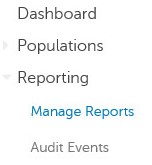
- Click the Create New Report drop-down and then select the appropriate report.

- Change the default report filters as is appropriate. Once finished, click Save As.

- From the Report - Save As menu:
- Populate a Report Name.
- Populate a Description.
- Optionally, select Private.
- Click Save.
 Note: Only the owner and report administrator have visibility to a Private report.
 - Click Schedule.

- Click Add Schedule.

- From the Add Schedule menu:
- Populate an Email to receive the report.
- Select a Schedule for the report to run.
- Select a Time to run.
- Select a Locale.
- Click Save.
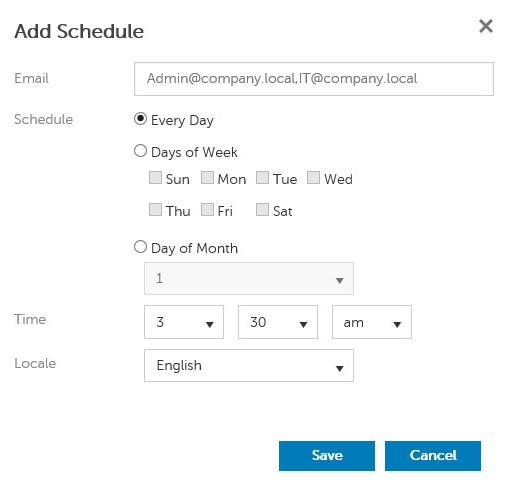 Note: Separate multiple email addresses with commas.
Existing
- Sign in to the Dell Data Security administration console.
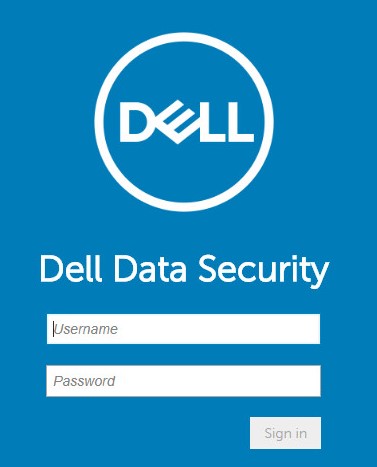 Note: For more information, reference How to Access the Dell Data Security Server Administration Console.
 - From the left menu pane, click Reporting and then Manage Reports.

- Select the report to be scheduled.
 Note: The report information (Name, Description, and Report Type) may differ in your environment.
 - Click Schedule.

- Click Add Schedule.

- From the Add Schedule menu:
- Populate an Email to receive the report.
- Select a Schedule for the report to run.
- Select a Time to run.
- Select a Locale.
- Click Save.
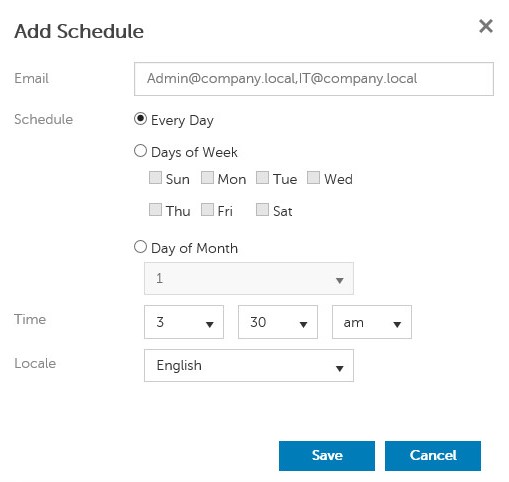 Note: Separate multiple email addresses with commas.
To contact support, reference Dell Data Security International Support Phone Numbers.
Go to TechDirect to generate a technical support request online.
For additional insights and resources, join the Dell Security Community Forum.
Productos afectados
Dell EncryptionPropiedades del artículo
Número del artículo: 000125166
Tipo de artículo: How To
Última modificación: 19 jun 2026
Versión: 9
Encuentre respuestas a sus preguntas de otros usuarios de Dell
Servicios de soporte
Compruebe si el dispositivo está cubierto por los servicios de soporte.