Dell Data Guardian의 버전을 확인하는 방법
Résumé: 다음 단계별 지침에 따라 Dell Data Guardian 버전을 식별하는 방법을 알아보십시오.
Cet article concerne
Cet article ne concerne pas
Cet article n’est associé à aucun produit spécifique.
Toutes les versions du produit ne sont pas identifiées dans cet article.
Instructions
참고:
- 2019년 12월 현재 Dell Data Guardian은 지원 종료에 도달했습니다. 이 제품 및 관련 문서는 더 이상 Dell에서 업데이트하지 않습니다. 자세한 내용은 Dell Data Security의 제품 수명주기(지원 종료 및 EOL(End Of Life)) 정책을 참조하십시오. 다른 문서에 대한 질문이 있는 경우 영업 팀에 문의하거나 endpointsecurity@dell.com으로 문의하십시오.
- 최신 제품에 대한 자세한 내용은 엔드포인트 보안을 참조하십시오.
Dell Data Guardian 버전을 알면 다음을 수행할 수 있습니다.
- 알려진 문제 식별
- UI 차이점 확인
- 워크플로 변경 이해
영향을 받는 제품:
- Dell Data Guardian
영향을 받는 버전:
- 1.2 이상
영향을 받는 운영 체제:
- Windows
- Mac
참고: 버전을 확인하기 전에 Dell Data Guardian을 설치해야 합니다.
Dell Data Guardian의 버전을 확인하려면 Windows 또는 Mac을 클릭합니다.
Windows
- Windows 시스템 트레이에서 Dell Data Guardian 아이콘을 마우스 오른쪽 클릭한 후 정보(About)를 선택합니다.
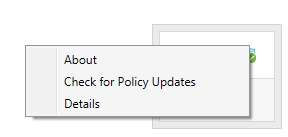
- Dell Data Guardian의 전체 버전을 기록합니다.
 참고: 클라이언트 버전이 위의 스크린샷과 다를 수 있습니다.
Mac
- Dell Data Guardian 애플리케이션을 엽니다.
- 권한이 있는 사용자의 이메일 및 비밀번호를 입력한 후 로그인(Login)을 클릭합니다.
 참고:
참고:- 승인된 UPN을 이메일 대신 사용할 수 있습니다.
- 메뉴 표시줄에서 Dell Data Guardian을 선택한 후 Dell Data Guardian 정보(About Dell Data Guardian)를 클릭합니다.
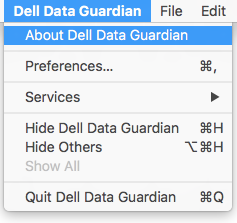
- Dell Data Guardian의 전체 버전을 기록합니다.
 참고: 클라이언트 버전이 위의 스크린샷과 다를 수 있습니다.
Informations supplémentaires
Vidéos
Produits concernés
Dell Data GuardianPropriétés de l’article
Numéro d’article: 000124602
Type d’article: How To
Dernière modification: 13 févr. 2025
Version: 12
Trouvez des réponses à vos questions auprès d’autres utilisateurs Dell
Services de support
Vérifiez si votre appareil est couvert par les services de support.