如何确定 Dell BitLocker Manager 版本
Résumé: 了解如何按照以下说明识别 Dell BitLocker Manager 或 Dell Data Protection BitLocker Manager 的版本。
Cet article concerne
Cet article ne concerne pas
Cet article n’est associé à aucun produit spécifique.
Toutes les versions du produit ne sont pas identifiées dans cet article.
Instructions
了解 Dell BitLocker Manager(以前称为 Dell Data Protection BitLocker Manager)的版本可帮助您:
- 识别已知问题
- 确定 UI 差异
- 了解工作流程更改
- 验证系统要求
受影响的产品:
- Dell BitLocker Manager
- Dell Data Protection BitLocker Manager
受影响的操作系统:
- Windows
可以通过产品用户界面 (UI) 或产品安装程序确定版本。单击相应选项,以了解更多信息。
UI
提醒:在通过 UI 识别版本之前,必须安装 Dell BitLocker Manager 或 Dell Data Protection BitLocker Manager。
- 登录 Windows 计算机。
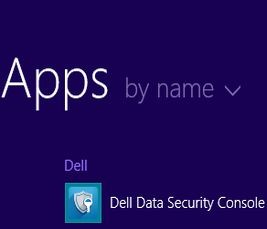
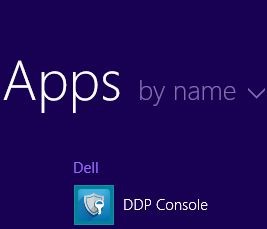
- 在 Windows 桌面上,双击<产品>控制台。根据安装的版本,将显示三个图标之一:
- v8.15.0 及更高版本:Dell Data Security Console
- v8.5.0 至 8.13.0:DDP Console
- v8.0.0 至 8.4.0:DDP 安全控制台

提醒:- <PRODUCT> = 控制台的变量名称,因安装的版本而异
- 或者, <可以使用 Windows 资源管理器访问产品> 控制台 ,具体位置为:
- v8.5.0 及更高版本:
%SYSTEMDRIVE%\Program Files\Dell\Dell Data Protection\Security Tools\Dell.SecurityFramework.Console.exe - v8.0.0 至 8.4.0:
%SYSTEMDRIVE%\Program Files\Dell\Dell Data Protection\Security Tools\Dell.SecurityManager.SystrayApp.exe
- v8.5.0 及更高版本:
- 在示例中,
%SYSTEMDRIVE%是操作系统分区驱动器的 Windows 系统变量。
- v8.15.0 及更高版本:Dell Data Security Console
- 在 PRODUCT>Console 的<右上角,单击齿轮图标,然后选择 About。 根据安装的版本,UI 会略有不同。
- v8.5.0 至 8.13.0:Dell Encryption Enterprise Ui

- v8.5.0 至 8.13.0:安全工具 Ui
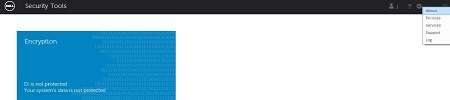
- v8.0.0 至 8.4.0:安全控制台 Ui
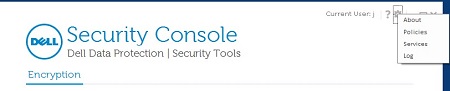
- v8.5.0 至 8.13.0:Dell Encryption Enterprise Ui
- 在 “About ”菜单中,单击 Show Info 以了解更多产品详细信息。根据安装的版本,UI 会略有不同。
- v8.5.0 及更高版本:Dell Data Protection Encryption Ui
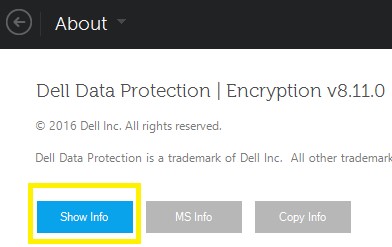
- v8.0.0 至 8.4.1:安全控制台 Ui
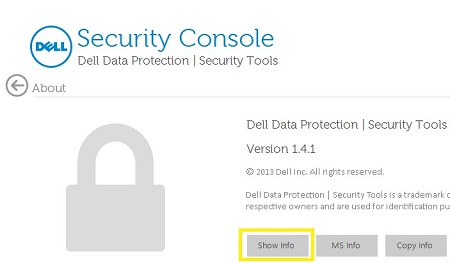
- v8.5.0 及更高版本:Dell Data Protection Encryption Ui
- 记录列出的版本。
- v8.15.0 及更高版本:Dell Encryption Enterprise Ui
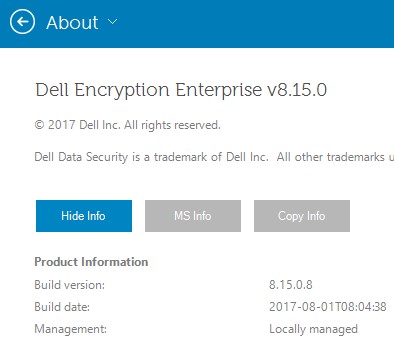
- v8.5.0 至 8.13.0:Dell Data Protection Ui
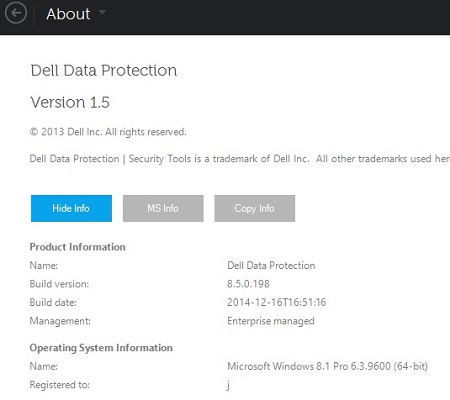
- v8.0.0 至 8.4.0:安全控制台 Ui
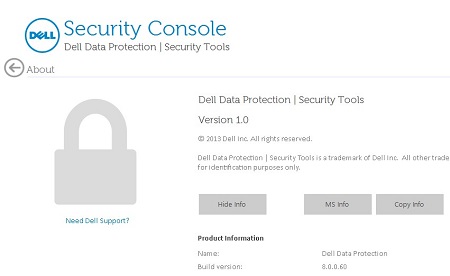
提醒:该内部版本可能与以上屏幕截图中的版本不同。 - v8.15.0 及更高版本:Dell Encryption Enterprise Ui
安装程序
提醒:有关下载安装程序的信息,请参阅如何下载 Dell Encryption Enterprise 或 Dell Encryption Personal。
- 从 Dell Data Security(以前称为 Dell Data Protection)主安装程序中解压提取子安装程序。
提醒:有关详细信息 ,请参阅如何从 Dell Data Security 主安装程序中解压提取子安装程序 。
- 在解压的主安装程序路径(步骤 1)中,找到
EMAgent_<BITDEPTH>_setup.exe在以下任一位置:- v8.15 及更高版本:
<EXTRACTEDPATH>\Encryption Management Agent\EMAgent_<BITDEPTH>_setup.exe - v8.0 至 8.14.X:
<EXTRACTEDPATH>\Security Tools\EMAgent_<BITDEPTH>_setup.exe
提醒:<BITDEPTH>= 文件的位深度<EXTRACTEDPATH>= 文件的完整解压路径
- v8.15 及更高版本:
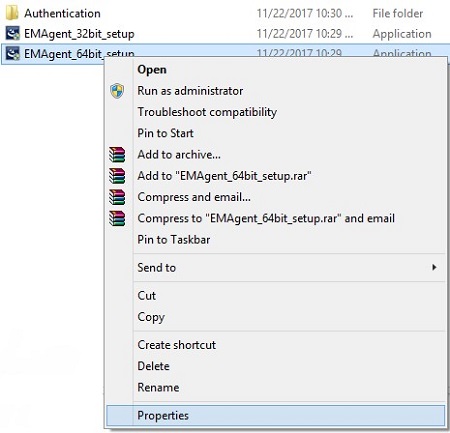
- 右键单击
EMAgent_<BITDEPTH>_setup.exe,然后选择 属性。
- 单击 Details 选项卡。
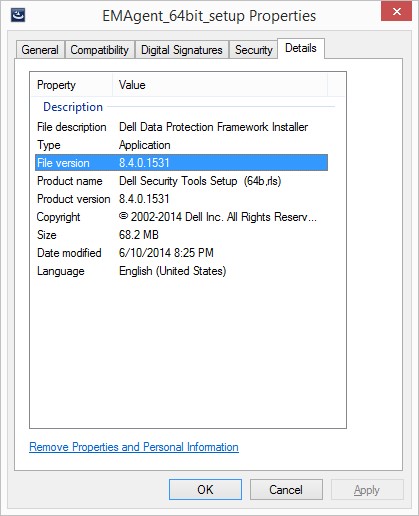
- 记录 File version 的前三个数字。在此示例中,8.4.0 即为前三个数字。
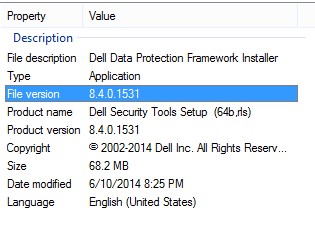 提醒:该文件版本可能与以上屏幕截图中的版本不同。
要联系支持部门,请参阅 Dell Data Security 国际支持电话号码。
转至 TechDirect,在线生成技术支持请求。
要获得更多见解和资源,请加入戴尔安全社区论坛。
Informations supplémentaires
Vidéos
Produits concernés
Dell EncryptionPropriétés de l’article
Numéro d’article: 000123784
Type d’article: How To
Dernière modification: 19 avr. 2026
Version: 13
Trouvez des réponses à vos questions auprès d’autres utilisateurs Dell
Services de support
Vérifiez si votre appareil est couvert par les services de support.