How to Install Dell Endpoint Security Suite Enterprise for Linux
Résumé: Learn how to install Dell Data Security Endpoint Security Suite Enterprise for Linux through the Terminal command-line interface (CLI) by following these instructions.
Cet article concerne
Cet article ne concerne pas
Cet article n’est associé à aucun produit spécifique.
Toutes les versions du produit ne sont pas identifiées dans cet article.
Instructions
The installation process for Dell Data Security Endpoint Security Suite Enterprise for Linux is handled by using command line.
Note: For more information about product system requirements, including supported versions of Linux, reference Dell Endpoint Security Suite Enterprise System Requirements.
- Open Terminal.

- In Terminal, type the following command and then press Enter.
sudo tar –xvf '/FilePathA/DellESSE.tar.gz' –C /FilePathB Note:
Note:- In the above example:
FilePathAis the path where the TAR file exists.FilePathAexample =/home/admin/Desktop/Downloads/
FilePathBis the path where the TAR file is being extracted to.FilePathBexample =/home/admin/Desktop/ESSE
- Commands are case-sensitive.
- The example paths may differ in your environment.
- In the above example:
- Type
sudo 'filepath/install.sh'from the extracted installer package into Terminal and then press Enter.

- Populate the password for the account that is in use and then press Enter.

- Populate the IP or DNS of the Dell Security Management Server and then press Enter.

- Populate the port of the Dell Security Management Server’s core server service and then press Enter.
 Note: By default, the core server service runs on 8888.
 - Press Y when prompted to install the DellESSE package and its dependencies and then press Enter.
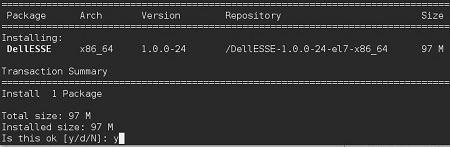
- If prompted for fingerprint approval, press Y. Otherwise, go to Step 9.

- Press Y to install the CylanceDellATPPlugin package and then press Enter.
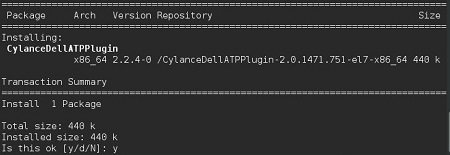
- Press Y to install the DellAdvancedThreatProtection package and then press Enter.
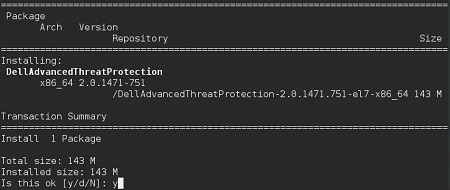
- Once installation is complete, type the following command and then press Enter.
exit
Produits concernés
Dell Endpoint Security Suite EnterprisePropriétés de l’article
Numéro d’article: 000124563
Type d’article: How To
Dernière modification: 05 août 2026
Version: 17
Trouvez des réponses à vos questions auprès d’autres utilisateurs Dell
Services de support
Vérifiez si votre appareil est couvert par les services de support.