如何确定 Dell Data Protection Security Tools 版本
Résumé: Dell Security Management Server 和 Dell Security Management Server Virtual 的版本可按照这些说明进行识别。
Cet article concerne
Cet article ne concerne pas
Cet article n’est associé à aucun produit spécifique.
Toutes les versions du produit ne sont pas identifiées dans cet article.
Instructions
了解 Dell Data Security(以前称为 Dell Data Protection)服务器的版本使管理员能够:
- 识别已知问题。
- 确定 UI 差异。
- 了解工作流更改。
- 验证系统要求。
受影响的产品:
- Dell Security Management Server Virtual
- Dell Security Management Server
- Dell Data Protection | Virtual Edition
- Dell Data Protection | Enterprise Edition
受影响的操作系统:
- Windows
- Linux
本文介绍如何识别后端 Dell Security Management Server 或 Dell Security Management Server Virtual 的版本。要识别前端的版本,请参阅如何识别 Dell Data Security 服务器/Dell Data Protection 服务器前端版本(英文版)。
可以通过产品用户界面 (UI)、产品安装程序或存储库注册来确定版本。单击相应选项,以了解更多信息。
UI
管理控制台 UI 可用于确定 Dell Data Security 服务器的版本。
在 Dell Data Security v9.2 中,管理控制台已升级为使用 HTML5。管理员可以通过“authentication”菜单区分控制台。
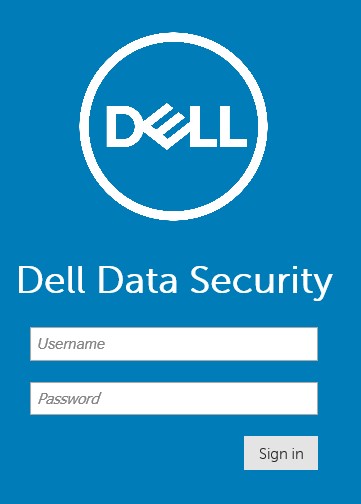
新控制台(v9.2 及更高版本)的“authentication”菜单显示 Dell Data Security:
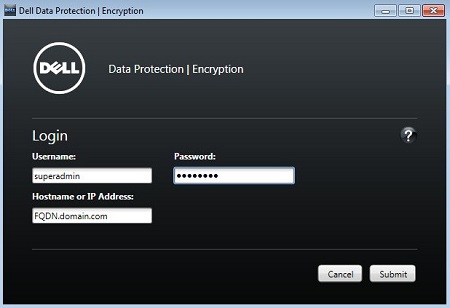
旧控制台(v9.1.5 及更低版本)的“authentication”菜单显示 Dell Data Protection:
新控制台的某些版本可能会显示 Dell Data Protection(而非 Dell Data Security)。
单击相应的控制台,了解有关获取版本的信息。
- 登录到 Dell Data Security 管理控制台。
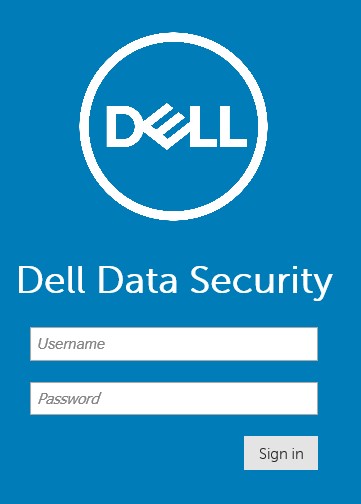 有关更多信息,请参阅如何访问 Dell Data Security Management Server 管理控制台(英文版)。
 - 在管理控制台的右上角,单击齿轮,然后选择 About。
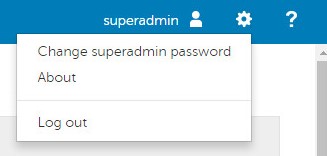
- 记录列出的版本。在示例中,版本为 9.8.2。
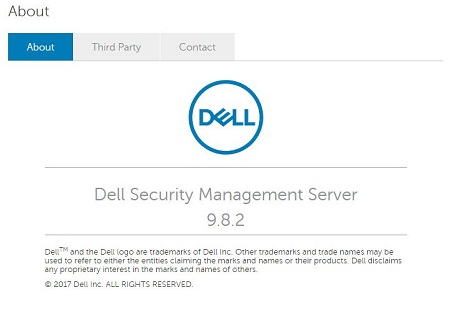 注:
注:- 您的客户端的版本可能与上面的屏幕截图不同。
- 在 v9.2 至 v9.6 中,“About”菜单显示 Dell Data Protection(而非 Dell Data Security)。
- 提交凭据以登录到 Dell Data Protection 管理控制台。
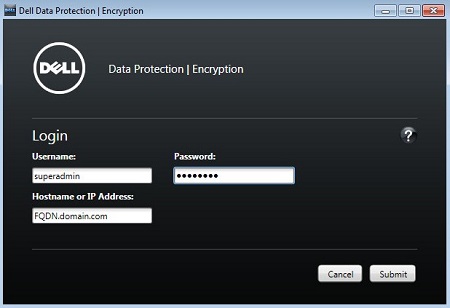 有关更多信息,请参阅如何访问 Dell Data Security Management Server 管理控制台(英文版)。
 - 该版本位于远程管理控制台的左上角。在示例中,版本为 8.5。
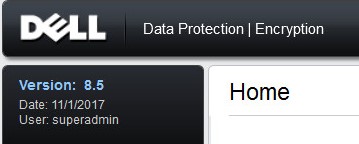 您的客户端的版本可能与上面的屏幕截图不同。
安装程序
Dell Data Security 服务器平台之间的安装程序版本略有不同:
- Dell Security Management Server Virtual(以前称为 Dell Data Protection | Virtual Edition)
- 适用于 Windows 的 Dell Security Management Server(以前称为 Dell Data Protection | Enterprise Edition Server)
单击相应选项,以了解更多信息。
- 解压 Security Management Server .zip。
- 转至 [解压.zip的位置]
\Security Management Server\x64。 - 右键单击
setup.exe然后选择 属性。

- 单击详细信息选项卡。
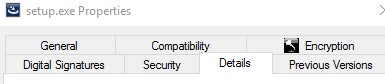
- 记下产品版本。在此示例中,产品版本为 9.9.2。
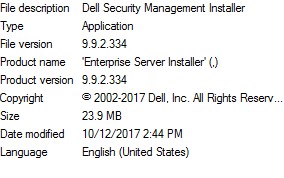 该文件的版本可能与以上屏幕截图中的版本不同。
- 解压 Dell Security Management Server Virtual .zip。
- 转至解压的 .zip 的位置,并记录文件名中列出的版本。在示例中,版本为 9.9.2。
 该文件的版本可能与以上屏幕截图中的版本不同。
数据库
用户可以通过检查数据库来识别服务器版本。目前有两个数据库可用:
- SQL Server 与 Dell Security Management Server 配合使用
- PostgreSQL 与 Dell Security Management Server Virtual 配合使用
单击相应的数据库类型以了解更多信息。
- 右键单击 Windows 的“开始”菜单,然后单击运行。
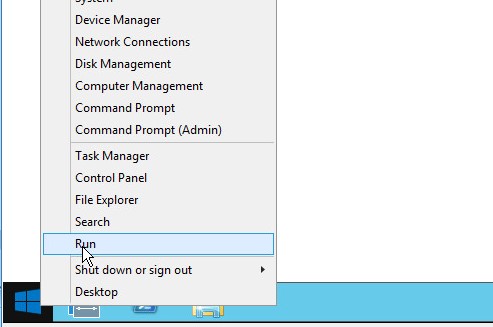
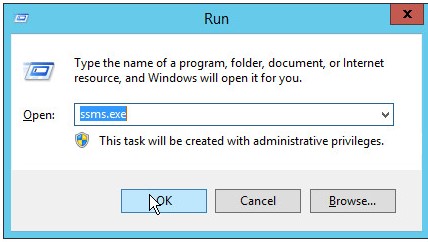
- 在“运行”UI中,键入
ssms.exe然后按 OK。
- 在“Connect to Server”菜单中:
- 选择 Database Engine 作为服务器类型。
- 填充服务器名称。
- 选择身份验证方法。
- 填充 sysadmin 凭据。
- 单击 Connect。
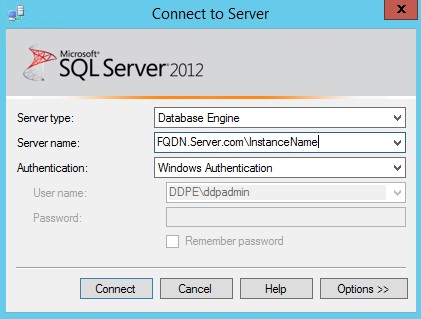 注:
注:- 服务器名称 = 数据库的完全限定域名 (FQDN)
- 如果使用 SQL 实例, 则
\InstanceName必须遵循 KB)Server Name。InstanceNameInstanceName 表示环境中数据库实例的名称。
- 展开数据库。

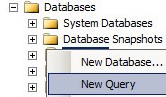
- 右键单击 Dell Security Management Server 数据库,然后单击新建查询。
- 类型
select * from information where code= 'schema.version'然后单击“Execute”。

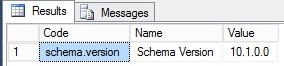
- 从“结果”字段中,记录值。
 注:
注:- 前三个数字是最重要的。在此示例中,前三个数字是 10.1.0。
- 示例中的版本在您的环境中可能会有所不同。
- 使用默认管理员凭据,登录到 Dell Enterprise Server Virtual 管理控制台。
 注:
注:- Dell Security Management Server Virtual 的默认凭据为:
- v9.11 及更高版本
- 用户名:
delluser - 密码:
delluser
- 用户名:
- v9.10 及更低版本:
- 用户名:
ddpuser - 密码:
ddpuser
- 用户名:
- v9.11 及更高版本
- 管理员可以更改产品的虚拟设备菜单中的默认密码。
- Dell Security Management Server Virtual 的默认凭据为:
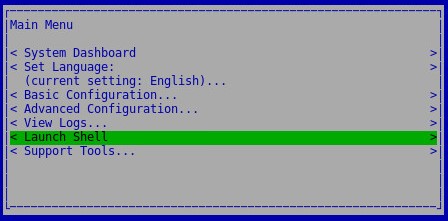
- 选择 Launch Shell,然后按 Enter 键。
- 类型
su [USERNAME]重新输入密码。
 注:
注:- 是默认值。
[USERNAME]更新 Dell Security Management Server Virtual- v9.11 及更高版本
- 用户名:
dellsupport - 密码:
dellsupport
- 用户名:
- v9.10 及更低版本:
- 用户名:
ddpsupport - 密码:
ddpsupport
- 用户名:
- v9.11 及更高版本
- 管理员可以更改产品的虚拟设备菜单中的默认密码。
- 是默认值。
- 类型
cd /home/然后按 Enter。

- 类型
sudo –u postgres psql [DATABASE]然后按 Enter。
 记下 。
记下 。[DATABASE]Dell Security Management Server Virtual 的 名称为:- v9.11 及更高版本
ddp
- v9.10 及更低版本:
ddp_8_2_0
- v9.11 及更高版本
- 类型
SELECT * from information where code= 'schema.version’;然后按 Enter。

- 记录值。
 注:
注:- 前三个数字是最重要的。在此示例中,前三个数字是 10.1.0。
- 屏幕截图中的示例在您的环境中可能会有所不同。
- 类型
\q然后按 Enter。

- 类型
exit然后按 Enter。

- 类型
exit然后按 Enter。

Informations supplémentaires
Vidéos
Produits concernés
Dell EncryptionPropriétés de l’article
Numéro d’article: 000125147
Type d’article: How To
Dernière modification: 10 août 2026
Version: 13
Trouvez des réponses à vos questions auprès d’autres utilisateurs Dell
Services de support
Vérifiez si votre appareil est couvert par les services de support.