How to Set Group Policy Object on a Domain Controller to Enable Dell Encryption Entitlements
Résumé: This article explains how to set Group Policy Objects (GPO) on domain controller to enable Dell Encryption (formerly Dell Data Protection | Encryption) entitlements.
Cet article concerne
Cet article ne concerne pas
Cet article n’est associé à aucun produit spécifique.
Toutes les versions du produit ne sont pas identifiées dans cet article.
Symptômes
Affected Products:
- Dell Security Management Server
- Dell Data Protection | Enterprise Edition
- Dell Security Management Server Virtual
- Dell Data Protection | Virtual Edition
Cause
Not Applicable
Résolution
- If your client is entitled from Dell Digital Delivery (DDD), follow these instructions to set the GPO on the domain controller to enable entitlements (this may not be the same server running the Dell Security Management Server [formerly Dell Data Protection | Enterprise Edition] or Dell Security Management Server Virtual [formerly Dell Data Protection | Virtual Edition]).
- The workstation must be a member of the OU where the GPO is applied.
Note: Ensure that outbound port 443 is available to communicate with the Dell Security Management Server or Dell Security Management Server Virtual. If port 443 is blocked (for any reason), the entitlement functionality does not work.
- Log in to a domain controller or a computer that has the Remote Server Administration Tools (RSAT) installed.
Note: For more information about RSAT, review the following Microsoft site https://support.microsoft.com/en-us/help/2693643/remote-server-administration-tools-rsat-for-windows-operating-systems
 .
.
.
- Press the Windows key and search for Group Policy Management.
- Right-click the Organizational Unit where the policy should be applied and select Create a GPO in this domain, and Link it here.
- Enter a Name for the New GPO, select (none) for Source Starter GPO, and click OK.
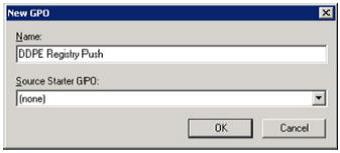
Figure 1: (English Only) New GPO
- Right-click the GPO that was created and select Edit.
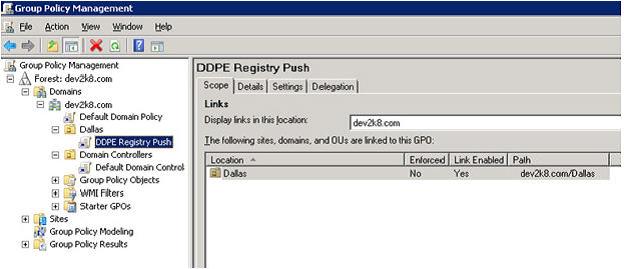
Figure 2: (English Only) Group Policy Management
- Expand Computer Configuration > Preferences > Windows Settings > Registry.
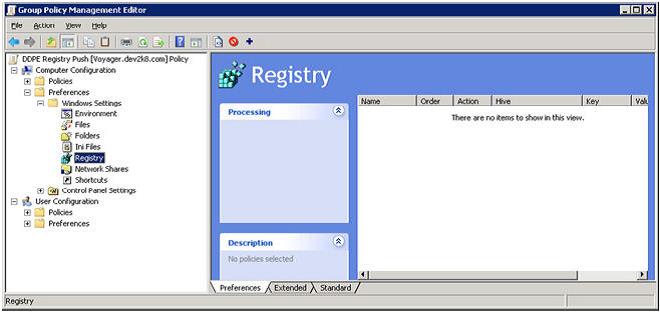
Figure 3: (English Only) Group Policy Management Editor
- Right-click Registry and select New > Registry Item.
- Action: Create
- Hive: HKEY_LOCAL_MACHINE
- Key Path: SOFTWARE\Dell\Dell Data Protection
- Value Name: Server
- Value type: REG_SZ
- Value data: Enter the Fully Qualified Domain Name or IP address of the Enterprise or Virtual Edition Server.
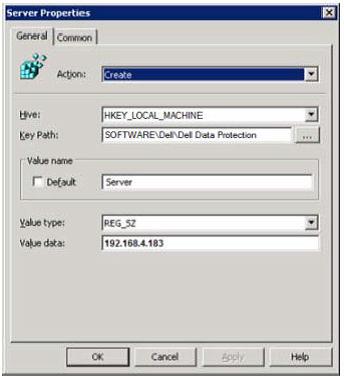
Figure 4: (English Only) Server properties
- Click OK.
- We can now close out of any windows and log off from any servers that were used to perform the above steps.
- On a workstation that falls into the scope of this GPO logoff and log in to or run
gpupdate /forceto apply this new group policy setting. - Your machines are now automatically configured to contact the DDP Server once installed by Dell Digital Delivery.
To contact support, reference Dell Data Security International Support Phone Numbers.
Go to TechDirect to generate a technical support request online.
For additional insights and resources, join the Dell Security Community Forum.
Produits concernés
Dell EncryptionPropriétés de l’article
Numéro d’article: 000130312
Type d’article: Solution
Dernière modification: 15 avr. 2024
Version: 10
Trouvez des réponses à vos questions auprès d’autres utilisateurs Dell
Services de support
Vérifiez si votre appareil est couvert par les services de support.