Windows 11에서 Amazon Appstore를 활성화하는 방법
Résumé: 이 문서에서는 Windows 11에서 Amazon Appstore를 활성화하는 방법에 대해 설명합니다.
Cet article concerne
Cet article ne concerne pas
Cet article n’est associé à aucun produit spécifique.
Toutes les versions du produit ne sont pas identifiées dans cet article.
Instructions
Windows는 Amazon Appstore를 사용하여 Windows 11에서 Android 앱에 쉽게 액세스할 수 있습니다. 다음 단계에 따라 컴퓨터에서 Android 앱 지원을 활성화합니다.
- BIOS 가상화를 활성화합니다. (새 Dell 컴퓨터에서 자동으로 활성화됨)
- Dell 컴퓨터에서 하드웨어 가상화를 활성화 또는 비활성화하는 방법 | 이 단계를 수행하는 방법에 대한 지침은 Dell US입니다.
- Windows 가상화를 활성화합니다.
- Dell 컴퓨터에서 하드웨어 가상화를 활성화 또는 비활성화하는 방법 | 이 단계를 수행하는 방법에 대한 지침은 Dell US입니다.
- 이 시점에서 컴퓨터가 재부팅됩니다.
- Windows에 다시 로그인 합니다.
- http://aka.ms/AmazonAppstore 클릭하여 Amazon Appstore를 설치합니다.
참고: 저장소가 정보를 채울 때까지 잠시 걸릴 수 있습니다.
- Install을 클릭합니다.
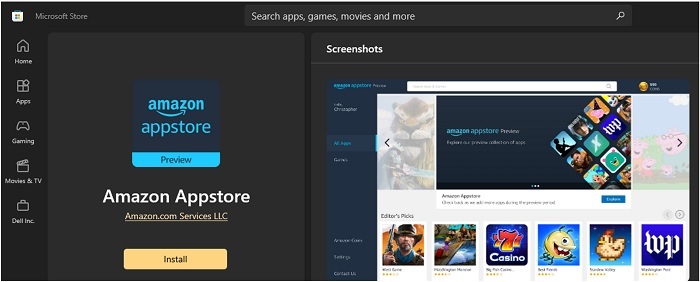
- 이제 Amazon Appstore는 Windows 11 시작 메뉴의 모든 앱에서 사용할 수 있습니다.
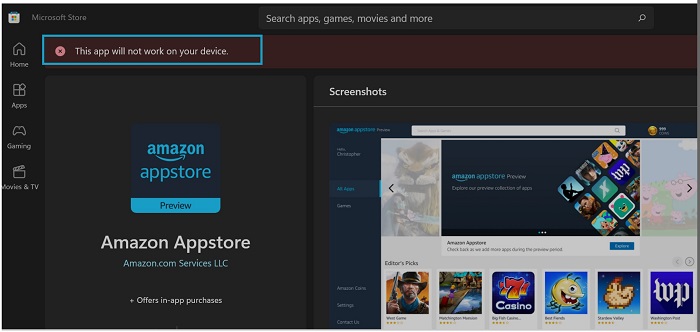
참고: Amazon Appstore는 시스템이 Microsoft 요구 사항을 충족하는 경우에만 사용할 수 있습니다.
| RAM | 8GB(최소) |
| 16GB(권장) | |
| 스토리지 유형 | SSD(Solid State Drive) |
| 프로세서 | 인텔 코어 i3 8세대(최소) 이상 |
| AMD Ryzen 3000(최소) 이상 | |
| Qualcomm Snapdragon 8c(최소) 이상 | |
| 프로세서 아키텍처 | x64 또는 ARM64 |
Informations supplémentaires
Produits concernés
Operating SystemsPropriétés de l’article
Numéro d’article: 000196136
Type d’article: How To
Dernière modification: 13 May 2026
Version: 9
Trouvez des réponses à vos questions auprès d’autres utilisateurs Dell
Services de support
Vérifiez si votre appareil est couvert par les services de support.