How to Identify the Dell Data Protection Cloud Edition Version
Résumé: Learn how to identify the version of Dell Data Protection Cloud Edition by following these step-by-step instructions.
Cet article concerne
Cet article ne concerne pas
Cet article n’est associé à aucun produit spécifique.
Toutes les versions du produit ne sont pas identifiées dans cet article.
Instructions
Note:
- As of May 2018, Dell Data Protection Cloud Edition has reached End of Life. This product and its articles are no longer updated by Dell. For more information, reference Product Life Cycle (End of Support and End of Life) Policy for Dell Data Security. If you have any questions on alternative articles, either reach out to your sales team or contact endpointsecurity@dell.com.
- Reference Endpoint Security for additional information about current products.
Knowing the version of Dell Data Protection Cloud Edition allows an administrator to:
- Identify known issues
- Determine UI differences
- Understand workflow changes
- Verify system requirements
Affected Products:
- Dell Data Protection Cloud Edition
Affected Operating Systems:
- Windows
- Mac
To identify the version of Dell Data Protection Cloud Edition, click Windows or Mac.
Windows
Versioning can be determined either through the product user interface (UI) or through the product Installer. Click the appropriate option for more information.
UI
Note: Dell Data Protection Cloud Edition must be installed before identifying the version through the UI.
- Log in to the Windows computer.
- In the Windows System Tray, right-click the Dell Data Protection Cloud Edition icon and then select About.
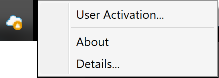
- Record Version X.X.X.X. In the example, 2.0.2.2683 is the Version.
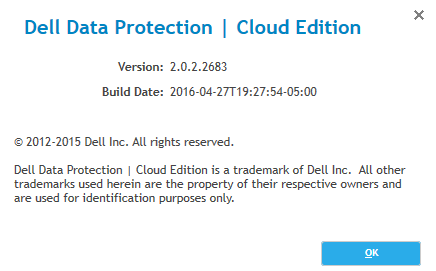 Note: The Version of your client may differ from the above screenshot.
Installer
Note: The Dell Data Protection Cloud Edition installer must be downloaded before performing these steps.
- Right-click
Cloud_64bit_Setup.exeorCloud_32bit_Setup.exeand then select Properties.
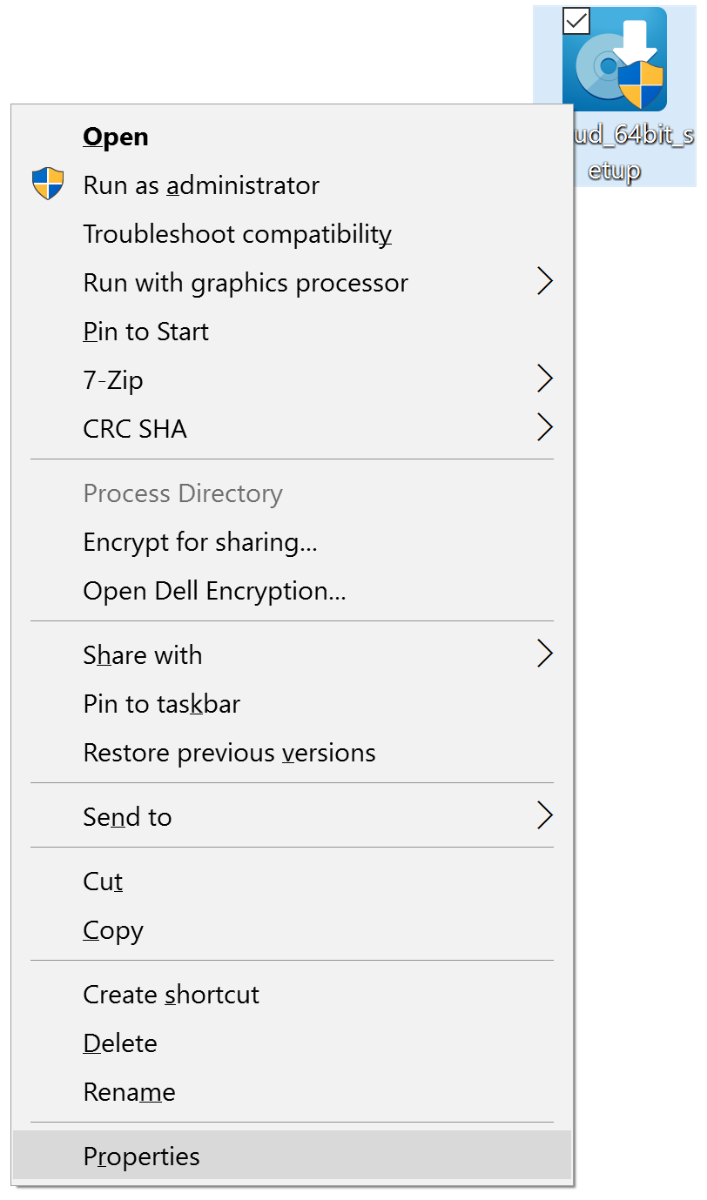
- Click the Details tab.
- Record the Product Version. In the example, 2.0.2.2683 is the Product Version.
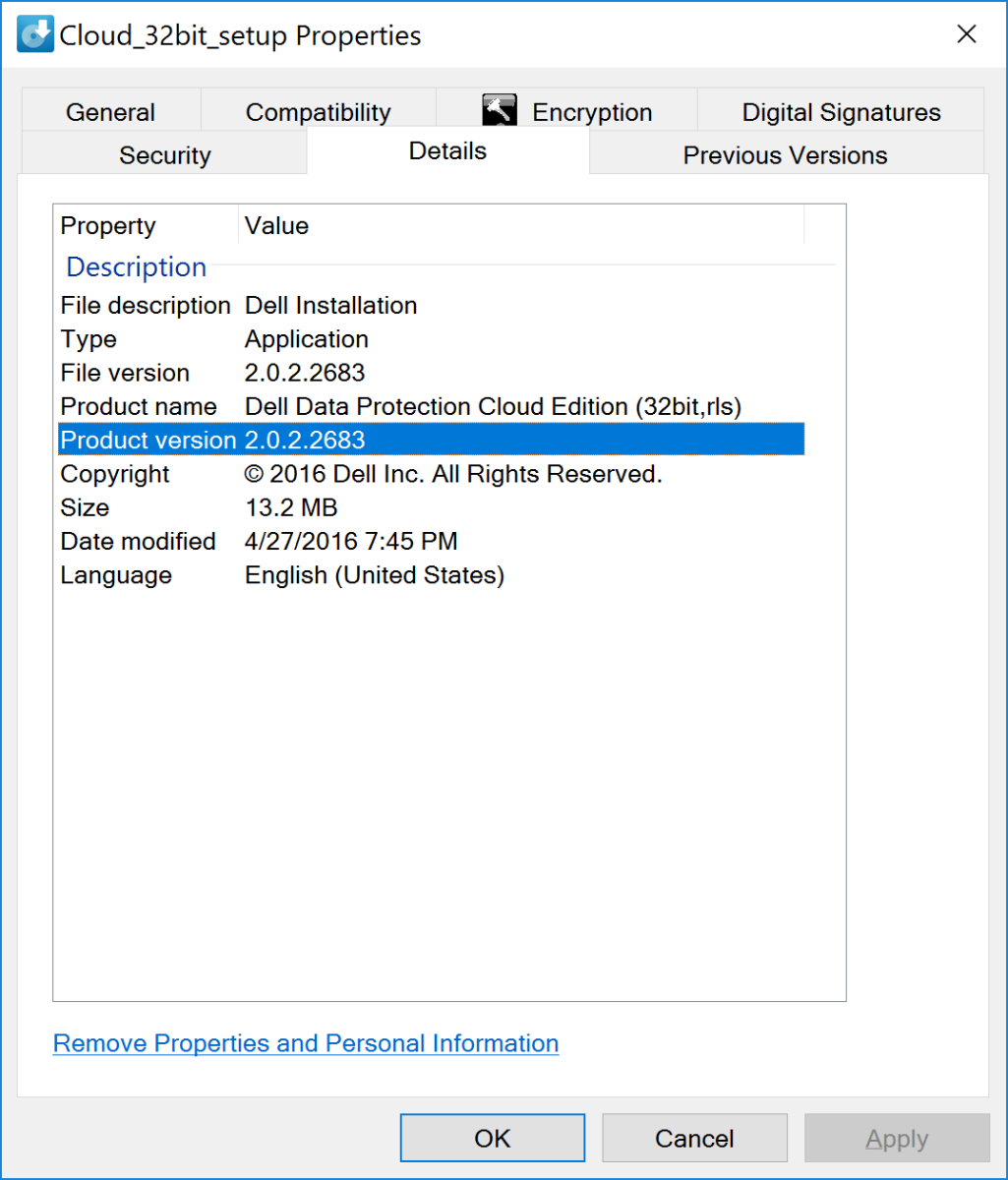 Note: The Product Version of your client may differ from the above screenshot.
Mac
Versioning can be determined either through the product user interface (UI) or through the product Installer. Click the appropriate option for more information.
UI
- Click Finder.

- Select Applications on the left.
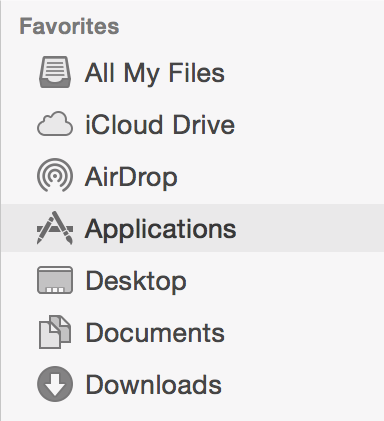
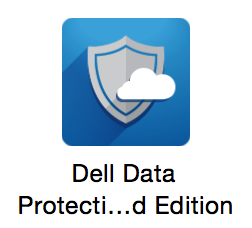
- In Applications, double-click Dell Data Protection Cloud Edition.
- Click About Cloud Edition and then record the Version X.X (XXXX). In this example, 2.0 (7488) is the Version.
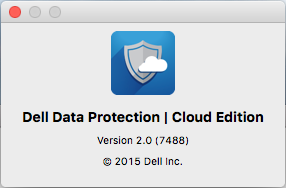 Note: The Version of your client may differ from the above screenshot.
Installer
Note: The Dell Data Protection Cloud Edition installer must be downloaded before performing these steps.
- Double-click
DDPCE-Explorer-<VERSION>.dmg.
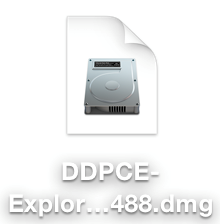 Note:
Note:<VERSION>= The Version of your installer and may differ from the above screenshot - The product version is below DDPCE-Explorer. In the example, 2.0.0.7488 is the product version.
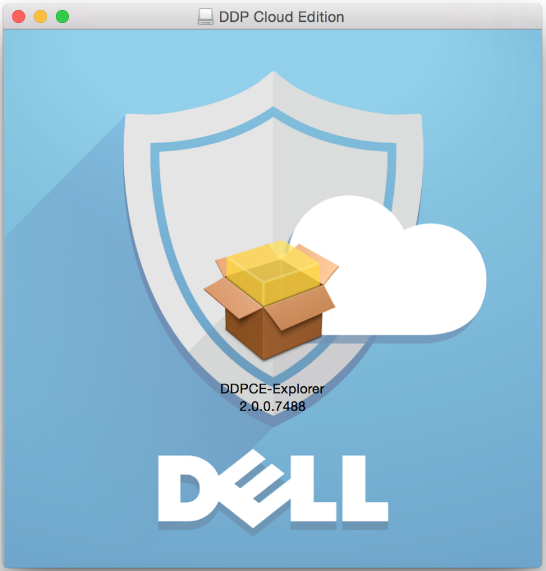 Note: The product version of your client may differ from the above screenshot.
To contact support, reference Dell Data Security International Support Phone Numbers.
Go to TechDirect to generate a technical support request online.
For additional insights and resources, join the Dell Security Community Forum.
Produits concernés
Dell EncryptionPropriétés de l’article
Numéro d’article: 000131621
Type d’article: How To
Dernière modification: 19 Apr 2026
Version: 15
Trouvez des réponses à vos questions auprès d’autres utilisateurs Dell
Services de support
Vérifiez si votre appareil est couvert par les services de support.