How to Identify the CrowdStrike Falcon Sensor Version
Résumé: Learn to identify the CrowdStrike Falcon Sensor version for issues, process changes, or system requirements. Follow the steps for Windows, Mac, or Linux.
Cet article concerne
Cet article ne concerne pas
Cet article n’est associé à aucun produit spécifique.
Toutes les versions du produit ne sont pas identifiées dans cet article.
Instructions
Knowing the CrowdStrike Falcon Sensor version allows you to:
- Identify known issues
- Understand process changes
- Understand system requirements
Affected Products:
- CrowdStrike Falcon Sensor
Affected Operating Systems:
- Windows
- Mac
- Linux
For instructions about how to identify the CrowdStrike Falcon Sensor version, click on Windows, Mac, or Linux.
Note:
- The CrowdStrike Falcon Sensor must be installed before identifying the version. For information about the installation process, reference How to Install CrowdStrike Falcon Sensor.
- For more information about checking the CrowdStrike Falcon Sensor, reference https://supportportal.crowdstrike.com/s/article/Checking-Falcon-Sensor-Version-Locally
.
Windows
- Right-click the Windows start menu, and then click Run.

- In the Run UI, type the following command and then press OK.
cmd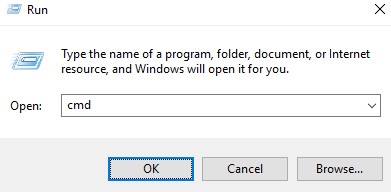
- In Command Prompt, type the following command and then press Enter.
"C:\Program Files\CrowdStrike\CSSensorSettings.exe" –version
- Record the version. In the example, 7.04.17605.0 is the version.
 Note: The version of your sensor may differ from the above screenshot.
Mac
- Locate and then double-click Terminal.

- In Terminal, type the following command and then press Enter.
sysctl cs.version
- Record the version. In the example, the version is 4.18.8013.0.
 Note: The version of your sensor may differ from the above screenshot.
Linux
- On the targeted endpoint, open Terminal.

- In Terminal, type the following command and then press Enter.
sudo /opt/CrowdStrike/falconctl -g --version
- Populate the sudo account password and then press Enter.
- Record the version. In the example, 4.20.6602.0 is the version.
 Note: The version of your sensor may differ from the above screenshot.
Produits concernés
CrowdStrikePropriétés de l’article
Numéro d’article: 000126120
Type d’article: How To
Dernière modification: 27 juil. 2026
Version: 23
Trouvez des réponses à vos questions auprès d’autres utilisateurs Dell
Services de support
Vérifiez si votre appareil est couvert par les services de support.