如何在 Dell Security Management Server 管理主控台中管理多重因素驗證
Résumé: Dell Security Management Server 可設定為需要雙因素驗證 (2FA) 才能登入管理主控台。
Cet article concerne
Cet article ne concerne pas
Cet article n’est associé à aucun produit spécifique.
Toutes les versions du produit ne sont pas identifiées dans cet article.
Instructions
受影響的產品:
- Dell Security Management Server
- Dell Security Management Server Virtual
受影響的版本:
- v11.4.0 及更新版本
可在 使用者群組 或 個別使用者 層級管理多因素驗證。如需詳細資訊,請選擇以下適當的章節。
使用者群組
- 使用具有帳戶系統管理員角色的帳戶登入 Dell Data Security 管理主控台。如需詳細資訊,請參閱「如何存取 Dell Data Security Server Administration Console」。
注意:如需管理員角色的詳細資訊,請參閱手冊與文件中「AdminHelp - Security Management Server PDF」的「系統管理員角色」一節。
- 從左側功能表窗格中展開填入標籤,然後按一下使用者群組。
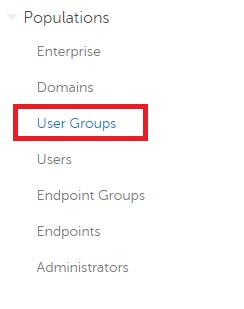
圖 1:使用者群組
- 從清單中選取一個要編輯的使用者群組 。
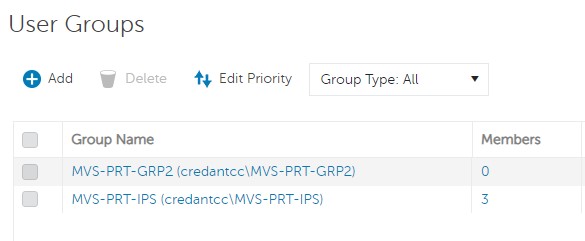
圖 2:選取使用者群組
注意:此清單中的群組位置是決定群組優先順序的原因。如需詳細資訊,請參閱手冊與文件中「AdminHelp - Security Management Server PDF」的「編輯使用者群組優先順序」一節。
- 選取管理員標籤。

圖 3:管理員標籤
- 從 MFA 組態:
- 選取啟用。
- 選取電子郵件或 Google Authenticator。
- 按一下更新按鈕。
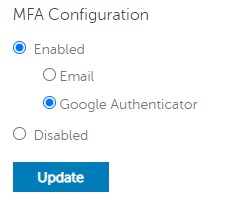
圖 4:MFA 組態
個別使用者
- 使用具有帳戶系統管理員角色的帳戶登入 Dell Data Security 管理主控台。如需詳細資訊,請參閱「如何存取 Dell Data Security Server Administration Console」。
注意:如需管理員角色的詳細資訊,請參閱手冊與文件中「AdminHelp - Security Management Server PDF」的「系統管理員角色」一節。
- 從左側功能表窗格中展開填入標籤,然後按一下使用者。
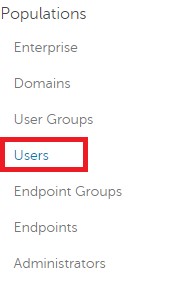
圖 5:使用者
- 從清單中選取一個要編輯的使用者。
- 選取管理員標籤。

圖 6:管理員標籤
- 從 MFA 組態:
- 選取啟用。
- 選取電子郵件、Google Authenticator 或從使用者群組繼承的組態。
- 按一下更新按鈕。
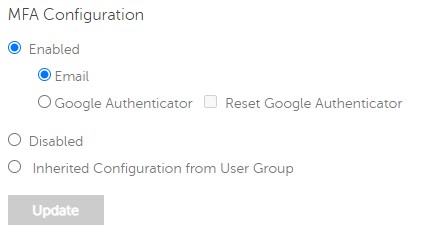
圖 7:MFA 組態
如要聯絡支援部門,請參閱 Dell Data Security 國際支援電話號碼。
請前往 TechDirect,以線上產生技術支援要求。
如需更多深入見解與資源,請加入 Dell 安全性社群論壇。
Produits concernés
Dell EncryptionPropriétés de l’article
Numéro d’article: 000200440
Type d’article: How To
Dernière modification: 22 nov. 2023
Version: 6
Trouvez des réponses à vos questions auprès d’autres utilisateurs Dell
Services de support
Vérifiez si votre appareil est couvert par les services de support.