Dell Threat Defense의 버전을 확인하는 방법
Résumé: 다음 지침에 따라 Dell BitLocker Manager 또는 Dell Data Protection BitLocker Manager의 버전을 식별하는 방법에 대해 알아보십시오.
Cet article concerne
Cet article ne concerne pas
Cet article n’est associé à aucun produit spécifique.
Toutes les versions du produit ne sont pas identifiées dans cet article.
Instructions
Dell BitLocker Manager(이전의 Dell Data Protection | BitLocker Manager)을 알고 있어야 다음 작업을 수행할 수 있습니다.
- 알려진 문제 식별
- UI 차이점 확인
- 워크플로 변경 이해
- 시스템 요구 사항 확인
영향을 받는 제품:
- Dell BitLocker Manager
- Dell Data Protection | BitLocker Manager
영향을 받는 운영 체제:
- Windows
버전 관리는 제품 UI(User Interface) 또는 제품 설치 프로그램을 통해 확인할 수 있습니다. 자세한 내용을 확인하려면 해당 옵션을 클릭합니다.
UI
UI를 통해 버전을 식별하기 전에 Dell BitLocker Manager/Dell Data Protection BitLocker Manager를 설치해야 합니다.
- Windows 컴퓨터에 로그인합니다.
- Windows 바탕 화면에서 [Product] 콘솔을 두 번 클릭합니다. 버전에 따라 다음 세 가지 아이콘 중 하나가 표시됩니다.
- v8.15.0 이상: Dell Data Security Console

- v8.5.0-8.13.0: DDP 콘솔

- v8.0.0-8.4.0: DDP Security Console
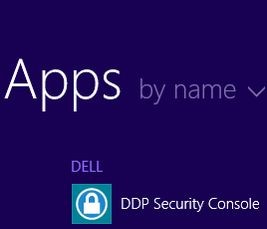
참고:- <PRODUCT> = 설치된 버전에 따라 달라지는 콘솔의 변수 이름
- 또는 다음 위치에서 탐색기를 사용해 [제품명] Console에 액세스할 수 있습니다.
- v8.5.0 이상:
%SYSTEMDRIVE%\Program Files\Dell\Dell Data Protection\Security Tools\Dell.SecurityFramework.Console.exe - v8.0.0~8.4.0:
%SYSTEMDRIVE%\Program Files\Dell\Dell Data Protection\Security Tools\Dell.SecurityManager.SystrayApp.exe
- v8.5.0 이상:
- 이 예에서는
%SYSTEMDRIVE%이 예에서 %SYSTEMDRIVE%는 운영 체제 파티션 드라이브에 대한 Windows 시스템 변수입니다.
- v8.15.0 이상: Dell Data Security Console
- [Product] 콘솔의 오른쪽 상단 모서리에서 톱니바퀴 아이콘을 클릭한 다음 About을 선택합니다. UI는 설치된 버전에 따라 약간 다릅니다.
- v8.5.0-8.13.0: Dell Encryption Enterprise UI

- v8.5.0 - 8.13.0: Security Tools UI

- v8.0.0-8.4.0: 보안 콘솔 UI
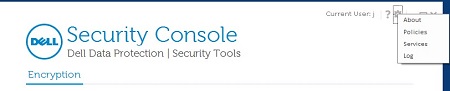
- v8.5.0-8.13.0: Dell Encryption Enterprise UI
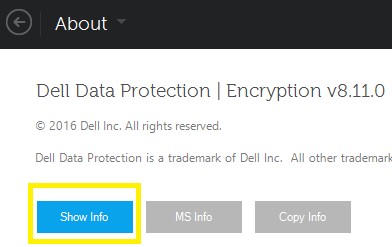
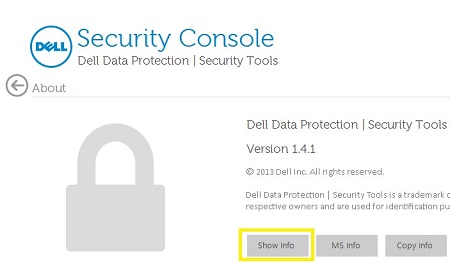
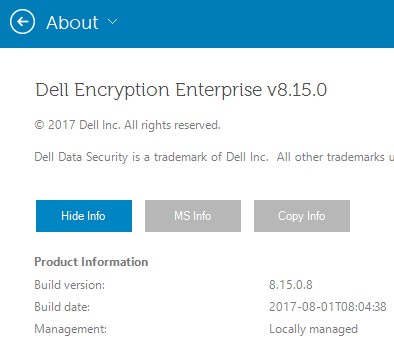
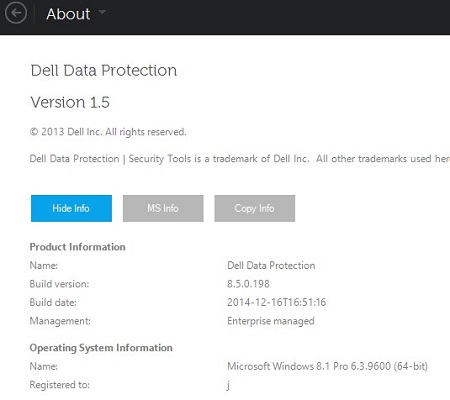
- 추가 제품 세부 정보를 보려면 About 메뉴에서 Show Info를 클릭합니다. UI는 설치된 버전에 따라 약간 다릅니다.
- v8.5.0 이상: Dell Data Protection Encryption UI
- v8.0.0 - 8.4.1: 보안 콘솔 UI
- v8.5.0 이상: Dell Data Protection Encryption UI
- 나열된 버전을 기록합니다.
- v8.15.0 이상: Dell Encryption Enterprise UI
- v8.5.0-8.13.0: Dell Data Protection UI
- v8.0.0-8.4.0: 보안 콘솔 UI
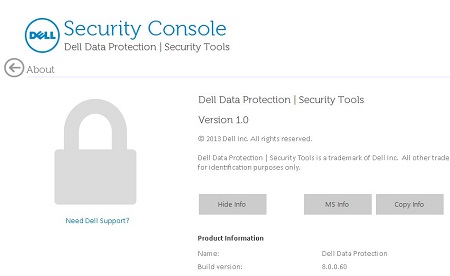
Build version은 위의 스크린샷과 다를 수 있습니다. - v8.15.0 이상: Dell Encryption Enterprise UI
설치 관리자
설치 프로그램 다운로드에 대한 자세한 내용은 Dell Encryption Enterprise 또는 Dell Encryption Personal 다운로드 방법을 참조하십시오.
- Dell Data Security(이전의 Dell Data Protection) 마스터 설치 프로그램에서 하위 설치 프로그램의 압축을 풉니다.
자세한 내용은 Dell Data Security 마스터 설치 프로그램에서 하위 설치 프로그램의 압축을 푸는 방법을 참조하십시오.
- 추출된 마스터 설치 프로그램 경로(1단계)에서
EMAgent_<BITDEPTH>_setup.exe다음 중 하나에서:- v8.15 이상:
<EXTRACTEDPATH>\Encryption Management Agent\EMAgent_<BITDEPTH>_setup.exe - v8.0~8.14.X:
<EXTRACTEDPATH>\Security Tools\EMAgent_<BITDEPTH>_setup.exe
참고:<BITDEPTH>= 파일의 비트 심도<EXTRACTEDPATH>= 파일의 전체 추출 경로
- v8.15 이상:
- 마우스 오른쪽 버튼 클릭
EMAgent_<BITDEPTH>_setup.exe을 클릭한 다음 속성을 선택합니다.
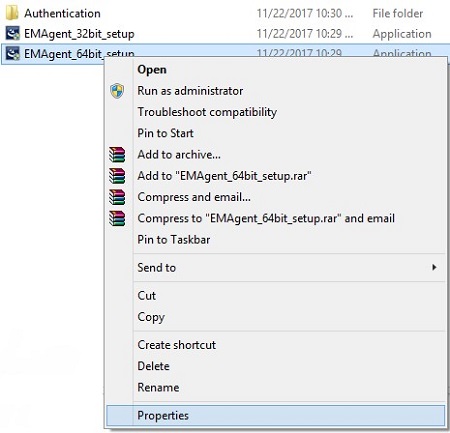
- 세부 정보 탭을 클릭합니다.
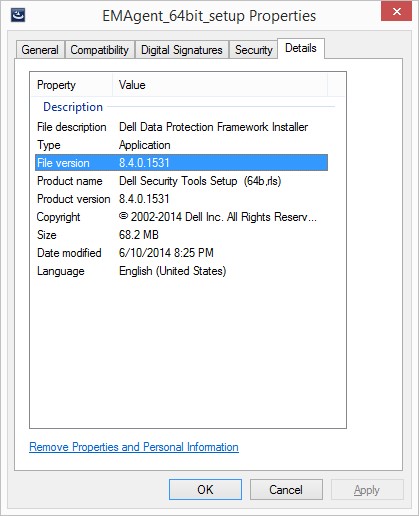
- File version의 처음 세 번호를 기록합니다. 이 예에서는 8.4.0이 처음 세 번호입니다.
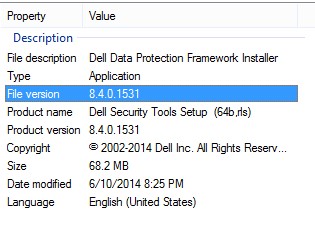 File version은 위의 스크린샷과 다를 수 있습니다.
Informations supplémentaires
Vidéos
Produits concernés
Dell EncryptionPropriétés de l’article
Numéro d’article: 000123784
Type d’article: How To
Dernière modification: 17 Aug 2026
Version: 14
Trouvez des réponses à vos questions auprès d’autres utilisateurs Dell
Services de support
Vérifiez si votre appareil est couvert par les services de support.