Režimy Dell Data Security Shield
Résumé: Tento článek pojednává o režimech stínění nástroje Dell Data Security (dříve Dell Data Protection).
Symptômes
Dotčené produkty:
- Credant Mobile Guardian
- Dell Encryption Enterprise
- Dell Data Protection | Enterprise Edition
- Dell Encryption External Media
- Dell Data Protection | External Media Edition
- Dell Encryption Personal
- Dell Data Protection | Personal Edition
- Dell Data Protection | Security Tools
- Dell Encryption Enterprise for Server
- Dell Data Protection | Server Edition
Dotčené platformy:
- Windows
Software Dell Data Security (dříve Dell Data Protection) založený na zásadách používá pro klasifikaci produktu identifikátor režimu Shield.
Cause
- Režim Shield se určuje během instalace produktu a nelze jej ručně změnit.
- Režim Shield slouží pouze k odstraňování problémů s typem nebo stavem produktu.
Résolution
Režimy stínění pro produkty Dell Data Security jsou:
| ID | Režim | Produkt |
|---|---|---|
| 0 | Neznámé/neinicializované | Neinicializováno /zrušeno 1 |
| 1 | Firemní režim | Dell Encryption Enterprise \ Dell Data Protection Enterprise Edition Shield |
| 2 | Samostatný režim | Credant Mobile Guardian |
| 3 | Režim pouze Enterprise EME | Dell Encryption External Media \ Dell Data Protection | Externí edice médií |
| 4 | Místně spravovaný režim | Dell Encryption Personal \ Dell Data Protection | Personal Edition |
| 5 | Režim Essentials | Řešení Dell Data Protection | Bezpečnostní nástroje2 |
| 6 | Režim šifrování serveru | Dell Encryption Enterprise for Server / Dell Data Protection | Šifrování serveru |
| 7 | Režim SaaS | Dell Encryption Enterprise Shield |
1 ksVšechny produkty Dell Data Protection zůstanou nezřízené, dokud nebudou aktivovány.
2 ksZákladní režim se vyskytuje pouze u instalací nástroje Dell Data Protection | Nástroje zabezpečení
Postup vyhledání režimu Shield:
- Úprava registru může způsobit, že počítač přestane po příštím restartování reagovat.
- Pokud máte obavy ohledně provedení tohoto kroku, použijte telefonická čísla mezinárodní podpory Dell Data Security a požádejte o pomoc.
- Pravým tlačítkem klikněte na nabídku Start systému Windows a poté vyberte možnost Spustit.
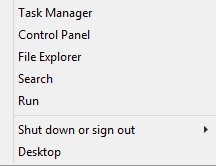
Obrázek 1: (Pouze v angličtině) Spustit
- V uživatelském rozhraní (UI) Spustit zadejte příkaz regedit a stiskněte tlačítko OK.
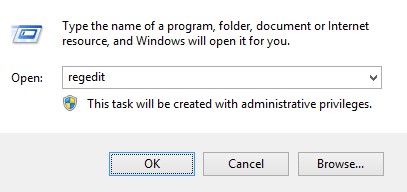
Obrázek 2: (Pouze v angličtině) Zadejte příkaz regedit.
- Přejděte do složky HKEY_LOCAL_MACHINE\SOFTWARE\Credant\CMGShield.
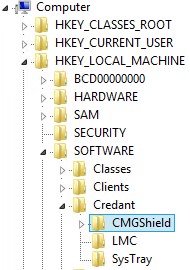
Obrázek 3: (Pouze v angličtině) CMGShield
- Vyhledejte klíč DWORD SM.
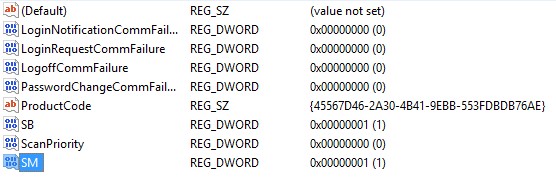
Obrázek 4: (Pouze v angličtině) SM
Chcete-li kontaktovat podporu, přečtěte si článek Telefonní čísla mezinárodní podpory Dell Data Security.
Přejděte na portál TechDirect a vygenerujte online žádost o technickou podporu.
Další informace a zdroje získáte na fóru komunity Dell Security.