有关详细信息,请参阅如何在 Dell Security Management Server Virtual 中启用 SSH。
Résumé: 了解有关如何在 Dell Security Management Server Virtual 中创建 Secure Shell (SSH) 用户的分步说明。
Cet article concerne
Cet article ne concerne pas
Cet article n’est associé à aucun produit spécifique.
Toutes les versions du produit ne sont pas identifiées dans cet article.
Instructions
本文介绍如何在 Dell Security Management Server Virtual(以前称为 Dell Data Protection | Virtual Edition)中启用 Secure Shell (SSH) 用户。
受影响的产品:
- Dell Security Management Server Virtual
- Dell Data Protection | Virtual Edition
受影响的版本:
- v8.2.0 及更高版本
受影响的操作系统:
- Linux
为 Dell Security Management Server Virtual 启用 SSH 用户的过程因 v9.11.0 和更高版本 以及 v8.2.0 到 9.10.1 而异。单击相应的版本以了解更多信息。有关版本信息,请参阅如何确定 Dell Data Security 服务器的版本。
v9.11.0 及更高版本
- 使用默认管理员 (ddguser) 凭据登录虚拟设备。
delluser凭据
 注:
注:- 虚拟设备的默认凭据为:
- 用户名:
delluser - 密码:
delluser
- 用户名:
- 管理员可以更改产品的虚拟设备菜单中的默认密码。
- 虚拟设备的默认凭据为:
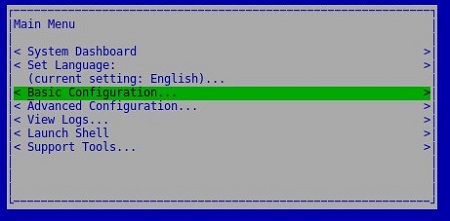
- 从主菜单中,选择 Basic Configuration,然后按 Enter 键。
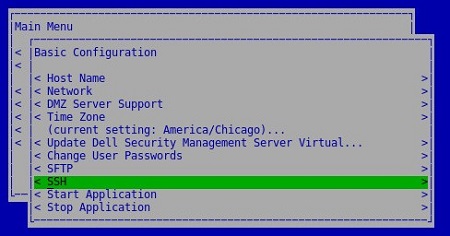
- 选择 SSH,然后按 Enter 键。
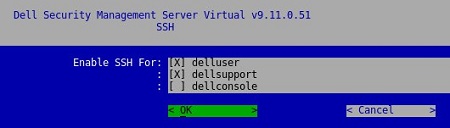
- 按空格键启用
delluser,dellsupport或dellconsole。选中所有需要的帐户后,选择 OK,然后按 Enter 键。
v8.2.0 至 v9.10.1
- 使用默认管理员 (ddguser) 凭据登录虚拟设备。
ddpuser凭据
 注:
注:- 虚拟设备的默认凭据为:
- 用户名:
ddpuser - 密码:
ddpuser
- 用户名:
- 管理员可以更改产品的虚拟设备菜单中的默认密码。
- 虚拟设备的默认凭据为:
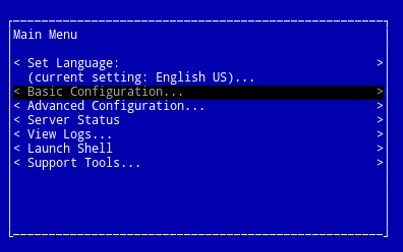
- 从主菜单中,选择 Basic Configuration,然后按 Enter 键。
- 选择 SSH 设置,然后按 Enter 键。
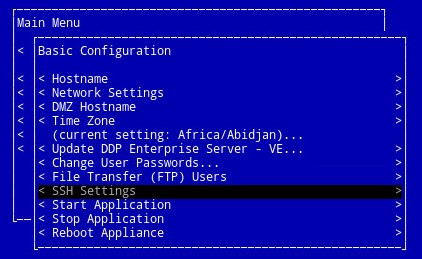
- 按空格键启用
ddpuser,ddpsupport或ddpconsole。选中所有需要的帐户后,选择 OK,然后按 Enter 键。

Informations supplémentaires
Vidéos
Produits concernés
Dell EncryptionPropriétés de l’article
Numéro d’article: 000124760
Type d’article: How To
Dernière modification: 10 Aug 2026
Version: 15
Trouvez des réponses à vos questions auprès d’autres utilisateurs Dell
Services de support
Vérifiez si votre appareil est couvert par les services de support.