Dell EMC Unity:如何为 Unity 阵列添加 SMTP 服务器设置
Résumé: Dell EMC Unity:如何为 Unity 阵列添加 SMTP 服务器设置
Cet article concerne
Cet article ne concerne pas
Cet article n’est associé à aucun produit spécifique.
Toutes les versions du produit ne sont pas identifiées dans cet article.
Instructions
-->从右上角的“更新系统设置”中,选择“警报”选项卡,然后选择电子邮件和SMTP选项。
--> 添加希望接收系统警报的所需邮件列表。
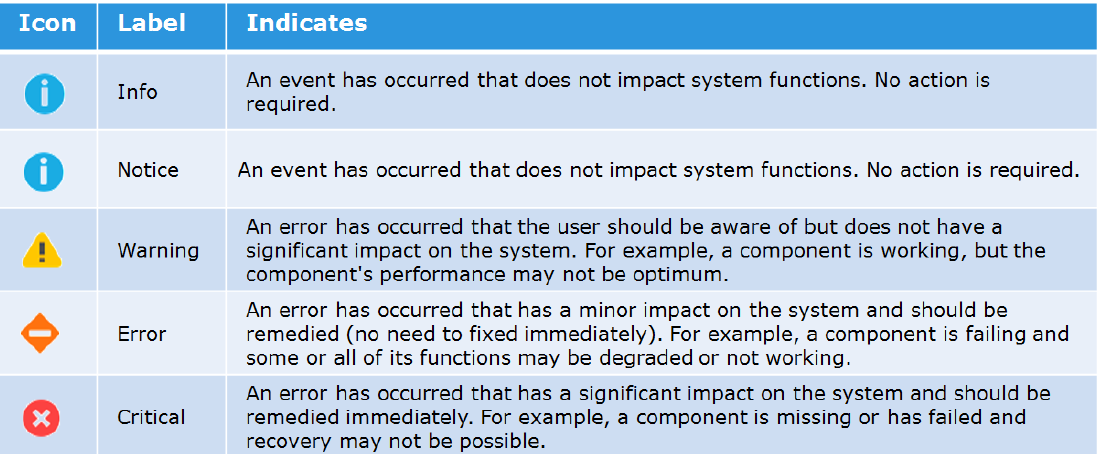
-->添加要发送的警报的严重性级别。
以下是不同严重度的图示:
-->然后键入发送电子邮件所需的简单邮件传输协议 (SMTP) 服务器的 IP 地址或主机名。
请注意,早于 Nighthawk (4.5.0) 的 Unity OE 版本不支持更改 SMTP (25) 的默认端口。
从 Nighthawk 夜鹰开始,Unity 开始支持自定义 SMTP 端口:
06:34:56 service@Peggy spa:~/user> uemcli /net/smtp -h
Storage system address:127.0.0.1
Storage system port: 443
HTTPS 连接
管理 SMTP 服务器设置。使用 SMTP 将系统警报通过电子邮件发送到指定地址。
行动:
[显示]
/net/smtp [ -id <value> ] show [ -output { nvp | csv | table [ -wrap ] } ] [ { -brief | -detail | -filter <value> } ]
[set]
/net/smtp -id <value> set -addr <value>[ -port <value> ] [ -encryptLevel { none | startTLS | ssl } ] [ -authType { none | plain | login | cram_md5 | digest_md5 } ] [ -user <value> { -passwd <value> | -passwdSecure } ] [ -bypassProxy { yes | no } ]
--> 添加希望接收系统警报的所需邮件列表。
-->添加要发送的警报的严重性级别。
以下是不同严重度的图示:
-->然后键入发送电子邮件所需的简单邮件传输协议 (SMTP) 服务器的 IP 地址或主机名。
请注意,早于 Nighthawk (4.5.0) 的 Unity OE 版本不支持更改 SMTP (25) 的默认端口。
从 Nighthawk 夜鹰开始,Unity 开始支持自定义 SMTP 端口:
06:34:56 service@Peggy spa:~/user> uemcli /net/smtp -h
Storage system address:127.0.0.1
Storage system port: 443
HTTPS 连接
管理 SMTP 服务器设置。使用 SMTP 将系统警报通过电子邮件发送到指定地址。
行动:
[显示]
/net/smtp [ -id <value> ] show [ -output { nvp | csv | table [ -wrap ] } ] [ { -brief | -detail | -filter <value> } ]
[set]
/net/smtp -id <value> set -addr <value>[ -port <value> ] [ -encryptLevel { none | startTLS | ssl } ] [ -authType { none | plain | login | cram_md5 | digest_md5 } ] [ -user <value> { -passwd <value> | -passwdSecure } ] [ -bypassProxy { yes | no } ]
Produits concernés
Dell EMC Unity FamilyProduits
Dell EMC Unity FamilyPropriétés de l’article
Numéro d’article: 000022531
Type d’article: How To
Dernière modification: 22 oct. 2025
Version: 4
Trouvez des réponses à vos questions auprès d’autres utilisateurs Dell
Services de support
Vérifiez si votre appareil est couvert par les services de support.