將程式和應用程式新增至 Windows 10 中的啟動資料夾
Résumé: 如何使用簡單的步驟和命令將應用程式新增至 Windows 10 中的啟動資料夾。最佳化啟動程式以獲得更快的開機速度,並瞭解如何使用 shell 啟動命令。
Cet article concerne
Cet article ne concerne pas
Cet article n’est associé à aucun produit spécifique.
Toutes les versions du produit ne sont pas identifiées dans cet article.
Instructions
備註:請注意,Microsoft 將於 2025 年 10 月 14 日終止對 Windows 10 的支援。如需詳細資訊 ,請參閱 Microsoft Windows 10 支援終止公告 。
在 Windows 10 中新增應用程式至啟動。
-
您必須建立要新增至啟動的應用程式捷徑。將應用程式從開始功能表拖放至桌面,該應用程式的捷徑即會在桌面上建立。
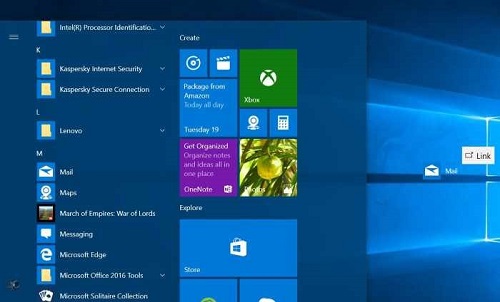
圖 1: 建立桌面捷徑
圖 2: 桌面捷徑 -
按下 Windows 標誌 + R 鍵開啟執行命令方塊。在「執行命令」欄位中,輸入 shell: startup,然後按 Enter 鍵開啟啟動資料夾。
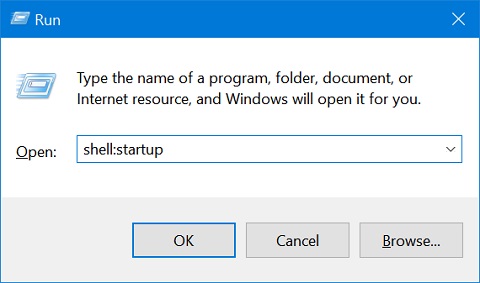
圖 3: 執行命令方塊 -
將應用程式捷徑從桌面複製並貼到此啟動資料夾,應用程式即會新增至啟動。
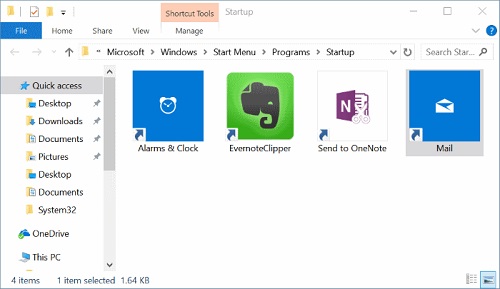
圖 4 - Windows 資料夾。
Produits concernés
Chromebox, Alienware, Dell All-in-One, Dell Pro Max Micro, Dell Pro Max Slim, Dell Pro Max Tower, Dell Pro Micro, Dell Pro Slim, Dell Pro Tower, Dell Slim, Dell Tower, Inspiron, Legacy Desktop Models, OptiPlex, Vostro, XPS, G Series, Chromebook
, G Series, Alienware, Dell Plus, Dell Pro, Dell Pro Max, Dell Pro Plus, Dell Pro Premium, Inspiron, Latitude, Dell Pro Rugged, Vostro, XPS, Legacy Laptop Models, Latitude Tablets, Surface, XPS Tablets, Mobile Workstations
...
Propriétés de l’article
Numéro d’article: 000124550
Type d’article: How To
Dernière modification: 19 avr. 2026
Version: 16
Trouvez des réponses à vos questions auprès d’autres utilisateurs Dell
Services de support
Vérifiez si votre appareil est couvert par les services de support.