Dell Data Security Server/Dell Data Protection Server 프런트엔드 버전을 확인하는 방법
Résumé: Dell Data Security(이전 Dell Data Protection) 서버 프런트엔드의 버전을 식별하는 단계별 지침을 알아보십시오.
Cet article concerne
Cet article ne concerne pas
Cet article n’est associé à aucun produit spécifique.
Toutes les versions du produit ne sont pas identifiées dans cet article.
Instructions
다음을 위해 Dell Data Security(이전 Dell Data Protection) 서버 프런트엔드의 버전에 대해 알고 있는 것이 중요합니다.
- 알려진 문제 식별
- 워크플로 변경 이해
- 시스템 요구 사항 확인
영향을 받는 제품:
- Dell Security Management Server
- Dell Data Protection | Enterprise Edition Server
영향을 받는 운영 체제:
- Windows
이 문서에서는 Dell Security Management Server 또는 Dell Security Management Server Virtual의 프런트엔드 서버 버전을 확인합니다. 백엔드 버전을 확인하려면 Dell Data Security/Dell Data Protection 서버 버전을 확인하는 방법을 참조하십시오.
다음을 통해 버전 관리를 할 수 있습니다.
- 설치 관리자
- UI(User Interface) 다시 디자인
자세한 내용을 확인하려면 해당 프로세스를 클릭하십시오.
설치 관리자
- Security Management Server .zip의 압축을 풉니다.
- 다음 사이트로 이동합니다.
[LOCATION]\Security Management Server\x64.참고:[LOCATION]= 압축을 푼 .zip 파일의 위치 - 마우스 오른쪽 버튼 클릭
setup.exe을 클릭한 다음 속성을 선택합니다.

- 세부 정보 탭을 클릭합니다.
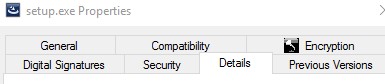
- Product version을 기록합니다. 이 예에서 제품 버전은 9.9.2입니다.
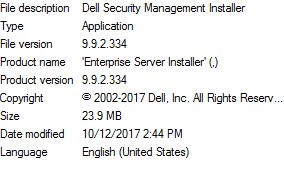 파일 버전이 위의 스크린샷과 다를 수 있습니다.
Windows
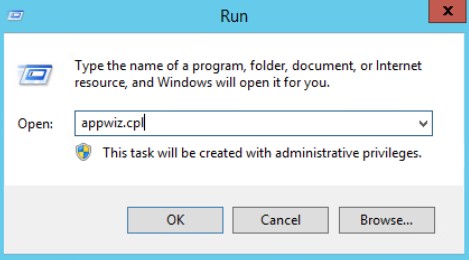
- 관리자로 Windows 시작 메뉴를 오른쪽 클릭한 다음 Run을 클릭합니다.

- Run UI에서
appwiz.cpl입력한 다음 OK를 누릅니다.
- 프로그램 및 기능에서 Dell Security Management Server x64를 찾습니다.
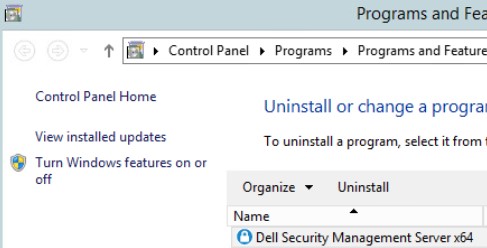 일부 서버 버전에서는 Dell Security Management Server 대신 Dell Enterprise Server가 표시될 수 있습니다.
 - Version을 기록합니다. 이 예에서 제품 버전은 10.2.3입니다.
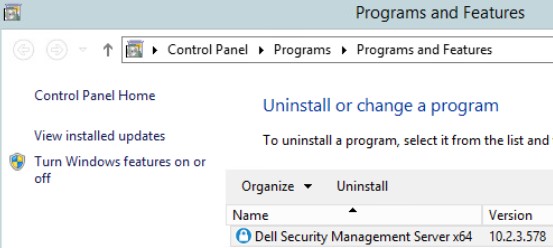 버전은 위의 스크린샷과 다를 수 있습니다.
Informations supplémentaires
Vidéos
Produits concernés
Dell EncryptionPropriétés de l’article
Numéro d’article: 000130588
Type d’article: How To
Dernière modification: 10 Aug 2026
Version: 12
Trouvez des réponses à vos questions auprès d’autres utilisateurs Dell
Services de support
Vérifiez si votre appareil est couvert par les services de support.