How to Uninstall Absolute
Résumé: Follow these step-by-step instructions to learn how to uninstall Absolute.
Cet article concerne
Cet article ne concerne pas
Cet article n’est associé à aucun produit spécifique.
Toutes les versions du produit ne sont pas identifiées dans cet article.
Instructions
Absolute may require uninstallation from an endpoint to:
- Fix licensing discrepancies.
- Troubleshoot the product.
- Address operating system incompatibility.
Affected Products:
- Absolute
Affected Operating Systems:
- Windows
A removal request must be submitted to uninstall the Absolute agent from an endpoint.
- Open a web browser and go to https://cc.absolute.com
.
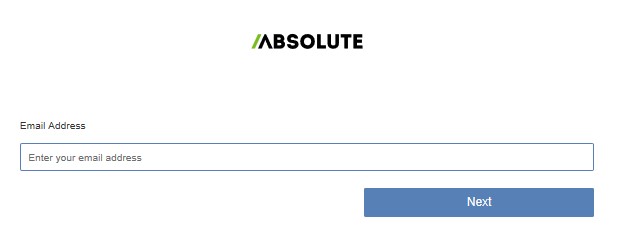
- Populate the email address used to access the web portal and then click Next.
- Log In to the web portal.

- In the left menu, select the Find Devices icon.

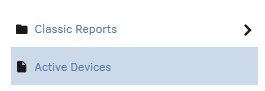
- Click Active Devices.
- Search for the endpoint.

- Check the endpoint to unenroll.
 Note: The example endpoint will differ in your environment.
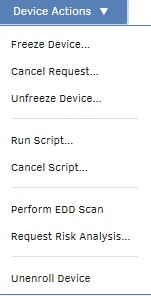
 - Click Device Action and then select Unenroll Device.
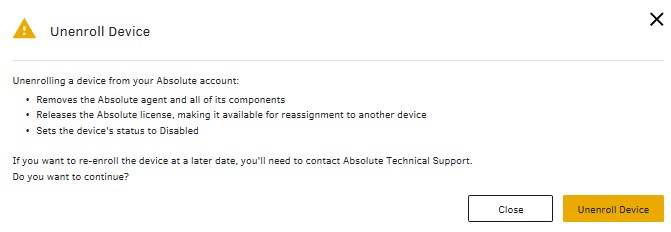
- Click Unenroll Device.
To contact support, reference Dell Data Security International Support Phone Numbers.
Go to TechDirect to generate a technical support request online.
For additional insights and resources, join the Dell Security Community Forum.
Produits concernés
AbsolutePropriétés de l’article
Numéro d’article: 000131245
Type d’article: How To
Dernière modification: 11 Sep 2025
Version: 9
Trouvez des réponses à vos questions auprès d’autres utilisateurs Dell
Services de support
Vérifiez si votre appareil est couvert par les services de support.