How to Identify the Absolute Version
Résumé: Learn step-by-step instructions to identify the version of Absolute by following this article.
Cet article concerne
Cet article ne concerne pas
Cet article n’est associé à aucun produit spécifique.
Toutes les versions du produit ne sont pas identifiées dans cet article.
Instructions
Knowing the version of Absolute allows an administrator to:
- Identify capabilities
- Determine UI differences
- Understand workflow changes
- Verify system requirements
Affected Products:
- Absolute
Affected Operating Systems:
- Windows
Versioning can be determined through the Endpoint, Installer, or Web Console. Click the appropriate method for more information.
Endpoint
- Go to:
- 64-bit operating system:
C:\Windows\SysWow64 - 32-bit operating system:
C:\Windows\System32
- 64-bit operating system:
- Right-click
rpcnet.exeand then select Properties.
- Select the Details tab.

- Record the File version. The third number is the most important number to record. In the example, 944 is the third number.
 Note: The File version of your client may differ from the example.
Installer
Note: Absolute must be downloaded before proceeding with this step. For more information, reference How to Download and Install Absolute.
- Download the Absolute agent.
- In the download location, double-click
ctmweb.exe.
- In the Please enter your password field, type the default administrative password and then click Next.
 Note: The default administrative password for
ctmwebispassword. - The status page shows the Agent build. In the example, 944 is the Agent build.
 Note: The Agent build of your client may differ from the example.
Web Console
- In a web browser, go to Absolute
.
- Log in to the Absolute web console.

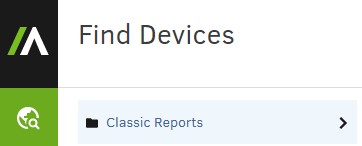
- In the left menu pane, select the Find Devices icon and then click Classic Reports.
- In Classic Reports, click Hardware Assets.

- In Hardware Assets, click Asset Report.

- In the Asset Report, click Show results.

- Locate the Agent Version for the appropriate device. In the example, 944 is the Agent Version for all three devices.
 Note: The Agent Version of your client may differ from the example.
To contact support, reference Dell Data Security International Support Phone Numbers.
Go to TechDirect to generate a technical support request online.
For additional insights and resources, join the Dell Security Community Forum.
Produits concernés
AbsolutePropriétés de l’article
Numéro d’article: 000131906
Type d’article: How To
Dernière modification: 04 Sep 2025
Version: 11
Trouvez des réponses à vos questions auprès d’autres utilisateurs Dell
Services de support
Vérifiez si votre appareil est couvert par les services de support.