使用 Dell Command Update 的進階驅動程式還原
Résumé: 本文說明如何在 Dell Command Update 工具中啟動進階驅動程式還原。進階驅動程式還原提供驅動程式的單鍵安裝。它可讓您在重新安裝 Windows 後安裝所有驅動程式。此外,亦可用於重新安裝系統驅動程式,以修正驅動程式損毀問題。
Cet article concerne
Cet article ne concerne pas
Cet article n’est associé à aucun produit spécifique.
Toutes les versions du produit ne sont pas identifiées dans cet article.
Instructions
如何在 Dell Command Update 中使用進階驅動程式還原:
- 開啟 Dell Command Update 應用程式。
- 如果設定已啟用可允許進階驅動程式還原 (ADR),您會在主畫面上看到名為「針對 Windows 重新安裝的進階驅動程式還原」的區段。
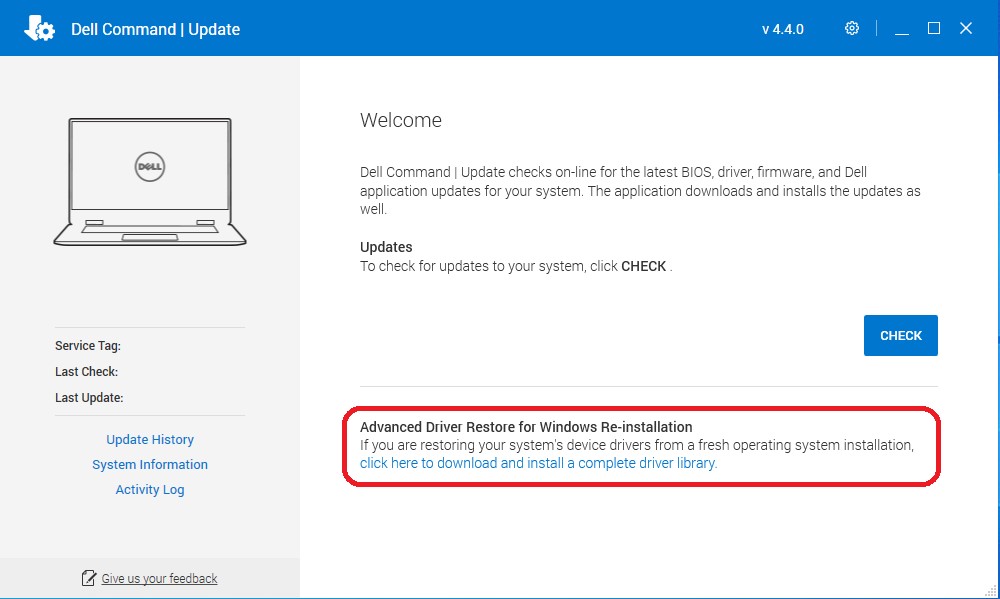
- 按一下 「按一下此處下載並安裝完整的驅動程式庫」。
注意:如果從功能表畫面遺失,請按照「要啟用的設定」區段操作,如下所示。
- 安裝完成後,必須重新啟動系統。
要啟用的設定:
- 以系統管理員身分執行 Dell Command Update。在 Dell Command Update 中,按一下右上角的齒輪圖示 ,選取 「設定」。
- 揀 「進階驅動程式還原」。
- 按一下 「啟用」滑桿按鈕,以確保應用程式已啟用 ADR。
- Dell 技術支援部門建議「從 Dell 支援網站下載驅動程式庫 (建議)」
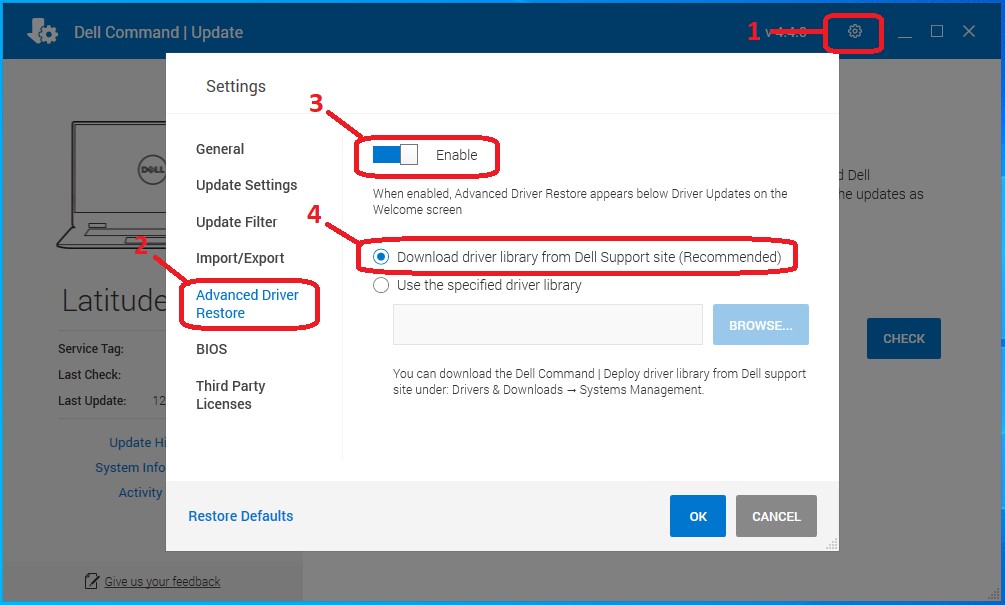
- 按下確定。此選項現在應會顯示,如文章頂端所示。
如果這些步驟無法修正問題,請聯絡 Dell 技術支援部門。
如需相關資訊,請參閱下列 Dell 知識文章:
Informations supplémentaires
建議的文章
以下是一些與本主題相關的建議文章,您可能會感興趣。
Produits concernés
OptiPlex, Dell Pro Plus, Latitude, Dell Pro Rugged, XPS, Fixed Workstations, Mobile Workstations, Dell Command | UpdatePropriétés de l’article
Numéro d’article: 000177525
Type d’article: How To
Dernière modification: 05 Jan 2026
Version: 16
Trouvez des réponses à vos questions auprès d’autres utilisateurs Dell
Services de support
Vérifiez si votre appareil est couvert par les services de support.