如何卸载 Dell Data Protection Secure Lifecycle
Résumé: 按照这些分步说明了解如何从 Windows 或 Mac 计算机上卸载 Dell Data Protection Secure Lifecycle。
Cet article concerne
Cet article ne concerne pas
Cet article n’est associé à aucun produit spécifique.
Toutes les versions du produit ne sont pas identifiées dans cet article.
Instructions
提醒:
- 截至 2018 年 11 月,Dell Data Protection Secure Lifecycle 已停售。戴尔不再更新本产品及其文章。有关更多信息,请参阅 Dell Data Security 的产品生命周期(结束支持和停售)政策。如果您对备选文章有任何疑问,请联系您的销售团队或联系 endpointsecurity@dell.com。
- 请参阅端点安全性,了解有关当前产品的其他信息。
可以从端点卸载 Dell Data Protection Secure Lifecycle,以便:
- 修复许可差异
- 对产品进行故障处理
- 解决操作系统不兼容性
受影响的产品:
- Dell Data Protection Secure Lifecycle
受影响的版本:
- 1.0
受影响的操作系统:
- Windows
- Mac
Windows 和 Mac 的卸载过程不同。单击相应的操作系统,了解卸载 Dell Data Protection Secure Lifecycle 的步骤。
Windows
提醒:在执行这些步骤之前,必须先下载 Dell Data Protection Secure Lifecycle 安装程序。
- 右键单击 Windows“开始”菜单,然后单击 运行
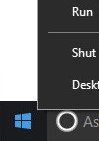 。
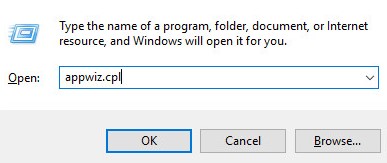
。 - 在“运行”UI中,键入
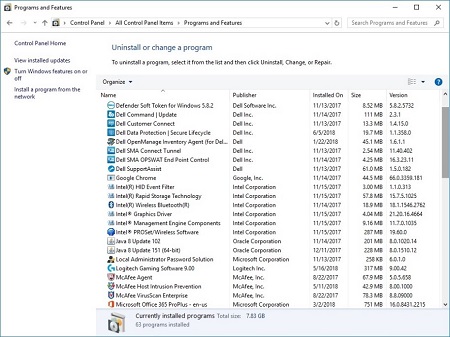
appwiz.cpl然后按 OK。这将打开 “程序和功能”。
- 双击 Dell Data Protection | Secure Lifecycle。
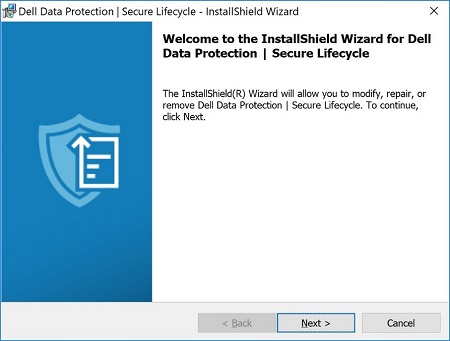
- 单击 Next 以继续。
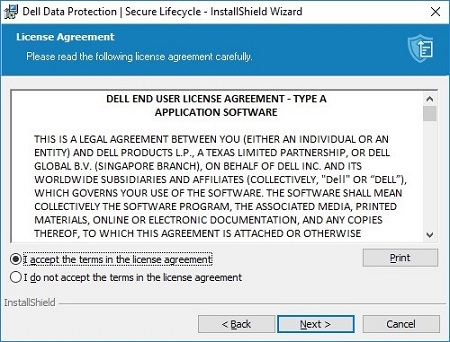
- 接受许可协议中的条款,然后单击 Next。
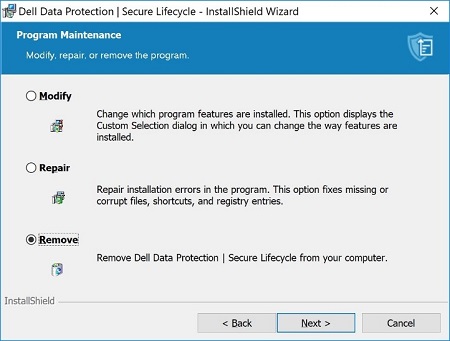
- 选择 Remove,然后单击 Next。
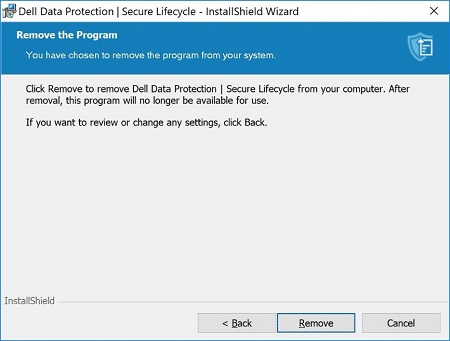
- 单击移除。
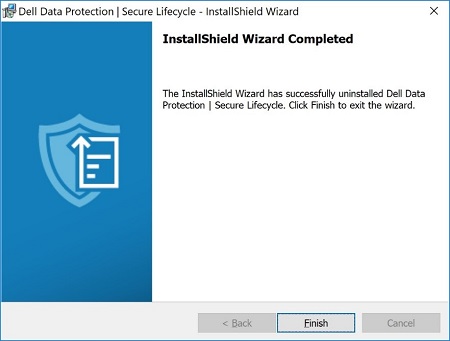
- 删除后,单击 Finish 关闭 UI。
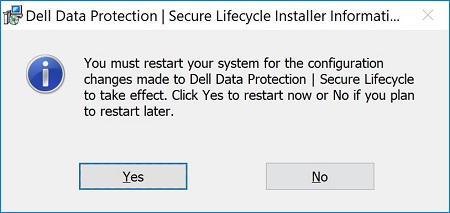
- 单击 Yes 重新启动计算机。
Mac
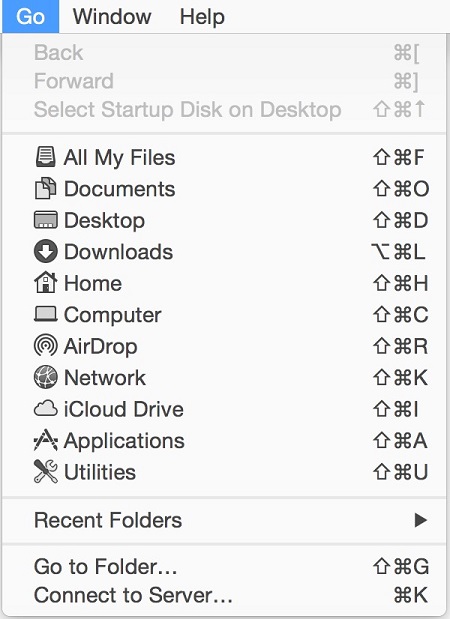
- 从 Apple 菜单中,单击 Go,然后选择 Applications。
- 在应用程序列表中找到 Secure Lifecycle 图标。
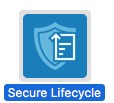
- 将 Secure Lifecycle 图标拖到回收站图标。

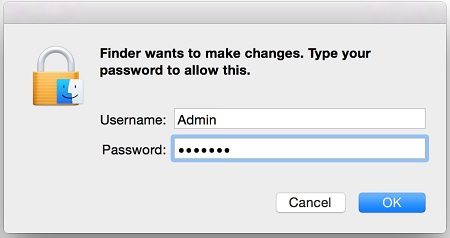
- 输入管理帐户的凭据,然后按 OK。
要联系支持部门,请参阅 Dell Data Security 国际支持电话号码。
转至 TechDirect,在线生成技术支持请求。
要获得更多见解和资源,请加入戴尔安全社区论坛。
Informations supplémentaires
Vidéos
Produits concernés
Dell Data GuardianPropriétés de l’article
Numéro d’article: 000123295
Type d’article: How To
Dernière modification: 30 Apr 2026
Version: 15
Trouvez des réponses à vos questions auprès d’autres utilisateurs Dell
Services de support
Vérifiez si votre appareil est couvert par les services de support.