Amazon Appstore inschakelen in Windows 11
Résumé: In dit artikel wordt beschreven hoe u Amazon Appstore inschakelt in Windows 11.
Cet article concerne
Cet article ne concerne pas
Cet article n’est associé à aucun produit spécifique.
Toutes les versions du produit ne sont pas identifiées dans cet article.
Instructions
Windows gebruikt de Amazon Appstore om toegang tot Android-apps op Windows 11 te vergemakkelijken. Volg deze stappen om de ondersteuning voor de Android-app op uw computer in te schakelen:
- Schakel BIOS Virtualization in. (automatisch ingeschakeld op nieuwe Dell computers)
- Zie hoe u hardwarevirtualisatie op Dell computers in- of uitschakelt | Dell VS voor instructies over het uitvoeren van deze stap.
- Windows Virtualization inschakelen.
- Zie hoe u hardwarevirtualisatie op Dell computers in- of uitschakelt | Dell VS voor instructies over het uitvoeren van deze stap.
- De computer wordt nu opnieuw opgestart.
- Meld u weer aan bij Windows.
- Klik op http://aka.ms/AmazonAppstore om de Amazon Appstore te installeren.
Opmerking: Het kan even duren voordat het archief de informatie invullen.
- Klik op Installeren.
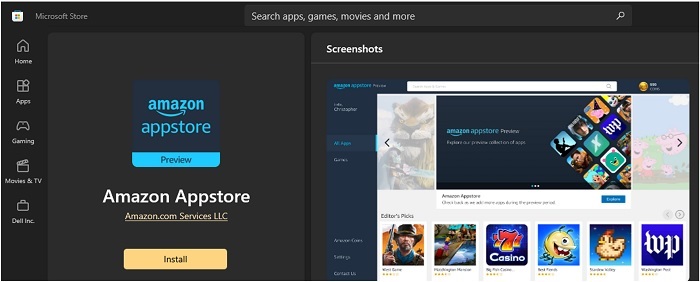
- De Amazon Appstore is nu beschikbaar onder Alle apps in het startmenu van Windows 11.
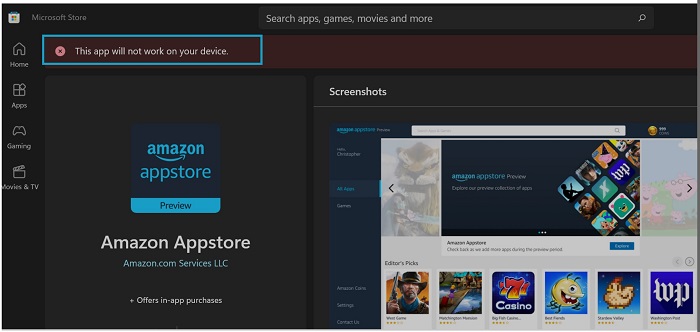
Opmerking: De Amazon Appstore is alleen beschikbaar als het systeem voldoet aan de Microsoft-vereisten:
| RAM | 8 GB (minimaal) |
| 16 GB (aanbevolen) | |
| Type storage | Solid State-schijf (SSD) |
| Processor | Intel Core i3 8e gen (minimaal) of hoger |
| AMD Ryzen 3000 (minimaal) of hoger | |
| Qualcomm Snapdragon 8c (minimaal) of hoger | |
| Processorarchitectuur | x64 of ARM64 |
Informations supplémentaires
Produits concernés
Operating SystemsPropriétés de l’article
Numéro d’article: 000196136
Type d’article: How To
Dernière modification: 13 May 2026
Version: 9
Trouvez des réponses à vos questions auprès d’autres utilisateurs Dell
Services de support
Vérifiez si votre appareil est couvert par les services de support.