NetWorker: How to POST VMware VM Image Restores with REST API
Résumé: This article gives a brief overview of how to perform VMware Virtual Machine (VM) image restores from the REST API.
Cet article concerne
Cet article ne concerne pas
Cet article n’est associé à aucun produit spécifique.
Toutes les versions du produit ne sont pas identifiées dans cet article.
Instructions
This article gives a brief overview of how to perform VMware VM image restores from the REST API. The full REST API guide is available at Dell NetWorker REST API
- Query all protected VMs to get the VM UUID of the VM you are looking to restore. The syntax of the link follows:
https://NETWORKER_SERVER:9090/nwrestapi/v3/global/vmware/vcenters/VCENTER_SERVER/protectedvms
- You must collect the required VMware Managed Object Reference (MoRef) values for the specific VM you are looking to restore: The syntax of the link follows:
https://NETWORKER_SERVER:9090/nwrestapi/v3/global/vmware/vcenters/VCENTER_SERVER/protectedvms/VM_UUID/backups
The required values appear under the
vm_info line and under the vmInformation section of the output.
Example:

- Collect additional information by adding the backup ID to the
GETrequest:
https://NETWORKER_SERVER:9090/nwrestapi/v3/global/vmware/vcenters/VCENTER_SERVER/protectedvms/VM_UUID/backups/BACKUP_ID
- Use the following link syntax to POST the restore:
https://NETWORKER_SERVER:9090/nwrestapi/v3/global/vmware/vcenters/VCENTER_SERVER/protectedvms/VM_UUID/backups/BACKUP_ID/op/recover
An example of the JSON body content is replacing the values with the values collected in step 2 and 3:
{
	"recoverMode": "New",
	"datacenterMoref": "DATACENTER_MOREF",
	"datastoreMoref": "DATASTORE_MOREF",
	"computeResourceMoref": "COMPUTE_RESOURCE_MOREF",
		"disks": [
                    {
                        "datastoreMoref": "DATASTORE_MOREF",
                        "key": "2000",
                        "name": "Hard disk 1"
                    }
                ],
	"vCenterHostname": "VCENTER_NAME",
	"hostMoref": "VCENTER_MOREF",
	"vmName": "RESTORED_VM_NAME",
	"powerOn": "true/false",
	"reconnectNic": "true/false"
}
Example:
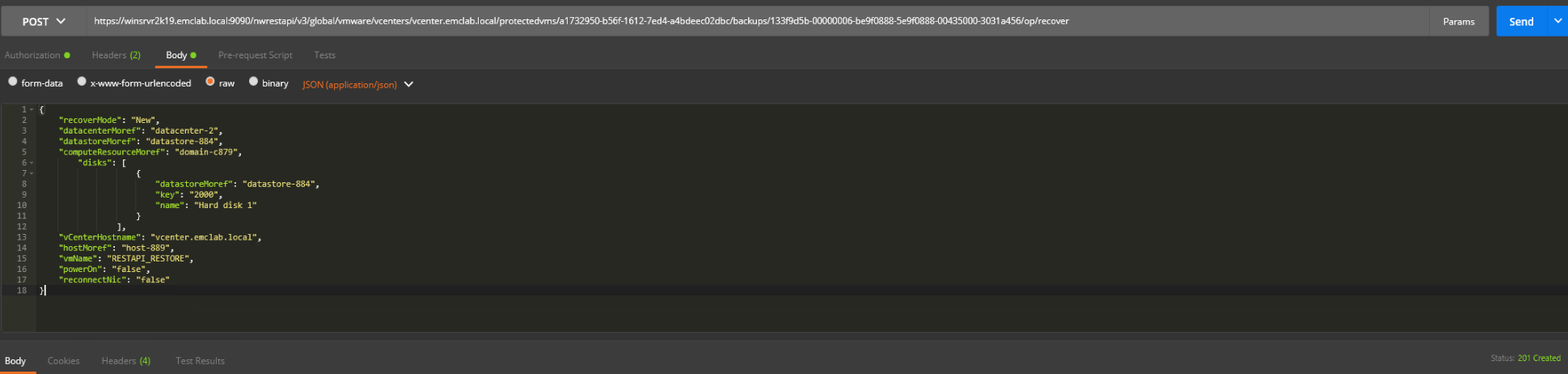
NOTE: Status 201 indicates that the request was submitted. This is an example of a full image restore in a specific environment. Properties and requirements could change based on the VMware environment.
The restore session is seen in the VMware client.
Generic Troubleshooting:
| Code | Description | Examples |
|---|---|---|
| 1XX | Informational | 100 - Continue |
| 2XX | Success | 200 - OK
201 - Created 202 - Accepted |
| 3XX | Redirection | 301 - Moved Permanently.
307 - Temporary redirect |
| 4XX | CLIENT error | 400 - Bad request
401 - Unauthorized 404 - Not Found |
| 5XX | SERVER error | 500 - Internal server error
503 - Service unavailable |
Informations supplémentaires
Logs for the restore session are found at:
NetWorker server:
- Linux:
/nsr/logs/recover/ - Windows:
[INSTALL_DRIVE]:\Program Files\EMC NetWorker\nsr\logs\recover
vProxy used for restore:
/opt/emc/vproxy/runtime/logs/recycle/vrecoverd/
Note: Once the restore is complete, it is moved to:
/opt/emc/vproxy/runtime/logs/recycle/vrecoverd/DATE
Produits concernés
NetWorkerProduits
NetWorkerPropriétés de l’article
Numéro d’article: 000021344
Type d’article: How To
Dernière modification: 30 Jun 2026
Version: 7
Trouvez des réponses à vos questions auprès d’autres utilisateurs Dell
Services de support
Vérifiez si votre appareil est couvert par les services de support.