How to Reset Google Authenticator for Multi Factor Authentication in Dell Security Management Server
Résumé: When Multi Factor Authentication with Google Authenticator is enabled, it may be necessary to reset a user’s Google Authenticator.
Cet article concerne
Cet article ne concerne pas
Cet article n’est associé à aucun produit spécifique.
Toutes les versions du produit ne sont pas identifiées dans cet article.
Instructions
Affected Products:
- Dell Security Management Server
- Dell Security Management Server Virtual
Affected Versions:
- v11.4.0 and Later
If Multi Factor Authentication is enabled using Google Authenticator, there are times when a user must have their authenticator reset such as if they lose their phone. The following steps describe this process.
- Log in to the administration console with an account that has the account administrator role.
Note: For more information about administrator roles, reference the Administrator Roles section of the Security Management Server admin help document in the Manuals and Documents.
- Click Users under Populations.
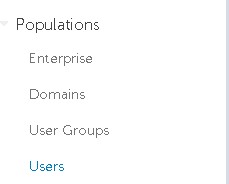
- Click the specific User that needs google authenticator reset.
Note: Reset is user specific because each user has their own Google Authenticator token.
- Click the Admin tab.

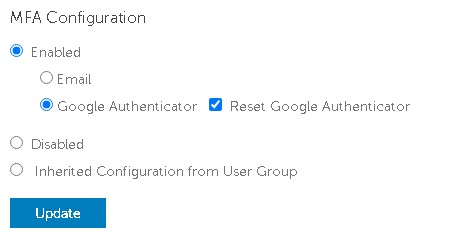
- Check Reset Google Authenticator.
- Click Update.
To contact support, reference Dell Data Security International Support Phone Numbers.
Go to TechDirect to generate a technical support request online.
For additional insights and resources, join the Dell Security Community Forum.
Produits concernés
Dell EncryptionPropriétés de l’article
Numéro d’article: 000199488
Type d’article: How To
Dernière modification: 03 Jun 2026
Version: 7
Trouvez des réponses à vos questions auprès d’autres utilisateurs Dell
Services de support
Vérifiez si votre appareil est couvert par les services de support.