Dell Unity: How to Use UEMCLI Commands
Résumé: The article describes how to start using UEMCLI on Unity arrays for array management, configuration or monitoring.
Instructions
Goal
This article contains helpful information in order to start using Unisphere CLI (UEMCLI). This includes:
- The tool/utility you need to install before being able to run
UEMCLIcommands from a management station or PC. - How to access
UEMCLIcommands as a service user over SSH, without the need to install the Unisphere CLI utility. UEMCLIcommand examples.UEMCLIcommand guide reference.
Facts
Dell Unity arrays can be managed and monitored through the Unisphere UI, Unisphere CLI or the REST API. This article discusses the Unisphere CLI option.
Solution
UEMCLI commands can run using two methods:
-
From a host or PC which has the Unisphere CLI tool installed.
-
Through SSH.
Both methods require that you are on the same management network as the Storage Processors.
Using The Unisphere CLI Tool
To download and install Unisphere CLI (UEMCLI):
- Navigate to Downloads on the Unity product support page.
- Expand the Product Tools section.
- Locate Unisphere CLI (
UEMCLI) in the list of available tools for the supported operating systems. - Download the version that matches the target operating system.
- Install the tool according to the installation procedure for the selected operating system.
After installation, and the installation directory being added to the PATH system variable, you can now launch UEMCLI.
To verify that the installation completed successfully, open a Windows command prompt or shell and enter the following command:
uemcli.exeOn Linux, open a terminal window and enter the following command:
/usr/bin/uemcli
The following syntax is required to connect to the Unity primary SP and execute commands:
uemcli.exe -d <management IP> -u <user> -p <password> <object path> <action>
Using SSH
Alternatively, the primary SP can be accessed directly through an SSH client. SSH access must first be enabled on the Unity array using the Unisphere UI.
System > Service > Service Tasks > Enable SSH > Execute
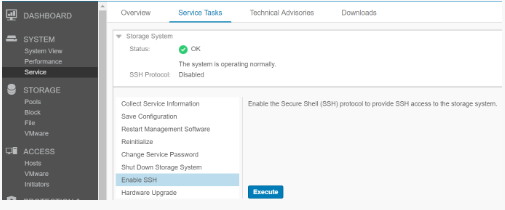
Once SSH access is enabled, connect to the Unity management IP address using an SSH client and authenticate with the service user credentials. UEMCLI commands can then be run directly from the SSH session without specifying the IP address or user credential parameters in the command syntax.
UEMCLI Command Syntax and Usage
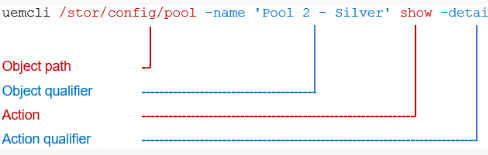
UEMCLI commands always require an object path to identify the object being viewed or configured. For example, to display storage pools on the system, use the following command syntax:
uemcli /stor/config/pool show
The /stor/config/pool is the object path part of the command and show is the action to run on all objects under that path.
To see all the available object paths, type:
uemcli / --helpTo see available actions to run on a certain object, type:
uemcli <object path> --help