Dell Endpoint Security Suite Enterpriseのバージョンを確認する方法
Résumé: Dell Endpoint Security Suite Enterpriseのバージョンは、次の手順で確認できます。
Cet article concerne
Cet article ne concerne pas
Cet article n’est associé à aucun produit spécifique.
Toutes les versions du produit ne sont pas identifiées dans cet article.
Instructions
注:
- 2022年5月をもって、Dell Endpoint Security Suite Enterpriseはメンテナンス終了となりました。この記事は今後、Dellによってアップデートされることはありません。詳細については、「Dell Data Securityの製品ライフサイクル(サポート終了およびライフサイクル終了)」を参照してください。代替記事に関する質問がある場合は、担当のセールス チームに連絡するか、またはendpointsecurity@dell.comにお問い合わせください。
- 現在の製品に関する追加情報については、Endpoint Securityを参照してください。
Dell Endpoint Security Suite Enterpriseのバージョンを知ることで、次のことが可能になります。
- 既知の問題の確認
- UIの違いの確認
- ワークフローの変更の理解
- システム要件
対象製品:
- Dell Endpoint Security Suite Enterprise
影響を受けるバージョン:
- v1.0以降
対象オペレーティング システム:
- Windows
- Mac
- Linux
バージョン情報については、[ Windows]、[ Mac]、または [Linux ]をクリックします。
Windows
バージョン管理は、次のいずれかを使用して決定できます。
詳細については、該当するオペレーティング システムをクリックしてください。
UI
UIでバージョンを確認するには、Dell Endpoint Security Suite Enterpriseがインストールされている必要があります。詳細については、「Dell Endpoint Security Suite Enterprise for Windowsをインストールする方法」を参照してください。
- デスクトップで、DDP Consoleアイコンをダブルクリックします。

- [Advanced Threat Protection]タイルをクリックします。
![[Advanced Threat Protection]タイル](https://supportkb.dell.com/img/ka0Do0000005xu6IAA/ka0Do0000005xu6IAA_ja_2.jpeg)
- UIの左下隅に[Version]があります。
 注:
注:- 最も重要なのは3番目の数字です。この例では、3番目の数字は1371です。
- 例の[Version]は使用している環境によって異なります。
インストーラ
- マスター スイートからATPコンポーネントを抽出します。
抽出手順については、「Dell Data Securityマスター インストーラから子インストーラを抽出する方法」を参照してください。
- ATPコンポーネントを抽出した場所に移動します。
- DDSSuite.exeから抽出した場合:
[EXTRACTION PATH]\ Advanced Threat Prevention\WinNtAll\ATP_AgentSetup.exe
- DDPSuite.exeから抽出した場合:
- 64ビット:[抽出パス]
\ Advanced Threat Protection\Win64R\AdvancedThreatProtectionAgentSetup.exe - 32ビット:[抽出パス]
\ Advanced Threat Protection\WinNtR\AdvancedThreatProtectionAgentSetup.exe
- 64ビット:[抽出パス]
 [抽出パス]は、エンド ユーザーが選択したディレクトリーに基づきます。スクリーンショットでは、
C:\Extractedは [抽出パス] です。 - DDSSuite.exeから抽出した場合:
- ATP コンポーネント (
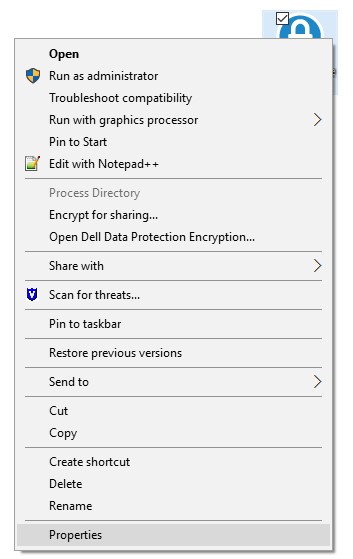
ATP_AgentSetupまたはAdvancedThreatProtectionAgentSetup)をクリックし、[ プロパティ]を選択します。
- 詳細タブをクリックします。

- [Product Name]の下に番号があります。
 注:
注:- 最も重要なのは3番目の数字です。この例では、3番目の数字は1441です。
- 例のバージョンは使用している環境によって異なります。
Mac
UIでバージョンを確認するには、Dell Endpoint Security Suite Enterpriseがインストールされている必要があります。詳細については、「Dell Endpoint Security Suite Enterprise for Macをインストールする方法」を参照してください。
- [Status Menu](画面の上の方)のDell Data Protection | Endpoint Security Suite Enterpriseアイコンを右クリックして、[About]を選択します。
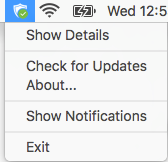
- [Version]があります。
 注:
注:- 最も重要なのは3番目の数字です。この例では、3番目の数字は1411です。
- 例の[Version]は使用している環境によって異なります。
Linux
バージョンを確認するには、Dell Endpoint Security Suite Enterpriseがインストールされている必要があります。詳細については、「Dell Endpoint Security Suite Enterprise for Linuxをインストールする方法(英語)」を参照してください。
- ターゲット エンドポイントで[ターミナル]を開きます。

- ターミナルで、「sudo shasum -a 256 [FILENAME]」と入力して、
atp –vと入力して、Enterを押します。

- [version]があります。
注:
- 最も重要なのは3番目の数字です。この例では、3番目の数字は1471です。
- 例の[version]は使用している環境によって異なります。
Informations supplémentaires
Vidéos
Produits concernés
Dell Endpoint Security Suite EnterprisePropriétés de l’article
Numéro d’article: 000124632
Type d’article: How To
Dernière modification: 10 août 2026
Version: 16
Trouvez des réponses à vos questions auprès d’autres utilisateurs Dell
Services de support
Vérifiez si votre appareil est couvert par les services de support.