如何從 Dell Data Security 主安裝程式中擷取子安裝程式
Riepilogo: 可依照以下指示,從 Dell Data Security 主安裝程式中擷取子安裝程式。
Questo articolo si applica a
Questo articolo non si applica a
Questo articolo non è legato a un prodotto specifico.
Non tutte le versioni del prodotto sono identificate in questo articolo.
Sintomi
注意:
- 截至 2022 年 5 月,Dell Endpoint Security Suite Enterprise 已達到維護結束的期限。Dell 已不再更新此產品及其文章。
- 截至 2019 年 1 月,Dell Endpoint Security Suite Pro 已達到維護結束的期限。Dell 已不再更新此產品及其文章。
- 如需詳細資訊,請參閱 Dell 資料安全性的產品生命週期 (支援結束與生命週期結束) 政策。如果您對其他文章有任何問題,請聯絡您的銷售團隊或聯絡 endpointsecurity@dell.com。
- 請參考端點安全性,以取得有關目前產品的其他資訊。
本文討論如何從 Dell Data Security (先前稱為 Dell Data Protection) 主安裝程式中擷取子安裝程式。
受影響的產品:
- Dell Encryption Enterprise
- Dell Data Protection | Enterprise Edition
- Dell Encryption Personal
- Dell Data Protection | Personal Edition
- Dell Endpoint Security Suite Enterprise
- Dell Endpoint Security Suite Pro
Causa
不適用
Risoluzione
Dell Data Security 使用主安裝程式,其中包含針對個別軟體的子安裝程式。主要安裝程式稱為 DDSSetup.exe (先前稱為 DDPSetup.exe) 或 DDSSuite.exe (先前稱為 DDPSuite.exe)。
下列 Dell Data Security 產品具有主安裝程式:
- Dell Encryption Enterprise 適用的 DDSSetup.exe
- Dell Encryption Personal 適用的 DDSSetup.exe
- Dell Endpoint Security Suite Enterprise 適用的 DDSSuite.exe
- Dell Endpoint Security Suite Pro 適用的 DDSSuite.exe
下列舊版 Dell Data Protection 產品具有主安裝程式:
- Dell Data Protection | Enterprise Edition 適用的 DDPSetup.exe
- Dell Data Protection | Personal Edition 適用的 DDPSetup.exe
- Dell Data Protection | Endpoint Security Suite 適用的 DDPSuite.exe
- Dell Data Protection | Endpoint Security Suite Enterprise 適用的 DDPSuite.exe
按一下適當的主安裝程式,瞭解解壓縮子安裝程式的步驟。
注意:如需有關取得 DDPSetup.exe 的資訊,請參閱如何下載 Dell Encryption Enterprise 或 Dell Encryption Personal。
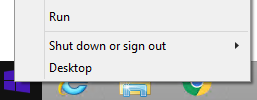
- 以滑鼠右鍵按一下 Windows 開始功能表,然後按一下執行。
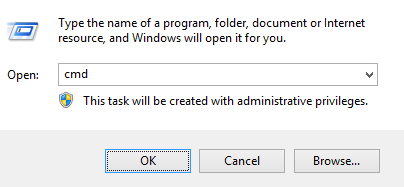
- 在「執行」UI 中,輸入
cmd,然後按下確定。這會開啟命令提示字元。
- 在命令提示字元中,輸入
CD "[LOCATION of DDSSetup.EXE]"並按下 Enter 鍵,前往 DDSSuite.exe 的位置。
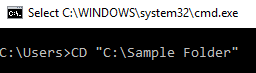
注意:螢幕擷圖的位置為範例,且會依您的環境而有所不同。
- 輸入
DDSSetup.exe /z"\"EXTRACT_INSTALLERS=C:\extracted\"",然後按下 Enter 鍵。這會將子安裝程式擷取到C:\Extracted。

注意:
- Windows 需要指定低於 256 個字元的路徑
EXTRACT_INSTALLER。 - 如果字元限制在擷取中導致問題,請重新嘗試擷取至桌面上的資料夾,以減少路徑中使用的字元數。
- 在範例中,
C:\extracted是指定的EXTRACT_INSTALLER路徑。
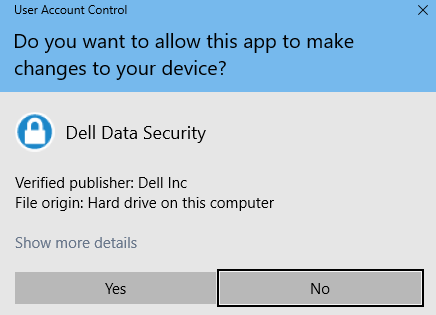
- 如果已啟用使用者帳戶控制 (UAC),請按一下是,以開啟 DDSSetup.exe。若已停用 UAC,請前往步驟 6。
- 主安裝程式會擷取子安裝程式。完成時,按一下完成以關閉 InstallShield 精靈。

- 子安裝程式位於步驟 4 的目錄中。
注意:如需有關取得 DDPSetup.exe 的資訊,請參閱如何下載 Dell Encryption Enterprise 或 Dell Encryption Personal。
- 以滑鼠右鍵按一下 Windows 開始功能表,然後按一下執行。
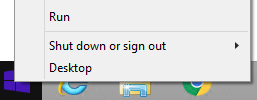
- 在「執行」UI 中,輸入
cmd,然後按下確定。這會開啟命令提示字元。
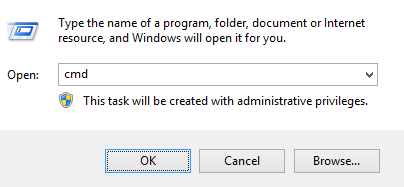
- 在命令提示字元中,輸入
CD "[LOCATION of DDSSUITE.EXE]"並按下 Enter 鍵,前往 DDSSuite.exe 的位置。

注意:螢幕擷圖的位置為範例,且會依您的環境而有所不同。
- 輸入
DDSSuite.exe /z"\"EXTRACT_INSTALLERS=C:\extracted\"",然後按下 Enter 鍵。這會將子安裝程式擷取到C:\Extracted。

注意:
- Windows 需要指定低於 256 個字元的路徑
EXTRACT_INSTALLER。 - 如果字元限制在擷取中導致問題,請重新嘗試擷取至桌面上的資料夾,以減少路徑中使用的字元數。
- 在範例中,
C:\extracted是指定的EXTRACT_INSTALLER路徑。
- 如果已啟用使用者帳戶控制 (UAC),請按一下是,以開啟 DDSSuite.exe。若已停用 UAC,請前往步驟 6。
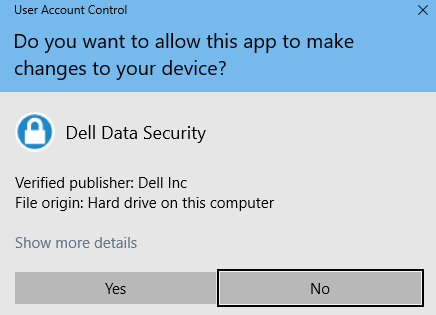
- 主安裝程式會擷取子安裝程式。完成時,按一下完成以關閉 InstallShield 精靈。

- 子安裝程式位於步驟 4 的目錄中。
注意:如需有關取得 DDPSetup.exe 的資訊,請參閱如何下載 Dell Encryption Enterprise 或 Dell Encryption Personal。
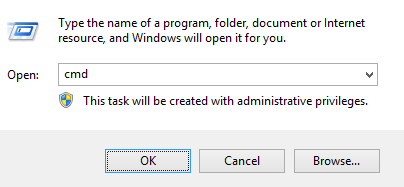
- 以滑鼠右鍵按一下 Windows 開始功能表,然後按一下執行。
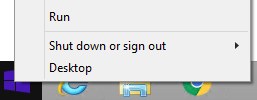
- 在「執行」UI 中,輸入
cmd,然後按下確定。這會開啟命令提示字元。
- 在命令提示字元中,輸入
CD "[LOCATION of DDPSETUP.EXE]"並按下 Enter 鍵,前往 DDSSuite.exe 的位置。
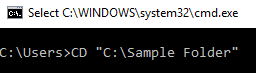
注意:螢幕擷圖的位置為範例,且會依您的環境而有所不同。
- 輸入
DDPSetup.exe /z"\"EXTRACT_INSTALLERS=C:\extracted\"",然後按下 Enter 鍵。這會將子安裝程式擷取到C:\Extracted。

注意:
- Windows 需要指定低於 256 個字元的路徑
EXTRACT_INSTALLER。 - 如果字元限制在擷取中導致問題,請重新嘗試擷取至桌面上的資料夾,以減少路徑中使用的字元數。
- 在範例中,
C:\extracted是指定的EXTRACT_INSTALLER路徑。
- 如果已啟用使用者帳戶控制 (UAC),請按一下是,以開啟 DDPSetup.exe。若已停用 UAC,請前往步驟 6。
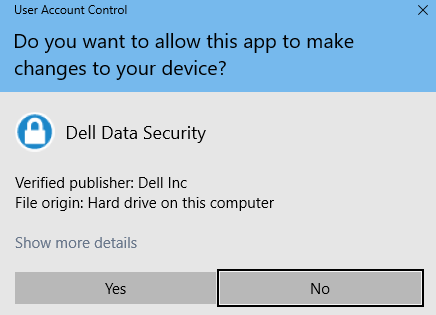
- 安裝程式套裝會擷取子安裝程式。完成時,按一下完成以關閉 InstallShield 精靈。
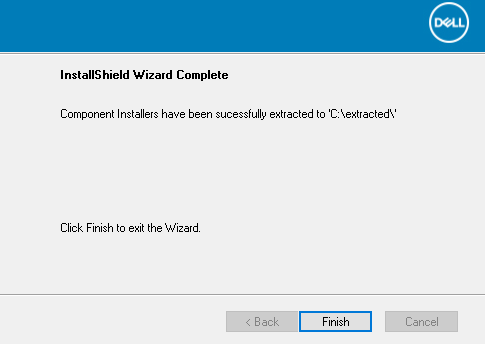
- 子安裝程式位於步驟 4 的目錄中。
注意:如需有關取得 DDPSetup.exe 的資訊,請參閱如何下載 Dell Encryption Enterprise 或 Dell Encryption Personal。
- 以滑鼠右鍵按一下 Windows 開始功能表,然後按一下執行。
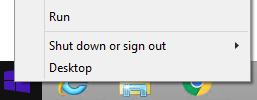
- 在「執行」UI 中,輸入
cmd,然後按下確定。這會開啟命令提示字元。
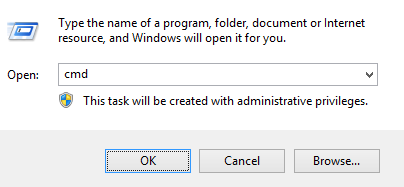
- 在命令提示字元中,輸入
CD "[LOCATION of DDPSUITE.EXE]"並按下 Enter 鍵,前往 DDSSuite.exe 的位置。

注意:螢幕擷圖的位置為範例,且會依您的環境而有所不同。
- 輸入
DDPSuite.exe /z"\"EXTRACT_INSTALLERS=C:\extracted\"",然後按下 Enter 鍵。這會將子安裝程式擷取到C:\Extracted。

注意:
- Windows 需要指定低於 256 個字元的路徑
EXTRACT_INSTALLER。 - 如果字元限制在擷取中導致問題,請重新嘗試擷取至桌面上的資料夾,以減少路徑中使用的字元數。
- 在範例中,
C:\extracted是指定的EXTRACT_INSTALLER路徑。
- 如果已啟用使用者帳戶控制 (UAC),請按一下是,以開啟 DDPSuite.exe。若已停用 UAC,請前往步驟 6。

- 主安裝程式會擷取子安裝程式。完成時,按一下完成以關閉 InstallShield 精靈。
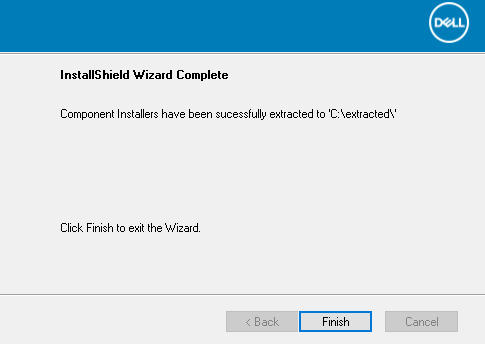
- 子安裝程式位於步驟 4 的目錄中。
如要聯絡支援部門,請參閱 Dell Data Security 國際支援電話號碼。
請前往 TechDirect,以線上產生技術支援要求。
如需更多深入見解與資源,請加入 Dell 安全性社群論壇。
Informazioni aggiuntive
Video
Prodotti interessati
Dell Encryption, Dell Endpoint Security Suite Pro, Dell Endpoint Security Suite EnterpriseProprietà dell'articolo
Numero articolo: 000124409
Tipo di articolo: Solution
Ultima modifica: 01 nov 2023
Versione: 9
Trova risposta alle tue domande dagli altri utenti Dell
Support Services
Verifica che il dispositivo sia coperto dai Servizi di supporto.