How to Back Up and Import Custom Compliance Reports in Dell Security Management Server
Riepilogo: Dell Security Management Server and Dell Data Protection Enterprise Edition Server custom reports may be backed up or imported by following these instructions.
Questo articolo si applica a
Questo articolo non si applica a
Questo articolo non è legato a un prodotto specifico.
Non tutte le versioni del prodotto sono identificate in questo articolo.
Istruzioni
This article provides steps to back up and import custom reports that Dell Security Management Server (formerly Dell Data Protection Enterprise Edition Server) uses.
Affected Products:
- Dell Security Management Server
- Dell Data Protection Enterprise Edition Server
Affected Versions:
- v8.0 to 11.2
An administrator may back up or import reports to Dell Security Management Server:
- To upgrade the Dell Security Management Server
- To test reporting issues
- To import reports provided by Dell Data Security ProSupport
Note: Compliance Reporter is disabled by default in Dell Data Security servers v10.1 and later. For more information about enabling Compliance Reporter, reference How to Enable Compliance Reporter for Dell Data Security Servers.
For more information, click either Backup or Import.
Backup
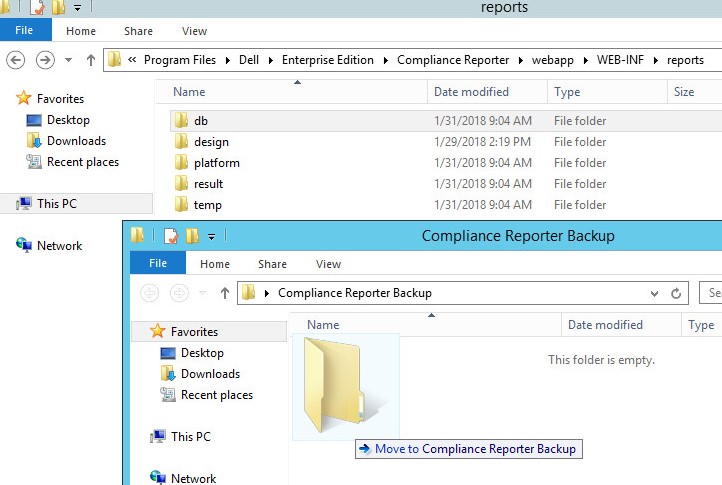
From the Dell Security Management Server, back up Program Files\Dell\Enterprise Edition\Compliance Reporter\webapp\web-inf\reports\db.
Note: The Compliance Reporter location may differ from the example if another directory was chosen during install.
Import
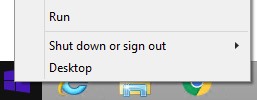
- Right-click the Windows start menu and then click Run.
- In the Run UI, type
services.mscand then press OK. This opens the Services UI.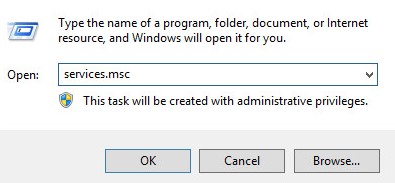
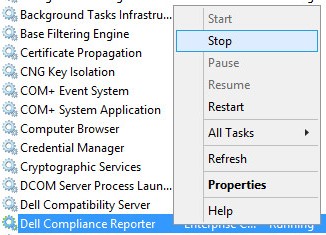
- In the Services UI, right-click Dell Compliance Reporter and then click Stop.
- Go to
Program Files\Dell\Enterprise Edition\Compliance Reporter\webapp\web-inf\reports\dband then delete:cmgreports.<VALUE>.logcmgreports.datacmgreports.indexcmgreports.lockcmgreports.trace
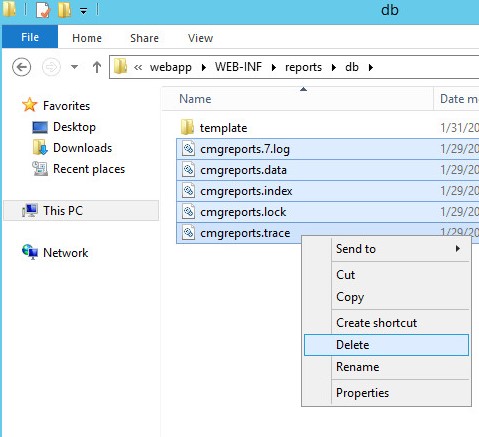 Note:
Note:- The Compliance Reporter location may differ from the example if another directory was chosen during install.
- In
cmgreport.<VALUE>.log,[VALUE]represents a numerical value which may differ in your environment.
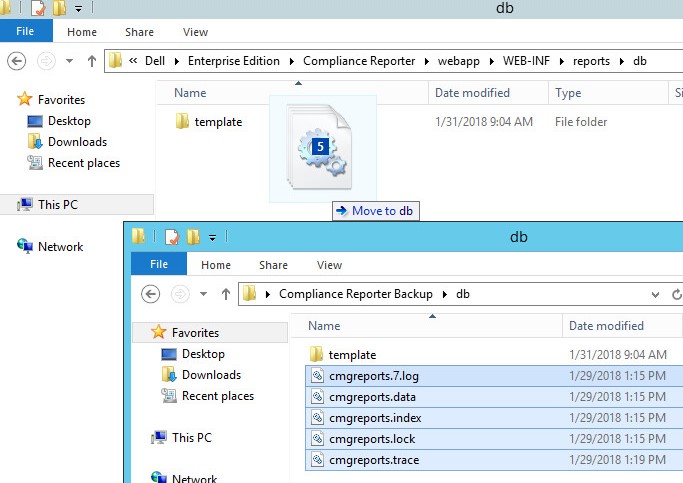
- Move the following files from the backup or custom report into
Program Files\Dell\Enterprise Edition\Compliance Reporter\webapp\web-inf\reports\db:cmgreports.<VALUE>.logcmgreports.datacmgreports.indexcmgreports.lockcmgreports.trace
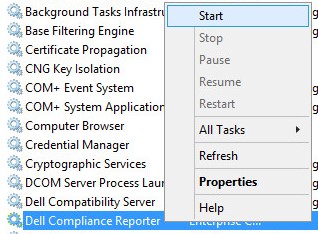
- From the Services UI, right-click Dell Compliance Reporter and then click Start.
To contact support, reference Dell Data Security International Support Phone Numbers.
Go to TechDirect to generate a technical support request online.
For additional insights and resources, join the Dell Security Community Forum.
Prodotti interessati
Dell EncryptionProprietà dell'articolo
Numero articolo: 000126860
Tipo di articolo: How To
Ultima modifica: 01 ago 2025
Versione: 10
Trova risposta alle tue domande dagli altri utenti Dell
Support Services
Verifica che il dispositivo sia coperto dai Servizi di supporto.