How to Enable Debug Logging for Dell Endpoint Security Suite Enterprise Web Control and Client Firewall
Riepilogo: Debug logging for Dell Endpoint Security Suite Enterprise Web Control and Client Firewall can be enabled using these instructions.
Questo articolo si applica a
Questo articolo non si applica a
Questo articolo non è legato a un prodotto specifico.
Non tutte le versioni del prodotto sono identificate in questo articolo.
Sintomi
Note:
- As of May 2022, Dell Endpoint Security Suite Enterprise has reached End of Maintenance. This product and its articles are no longer updated by Dell.
- As of January 2019, Dell Endpoint Security Suite Pro has reached End of Maintenance. This product and its articles are no longer updated by Dell.
- For more information, reference Product Life Cycle (End of Support and End of Life) Policy for Dell Data Security. If you have any questions on alternative articles, either reach out to your sales team or contact endpointsecurity@dell.com.
- Reference Endpoint Security for additional information about current products.
This article discusses how to enable debug logging to troubleshoot Dell Endpoint Security Enterprise Web Control and Client Firewall features.
Affected Products:
- Dell Endpoint Security Suite Enterprise
- Dell Endpoint Security Suite Pro
Causa
Not applicable
Risoluzione
To assist Dell in more quickly identifying the issue, Dell Technologies recommends that you enable verbosity (debug logging) and then reproduce the issue before collecting logs.
Warning: Verbosity should only be enabled to troubleshoot an issue. Dell Technologies recommends disabling verbosity after the issue is resolved. Endpoints may experience performance degradation while verbosity is enabled.
- From a web browser, go to the Dell Data Security administration console at https://servername.company.com:8443/webui.
Note:
- The example servername.company.com may differ from the server DNS in your environment.
- The port, 8443, may differ from the Remote Management Console port in your environment.
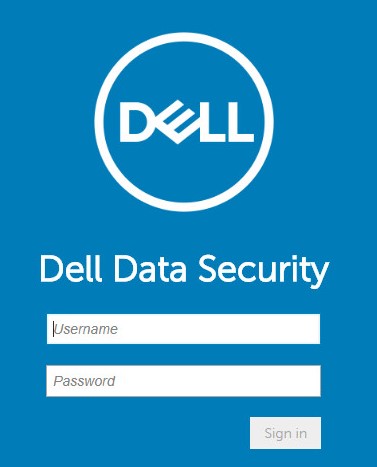
- Sign in to the Dell Data Security administration console.
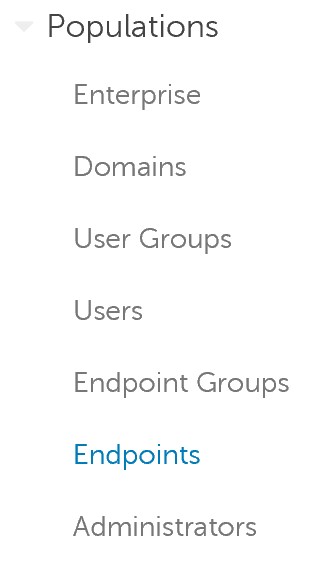
- In the left menu, expand Populations and then click Endpoints.
- Click the affected Hostname.
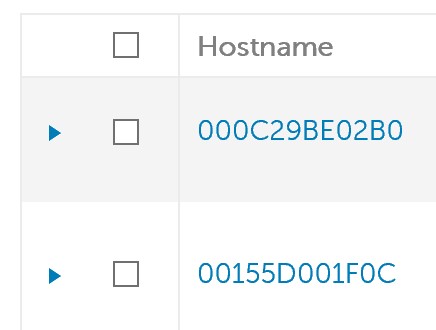
Note: The Hostname examples will differ in your environment.
- Under Threat Prevention, click Protection Settings.
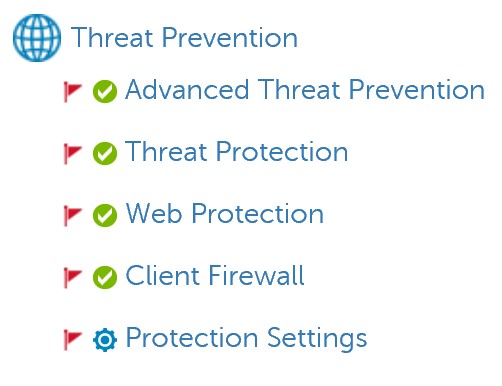
- Check Debug Logging for Web Protection and Debug Logging for Client Firewall.

- In the upper right corner, click Save.

- Commit the policy change.
Note:
- For more information, reference How to Commit Policies for Dell Data Security Servers.
- The hostname receives the updated policy on the next check-in.
- Reproduce the issue on the affected Hostname (Step 4).
To contact support, reference Dell Data Security International Support Phone Numbers.
Go to TechDirect to generate a technical support request online.
For additional insights and resources, join the Dell Security Community Forum.
Prodotti interessati
Dell Endpoint Security Suite Pro, Dell Endpoint Security Suite EnterpriseProprietà dell'articolo
Numero articolo: 000130129
Tipo di articolo: Solution
Ultima modifica: 03 nov 2023
Versione: 10
Trova risposta alle tue domande dagli altri utenti Dell
Support Services
Verifica che il dispositivo sia coperto dai Servizi di supporto.